
Navigation & Views
TensorPM is organized around a sidebar, a header, and task-specific work views.
Sidebar structure
Main sidebar entries in the current app:
- Context
- Guidance
- Actions
- Timeline
- People
- Budget
- Files
- Trail
Trail is the current label for historical distillation/change tracking.
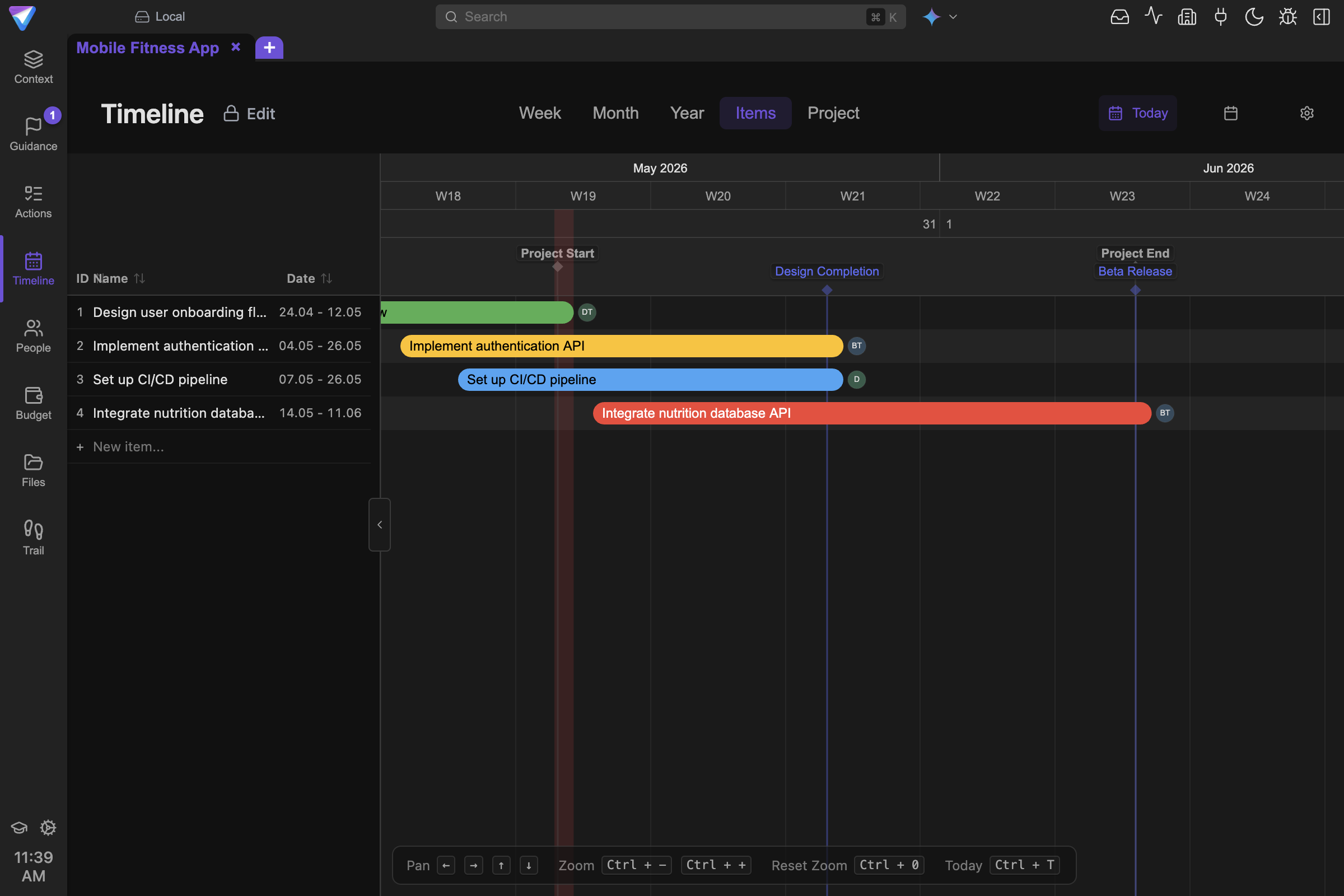
The Timeline makes it visible whether planned work fits into the available schedule.
Context area
Inside Context, the top tab bar is:
- Info
- Profile
- Resources
- Content
- Planning
- Risks
These tabs hold the central project truth used by Guidance and AI.
Actions area
Actions has three top tabs:
- List
- Board
- Recurring
Board has a subtype selector:
- Kanban
- Priority
Use List when you need precise editing, selection, and bulk operations.
Action header details:
- edit toggle appears in
List - settings gear can expose
Hide CompletedinListandPriority
Guidance area
Guidance supports two modes:
- AI+ mode
- User mode
In AI+ mode, main tabs are:
- Context
- Strategic
- Execution
- Coverage
Execution includes two sub-tabs:
- Action Items
- Critical Path
Header controls
The top header typically includes:
- search/navigation field
- model selector
- sync status indicator
- workspace switcher
- AI activity / intake indicators
- theme toggle
- bug report access
- AI panel toggle
The sync indicator and workspace switcher in the header are central for sync-state diagnostics and multi-workspace navigation.
Settings drawer
Settings tabs are:
- General
- AI
- User
- Info
Persistence behavior
Several view preferences are persisted per project/workspace, for example selected tabs and view modes.
Next steps
- Execution detail: Action Items
- Priority and quality checks: Guidance
- Supporting views: Resources