
Files, intake & trail
In short
TensorPM keeps project knowledge in one place and makes the origin of every piece of it visible.
Documents live in the Files view. Anything that arrives collects as a signal in the incoming
signals panel. The Distiller turns those signals into individual proposed changes to the project
context. You confirm or discard each one. From then on, Trail shows permanently what changed and
which source stands behind it.
The benefit: you never have to reconstruct why a date moved or a budget grew. It is written down in the project, with a timestamp and a source.
When you need this
- The client claims a date was never moved. You want to show which email the change came from and when it entered the project.
- A colleague changed the scope. You want to know who did it and on what grounds.
- You receive dozens of mails and documents a day and want only the relevant ones to reach the project.
- An authority asks what a design decision was based on. You need the chain from the document to the recorded decision.
- You take over a running project and want to understand how the current state came about.
The chain from file to confirmed context
This whole article describes a single chain. It helps to read it once end to end:
- A file or a message arrives.
- TensorPM turns it into a signal. A signal is an inbox note: a marker that something is here that might concern the project.
- You review the signal, or the automatic relevance check filters out obvious noise first.
- The Distiller reads the source and proposes individual, clearly bounded changes to the project context.
- You approve, append, reject, or skip each proposal on its own.
- Only the apply step at the end writes the confirmed changes into the project.
Trailshows forever what changed and where it came from.
At no point in this chain does TensorPM change the project context without your confirmation.
Files
Open the Files tab in the left sidebar. You see the project folder, meaning the folder on your
machine that you assigned to this project.
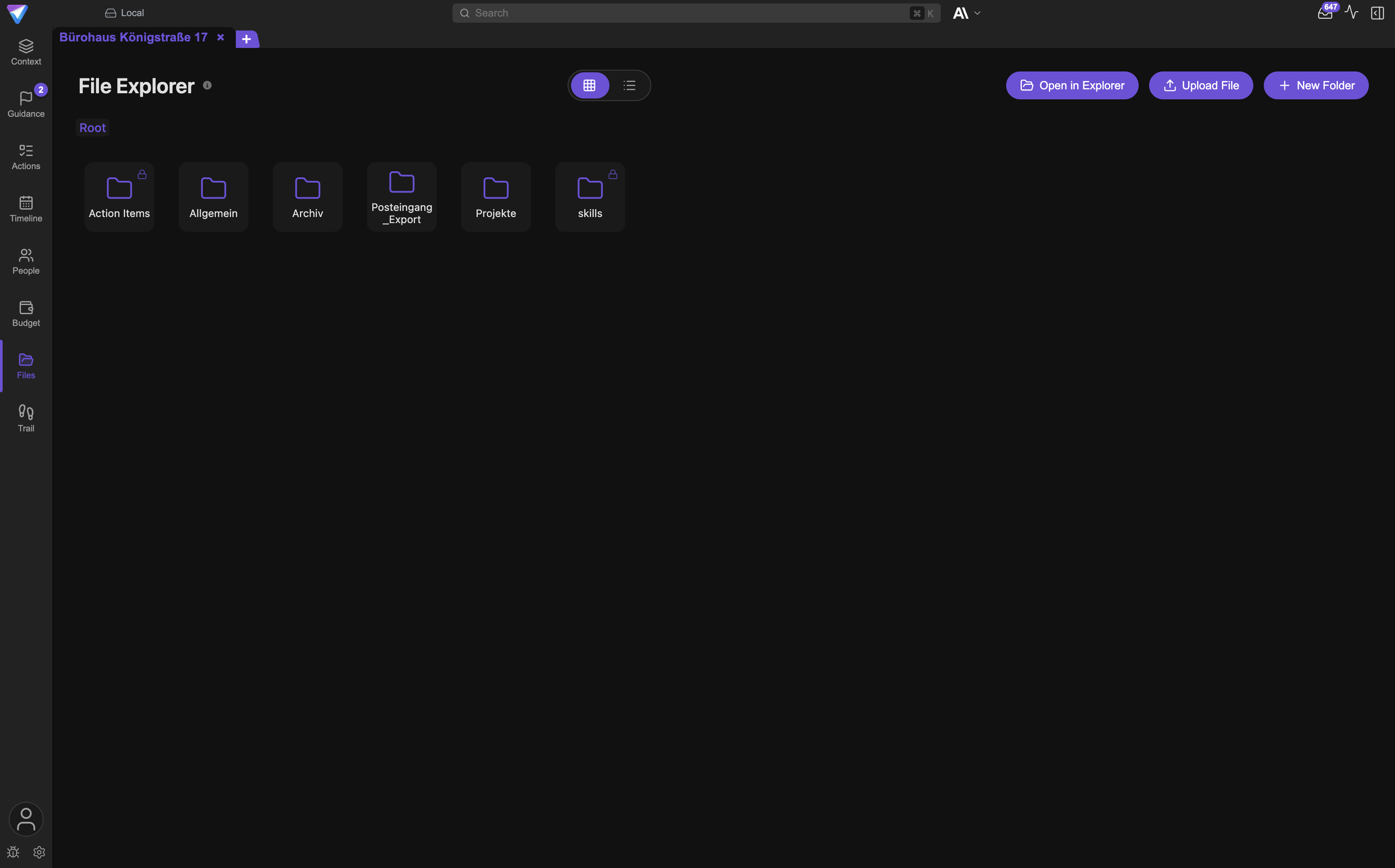
What you can do in Files
- Put documents into the current folder with
Upload File, or drag and drop them in. - Build a structure with
New Folder. A right-click on empty space opens the same menu. - Switch between
Grid viewandList view. In list view you sort by the column headersName,Type,Size,Modified, andStatus. - Search by file name with
Filter files. - Open the current folder in your operating system's file manager with
Open in Explorer. - Right-click a file for
Rename,Copy,Cut,Paste, or drag it into another folder. - Double-click a file to open it. TensorPM has no built-in preview. The file opens in whichever application your operating system uses for that format.
- Use
Attach to Action Itemsto attach a document as evidence to a task: a quote, an inspection report, an approved drawing. - Use
Attach to Chatto hand a document straight to the project agent in a conversation.
Important: Category folders are protected and cannot be deleted directly. The in-app help text for the view states this explicitly.
A file at the project is not content in the project context
This is the most important distinction in this article, and it is the one most often misread.
A file is at the project as soon as it sits in the project folder. It is filed, findable, and attachable to tasks. That is all. Its content influences neither the project description nor milestones, risks, or action items.
Content is in the project context once a statement from the document has been written into a
project field as a confirmed change, for example into Milestones, Risks, Scope, or an action
item. That happens only through the path signal -> Distiller -> your confirmation.
The practical consequence: a folder full of tender documents does not make the project any smarter. Only reviewed and confirmed proposals do. Conversely, a confirmed change stays in the project context even if you move the underlying file later.
The status next to a file tells you where it stands in this chain:
| Status | Meaning |
|---|---|
Evaluating... |
TensorPM is checking whether the file is relevant to the project. |
Summarizing... |
A summary is being written. |
AI Summarized |
A summary exists. The project context is not changed by that. |
Distilled with AI |
Proposed changes were derived from the file. |
Ignored for distillation |
The file is excluded from evaluation. |
Attached to 3 action items |
The file is attached to tasks as evidence. |
Summaries and duplicate detection
TensorPM can summarise supported formats: PDF, Word, Excel, PowerPoint, CSV, text and Markdown
files, plus common image formats. Trigger a summary by right-clicking the file and choosing
Generate Summary. The upload dialog offers the same checkbox, deliberately unticked by default.
A summary helps you triage quickly and gives the project agent a starting point when you discuss
the document in chat. It changes nothing in the project context. The upload dialog says so plainly:
Distillation is only available in the Distiller chat.
TensorPM also detects duplicates. When registering a file, the app computes a fingerprint from the file size and samples of its content. Two files with the same fingerprint count as the same file. That means:
- The same document in two folders does not create a second entry, only one entry with two locations.
- If you move a file outside TensorPM, the app recognises it at its new location. The summary and the links to action items survive.
- The same document in two projects is not read in twice.
The fingerprint works on content, not on file names. Quote.pdf and Quote_final.pdf with
identical content are one file to TensorPM. Two genuinely different versions stay separate even if
they share a name.
Choosing a safe project folder
Use a dedicated folder per project. Do not pick your entire home folder and do not pick a large company drive. Otherwise private documents and other people's projects end up in your signal list.
Important: The project folder is a local working folder. Do not assume cloud synchronisation stores every file in it, and do not assume the app's database backup covers it. Keep your usual document backup routine. If you change the project folder later, TensorPM does not move any files.
Signals
A signal is an inbox note. It says: something new is here that might concern the project, and nobody has decided yet whether it matters.
Signals appear on their own. Drop a file into the project folder and TensorPM notices and creates a signal. A mail arriving through a connector does the same. You do not have to trigger anything. At that moment TensorPM does not read the content, it only notes that something is there.
You reach signals through the inbox icon in the top bar. It shows how many signals are open. For
screen readers the panel is called Signals Panel, and it has three views:
Incoming Signals: everything not yet evaluated.Proposed Changes: signals the Distiller has already read, with the result.Ignored Signals: everything excluded from evaluation.
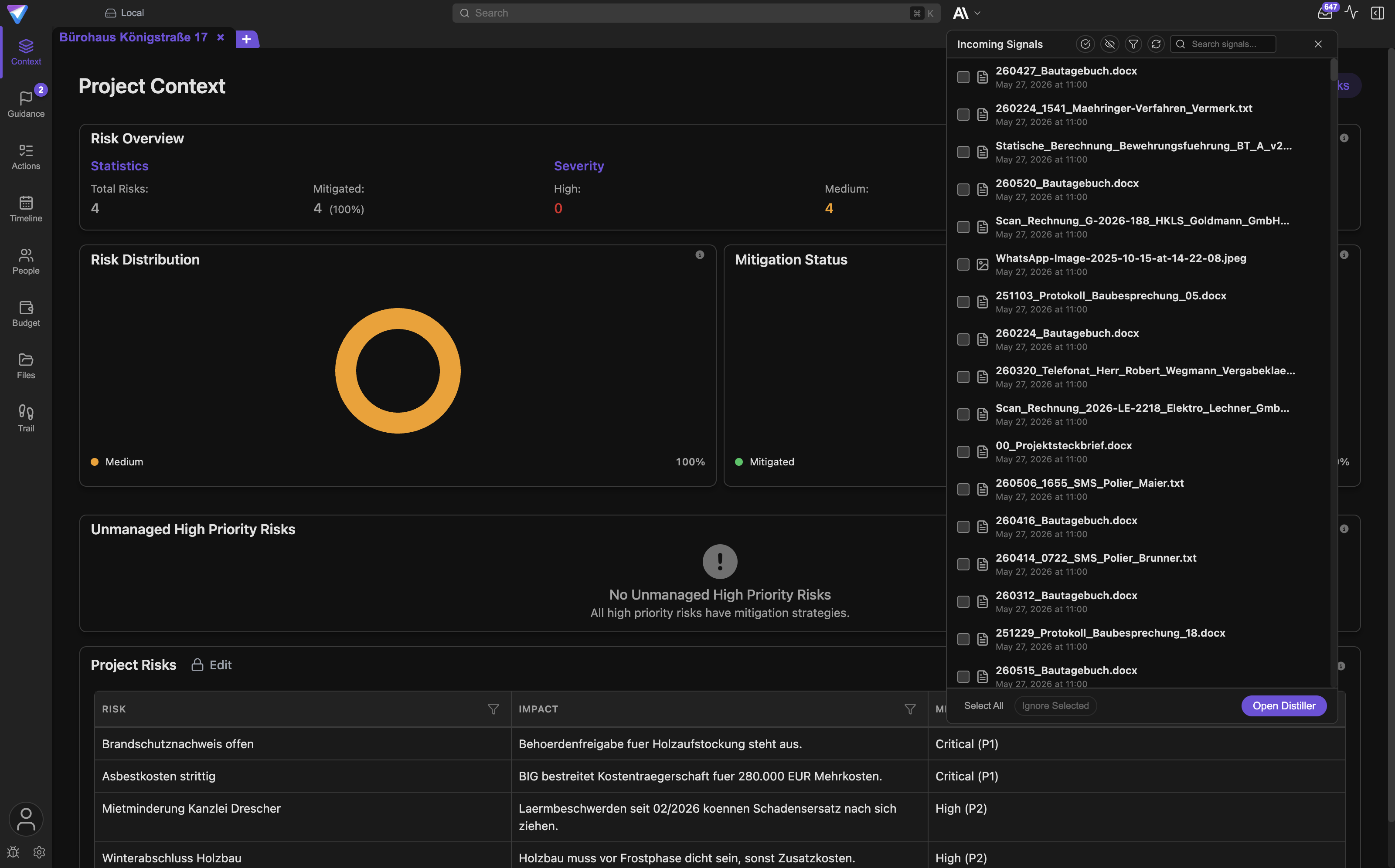
Where a signal comes from
The filter row lets you show and hide sources:
Files: documents from the project folder.Emails: messages from configured connectors. A connector is a saved connection to an external source, such as a mailbox.MCP Signals: submissions from external agents that talk to TensorPM through the agent interface.Show Allclears the filtering again.
Every entry carries a source badge: File, Folder, Email, MCP, or Doc. Emails also show
From: … and the subject, files show Source: ….
In Proposed Changes you filter by result type: Changes Proposed, Text Responses, or
No Distillations. That is how you quickly find the signals that would actually change something.
Show older results loads further back, and Search signals finds a specific one.
Reviewing a signal
- Open the signals panel when the counter reports new entries.
- Stay in
Incoming Signalsfirst and read the subject, sender, or file name. - Select the signals you want evaluated.
Select AllandDeselect Allhelp with long lists. - Click
Open Distiller. TensorPM starts the review with the messageReview the new signals and propose changes to the project context. - After evaluation the signal moves to
Proposed Changes. There it either saysProposed changes detected:with the affected areas, orNo changes proposed. - The entry shows
Evaluatedwith a timestamp. A signal currently being worked on is markedClaimed by distiller.
If a file says File is on another device, it was added on a different machine and cannot be read
here. Review it there, or ignore it.
Ignoring and restoring signals
Not everything belongs in the project. Duplicate exports, newsletters, system notices, old screenshots, and temporary files can be filtered out with a clear conscience.
- A single signal:
Ignore for distillationon the entry. - Several signals: select them, then
Ignore Selected. - Straight from
Files: right-click the file, thenIgnore for distillation.
Ignoring is never final. Switch to Ignored Signals, find the entry, and choose
Include for distillation. The same command exists in the Files context menu. The signal is then
queued for evaluation again.
Ignoring deletes nothing. The email stays in your mailbox, the file stays in the project folder. Only the evaluation is skipped.
Automatic relevance check
What it does
The automatic relevance check is a small, inexpensive AI check that looks at new connector emails
in the background before the Distiller reads them. If it detects spam or a message with no project
relevance, it moves the signal to Ignored Signals together with its reason.
You turn it on and off under Settings -> General -> Auto Relevance Check for Intakes. It is
off out of the box. As long as you leave it off, TensorPM never pre-sorts a single signal on
its own.
What matters as much is what it does not do: it never rejects anything and never writes into the project. All it can do is set a signal aside, visibly and with a reason.
Why it is optional
It is deliberately switchable, for three reasons:
- It makes a preliminary judgement that would otherwise be yours. If you want to see every incoming message yourself, leave it off.
- It consumes AI credits when you work through the TensorPM access. With very high message volumes that adds up.
- It only applies to emails from connectors. Files and signals from external agents pass through untouched.
For a noisy mailbox it almost always pays off. For a tightly managed project mailbox that receives nothing but project mail, it adds little.
Checking and reversing its verdict
The check does not work in the dark. Every automatically filtered signal sits in Ignored Signals
carrying either Auto-filtered as not relevant or Auto-filtered: followed by the reason in plain
language.
Here is how to handle it:
- Open the signals panel and switch to
Ignored Signals. - Read the reason. It tells you why the message was filtered out.
- If the call was wrong, choose
Include for distillation. - If mistakes pile up, switch the check off again in the settings.
The Distiller reuses the result of the pre-check and does not judge the same message twice. Nothing is checked twice and nothing is billed twice.
The Distiller and proposed changes
The Distiller is the review assistant for incoming information. It reads the source, extracts possible updates, and puts them in front of you. It decides nothing on its own.
In the app the review is called Distillation Review. It tells you up front how it works: items
are presented one by one, previous review decisions are taken into account, and you can approve,
adjust, or reject each suggestion. Start Review, or Check 3 open signals, gets you going.
Why every proposal is small
One proposal changes exactly one field or one entry: a description, a goal, a milestone, a risk, a
person, an action item. It arrives as its own card with Proposed changes, a before-and-after
comparison, and a rationale.
The narrow cut is intentional:
- You can agree without taking everything else with it. An email covering five topics becomes five cards, not one bulk change.
- A wrong proposal is a rejected proposal, not a package you have to unwind.
- Each card names the affected area in its header:
Description,Goal,Scope,Dependencies,Success Criteria,Requirements,Technologies,Milestones,Risks,Decisions,People,Action Item,Timeframe, orBudget. - The resulting trail entry is just as small, and therefore readable.
Show source reveals the excerpt of the original the proposal came from. Open source takes you
to the full file or email. When in doubt, always check the source before you agree.
Approve, append, reject, skip
Each card offers four decisions:
| Action | Effect |
|---|---|
Approve |
The proposal replaces the previous value. Badge afterwards: Approved. |
Append |
The proposal is appended to the existing text instead of replacing it. Badge: Appended. |
Reject |
The proposal is discarded. Badge: Rejected. |
Skip |
The decision is deferred. Badge: Skipped. |
Reject and Approve sit directly on the card. Append and Skip are behind the More button.
Append is the right move when the new information adds to the old one rather than contradicting
it: an extra constraint, another participant, a supplementary condition.
Adjusting happens in the chat. The Distiller runs as a conversation with the project agent. If a proposal is almost right, write into the chat what is missing or wrong. The agent presents a corrected version. You can just as well ask a question when a card is unclear.
For some signals the Distiller first asks about Project relevance. You answer Relevant,
Not relevant, or Skip. That is purely a routing question and changes nothing in the project
yet.
Your decisions collect visibly under Remembered: and under Previous review decisions. The agent
takes them into account on the following cards. Reject date proposals from newsletters three times
and it usually stops proposing the fourth.
Applying at the end
Nothing is written while you work through the cards. Only at the end does the summary
Review complete · 3 items appear, with the button Apply 3 items.
Clicking that button is the moment the project context changes. Everything before it is preparation. If you leave earlier, the project stays untouched.
The trail
Open Trail in the left sidebar. The view has two areas: Changes and Decisions.
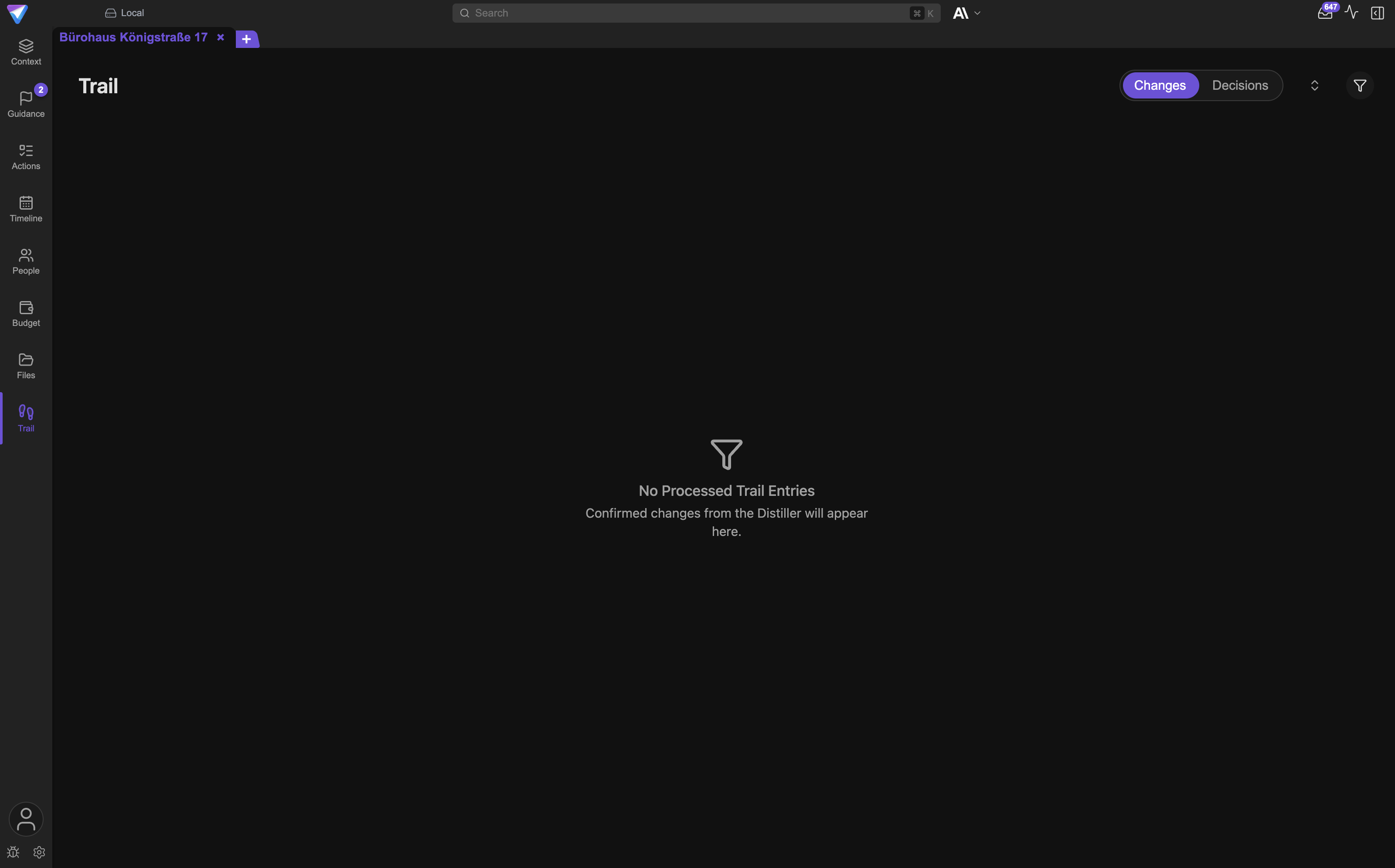
Changes
This lists every confirmed change to the project context, grouped by day, newest first. Today and
Yesterday are their own groups. Each entry names:
- the affected field, for example
Project Description,Milestones, orRisks, - a short summary of the change,
- the
Detected:timestamp and theProcessed:timestamp, - the
Source:block and, where present,Reasoning:.
Clicking an entry expands the detail. You see the before-and-after comparison, for tables down to
the individual row, for example Updated row 4 or 2 rows added. Collapse all and Expand all
switch the whole list. Filter & Sort narrows the list to individual fields and sorts by Field,
Created Date, or Updated Date. Load older entries fetches further back.
If it says No Processed Trail Entries, nothing has been confirmed in this project yet. The
subtitle spells it out: Confirmed changes from the Distiller will appear here.
Finding where a change came from
Every change knows its origin. There are two main routes:
From a signal. The Source: block points at the signal and the field it came from, meaning the
specific email or file. From there you reach the original document.
From a conversation. If the change was triggered by a chat message, the entry also carries a
small chip labelled Chat. Clicking it opens a window with the source details: who triggered the
change, and whether that was a person or an external agent. For agents it reads A2A agent,
MCP agent, or Telegram. The window also shows the timestamp, the conversation title, and an
excerpt of the triggering message.
That window holds the actual back-reference: Open in chat. TensorPM jumps into the conversation
and highlights exactly the message that caused the change. Behind the scenes the app remembers a
pointer shaped like chat://<conversation>/<message>. You never have to type that. It only
explains why the jump still lands correctly months later.
Two edge cases that should not worry you:
Source details unavailable.means this is a very old entry that does not carry a precise pointer yet. The change itself remains valid.The triggering message no longer exists.appears when the conversation was deleted. The trail entry survives regardless.
Decisions
Changes tell you what happened. Decisions tell you what holds. Use Decisions for binding
commitments: scope, budget ceiling, award to a subcontractor, accepted risk, chosen variant.
The header button Decision (tooltip: Add decision) creates one. The form asks
What was decided and Rationale (optional). Always write the rationale. It is the context
future-you will need. Save decision files the entry.
Every decision has a status:
| Status | Meaning |
|---|---|
Active |
Currently holds. |
Superseded |
Replaced by a newer decision. |
Withdrawn |
No longer holds, with no replacement. |
There is also a source: Stakeholder, Top-down, Agent, User, or Derived. Filter & Sort
filters by status and source and sorts by Decided, Created, or Updated.
Important: Out of the box the list only shows decisions with status
Active. Superseded and withdrawn decisions are not gone, they are hidden. TickSupersededandWithdrawnunderStatusin the filter to see the full chain. That is exactly what you need when proving a history to a third party.
When a decision changes, do not overwrite it. Use Edit (creates a superseding revision). TensorPM
files a new version and links the two visibly: the new one reads Supersedes #12, the old one
Superseded by #14. If something falls away with no replacement, use Withdraw. A mistake can be
undone with Reactivate.
Withdraw and Delete are deliberately two-click actions. After the first click the button reads
Click again to withdraw or Click again to delete. Wait too long and it resets. No commitment
disappears through a misclick.
That keeps the chain readable: what held when, what holds now, and why it changed.
What the record is good for
This is not bookkeeping for its own sake. The trail answers questions that hurt in real projects:
- Towards the client: the schedule change came from the designer's mail of 14 May, applied on 15 May. Source and date sit on the entry.
- Towards an authority: the design decision is on record as
Activewith its rationale, and the discarded variant asSupersededwith a pointer to its successor. - Towards colleagues: who changed the scope is in the source window, complete with a jump to the triggering message.
- Towards yourself: after four weeks of holiday you see in five minutes what moved and on what basis.
- In a claim or a dispute: you are not presenting an assertion but a chain of original document, review timestamp, and confirmed change.
Worked example: an email moves the handover date
Starting point: an email connector is configured for the project. On Tuesday at 09:12 the checking engineer writes that the handover has to slip from week 22 to week 24.
- The message arrives. The connector fetches it. TensorPM creates a signal with the source
badge
Email. The counter on the inbox icon goes up. - The pre-check runs. The automatic relevance check recognises a genuine project message and
leaves it in place. Had it been a newsletter, it would now sit in
Ignored Signalswith its reason. - You open the signals panel. In
Incoming Signalsyou filter toEmailsand seeFrom: engineering@…with the subject. - You start the review. You select the signal and click
Open Distiller. - Project relevance is confirmed. The Distiller asks about
Project relevance. You answerRelevant. - The first proposal appears. A card under
Milestonesproposes moving the handover milestone from week 22 to week 24. The before-and-after comparison shows both values, and the rationale quotes the sentence from the mail. - You check the source.
Show sourcereveals the original passage. It matches. - You decide.
Approve. The card gets the badgeApproved. - The second proposal appears. A card under
Action Itemwants to create a task "obtain variation quote". The engineer only mentioned that in passing and you do not want it in the project.Reject. - A third proposal is almost right. It wants to overwrite the risk "schedule delay" even
though the existing text still holds. You write into the chat: "Please do not replace it, just
add the new reason." The agent presents an adjusted card. You choose
Append. - You finish. The summary reports
Review complete · 2 items. You clickApply 2 items. - The context is updated. The milestone now reads week 24. The
Project Contextview and the timeline show the new date. - The record is in place. Under
Trail->Changesyou find the entry for theMilestonesfield underToday, withDetected:09:12,Processed:09:41, and theSource:block pointing at the engineer's mail. - Three months later. The client asks. You open the trail entry, follow the source to the
original mail, and have sender, date, and wording. Had you instead moved the date in chat, the
Chatchip andOpen in chatwould take you to the exact message you gave the instruction in.
The signal itself remains in Proposed Changes, marked Evaluated, with the detected changes.
Nothing is lost, not even what you rejected.
What happens behind the scenes
As much technology as you need, and no more:
- Signals are references, not copies. TensorPM notes that a particular mail or file arrived. Your mail stays in your mailbox, your file stays in the project folder.
- The fingerprint recognises content. It is built from the file size and two small content samples. That is how TensorPM spots moved and duplicated files without reading every file in full again.
- The Distiller has to report completely. Before showing cards, it internally lists every project-relevant statement in the source and assigns each to one of three buckets: propose, already captured, not project relevant. Silently dropping a fact is forbidden. That is why you sometimes get cards on topics you would not have thought of.
- The Distiller is a conversation. It runs in a chat with the project agent, which is why you
can ask questions and correct it. Unlike normal chats, the
Steerfunction is disabled in Distiller conversations so a running review cannot be redirected mid-assessment. - A confirmed change writes two things. The new value in the project context and a trail entry with its origin pointer. Both happen together, never separately.
- The origin pointer is a text field on the entry. For signals it points at signal and field, for chat changes at conversation and message. It is encrypted like the rest of your project content and syncs along if you use the cloud.
- AI usage arises in three places: summarising a file, the automatic relevance check, and distillation. If you work with your own provider keys, none of it consumes TensorPM credits.
A reliable weekly routine
- File working documents in the project folder instead of leaving them in mail attachments.
- Attach evidence to the matching tasks with
Attach to Action Items. - Open the signals panel once a day and clear
Incoming Signals: evaluate or ignore. - Approve only proposals you have understood and checked against the source.
- At the weekend, skim
Trail->Changesfor anything unexpected. - Record every binding commitment from that week under
Decisions, with a rationale. - Once a month, review
Ignored Signalsfor anything filtered out unfairly.
Frequently asked questions
Does TensorPM change the project without me noticing? No. The project context changes only when you approve cards during the review and then click the apply button. The automatic relevance check can set a signal aside, but it writes nothing into the project.
Why is there no proposed change for a file?
Either it has not been evaluated yet, in which case it sits in Incoming Signals. Or it was
evaluated and contained nothing project-relevant, in which case the entry reads No changes proposed. Or it is ignored.
What is the difference between a summary and a distillation? A summary is a short version of the document and changes nothing. A distillation produces concrete proposed changes to project fields, which you have to confirm.
Can I undo a confirmed change?
You correct the value where it lives, for example in Project Context. That correction produces
its own trail entry. The old entry stays. The trail is never rewritten, otherwise it would be
worthless as evidence.
Where do I delete a signal permanently?
Nowhere, and that is by design. Ignore for distillation takes it out of evaluation, which is all
that is needed. Delete the file in the project folder or the mail in your mailbox and the source
disappears, but changes already confirmed remain in the project.
Do files in the project folder automatically count as project knowledge? No. They are at the project. They reach the project context only through the reviewed path.
Why are the proposals so granular? So you can agree to them one at a time. A bundled proposal forces you to accept the right and the wrong parts together, or reject both.
Can a colleague see in the trail that I triggered a change? Yes, if the project is shared. The source window names the person or agent that triggered it. That is precisely what makes the trail usable as evidence.
What happens to the trail if I change the project folder? Nothing. The trail belongs to the project, not to the folder. Files are not moved when you switch.
If something does not work
Symptom: the Files view is empty although documents are in the folder.
Cause: a different project folder is assigned, or TensorPM is not allowed to read it.
Fix: check the assigned folder in the project settings and open it with Open in Explorer to
verify.
Symptom: no new signals arrive.
Cause: no connector configured, the connector is not assigned to a project, or it needs to sign in
again.
Fix: open the connector overview through the Connectors button on the start screen and check the
status. A badge such as RECONNECT or SIGN IN shows the problem. Details in
Connectors & approvals.
Symptom: an important mail is in Ignored Signals.
Cause: it was ignored manually or filtered out by the automatic relevance check.
Fix: read the reason on the entry and choose Include for distillation. If it happens often, turn
the check off under Settings -> General.
Symptom: a signal stays on Claimed by distiller.
Cause: a review was started and never finished.
Fix: reopen the review with Open Distiller and either complete or abandon it.
Symptom: the review does not start.
Cause: no AI access is configured, or the credits are used up.
Fix: check the account popover at the bottom left and the settings under AI. See
Account & AI modes.
Symptom: a signal reads File is on another device.
Cause: the file was added on a different machine and is not present here.
Fix: evaluate it on that device, or ignore the signal here.
Symptom: the trail shows Source details unavailable.
Cause: the entry comes from an older version that did not store a precise pointer yet.
Fix: nothing to do. The change and its timestamp remain valid. New entries carry the full pointer.
Symptom: the trail shows No Processed Trail Entries.
Cause: no distillation has been confirmed in this project yet.
Fix: run a review and apply at least one item.
Symptom: a change is missing from the project after applying.
Cause: the card was skipped rather than approved, or its value was already set.
Fix: check the badges in the summary. If it says No effective changes, the value was already
correct.
Symptom: the same document appears twice in the list. Cause: the two files differ in content, so duplicate detection does not kick in. Fix: compare the versions, then delete the outdated one in the project folder or ignore it for evaluation.
Next steps
- Connect sources and understand approvals: Connectors & approvals
- Link evidence to work: Action Items
- Work in conversation with the project agent: AI panel
- See where the project context lands: Navigation & views
- Look up terminology: Glossary
- If something is fundamentally stuck: Troubleshooting