
Agent Integrations
In short
TensorPM can work together with other AI programs. This happens in two directions, and it pays to keep them apart.
In one direction, another program reaches into TensorPM. Your coding assistant or your chat program then reads the same project data you see in TensorPM, and it can create Action Items or record decisions.
In the other direction, TensorPM uses outside helpers to get work done. The project agent can hand an Action Item to a coding agent installed on your machine, ask GitHub about tickets, or run research in a browser of its own.
This page is optional. You can use TensorPM fully without setting up a single integration.
When you need this
Two everyday situations make the point fastest.
Example 1: your coding assistant already knows where the project stands. You work on a piece of software and use an AI assistant inside your editor. Every time you open it, you have to explain what the project is about, which decisions have been made, and what comes next. A connection removes that step. The assistant asks TensorPM itself and receives goals, Action Items, decisions, and the timeframe exactly as you confirmed them in the app. When it finishes, it can write the result straight back into TensorPM instead of you typing it up in the evening.
Example 2: browser research you would rather not do yourself. You need current specifications from three manufacturer websites for a construction project. Instead of clicking through them yourself, you start the browser agent from the chat. It opens a browser of its own, works through the pages, and returns the result to the chat.
If you only work inside the TensorPM interface, you need none of this.
Two directions you should not mix up
The names in the app are easy to confuse because the letters MCP appear in both.
| In the app | Direction | What it means |
|---|---|---|
Section MCP Server |
1 | TensorPM makes itself available to other programs. This is where you install TensorPM into Claude Desktop, Cursor, and similar tools. |
Section MCP Client |
2 | TensorPM reaches out to an external service. This is where you register an outside server the TensorPM project agent is allowed to use. |
External Agents in Settings |
2 | TensorPM hands work to a program installed on your machine. |
A simple way to remember it: in MCP Server you give something out. In MCP Client you bring
something in.
Direction 1: other programs reach into TensorPM
What MCP actually is
MCP is a shared language that AI programs use to reach tools and data. Instead of every program needing its own special-case solution for TensorPM, they all speak the same language. Anything that speaks it can use TensorPM.
You do not need to understand that language. From your side it looks like this: you click an install button once, restart the other program, and from then on it knows your projects.
TensorPM offers fixed tools, not an open database. A connected program can list your projects and workspaces, fetch a project with its full context, read, create, and update Action Items, record, supersede, or withdraw decisions, propose changes to the project context, and report an Action Item as done. There is even a tool that lets another program send a message to the TensorPM project agent. Each of these tools has one clearly bounded purpose.
Some tools only appear once you are signed in to TensorPM, for example those about your subscription and credits. Tools for code execution and skills are deliberately not offered over MCP at all.
Where you set this up
The entry point is not in Settings. It sits on the start screen.
- Close an open project or restart TensorPM until you see the start screen.
- Click the
Connectorsbutton. - The
Configure Connectorspanel opens. The list on the left is grouped into sections. - Scroll to the
MCP Serversection.
There you find the programs that already have TensorPM registered, with their status:
Connected, if the program has reported in to TensorPM at least onceDisconnectedwith theIDLEmarker, if the entry was written but the program has never opened a connection
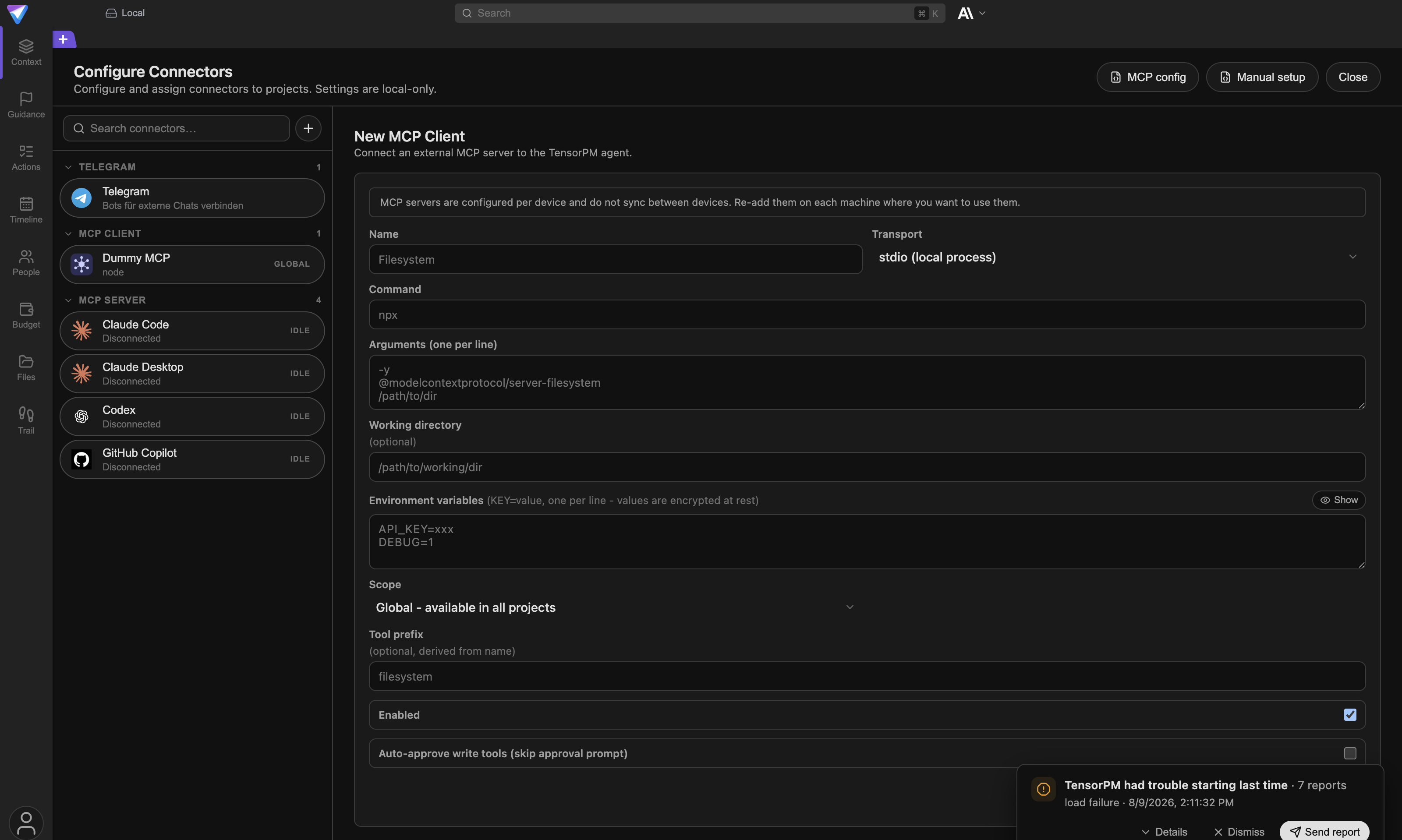
Programs that do not have TensorPM registered yet are not in this list. They carry the INSTALL
marker, and you reach them through the + button next to the search field, entry
Install MCP Server in….
Programs that work with one click
TensorPM ships a ready-made installation path for ten common programs:
- Claude Desktop
- Claude Code
- GitHub Copilot
- Cursor
- Windsurf
- Zed
- Continue
- Cline
- Antigravity
- Codex
The flow is the same for all of them. You pick the program and see a short explanation on the right:
Install writes the TensorPM MCP server config into the {program} config file. Below that, under
Target config, you see the exact path of the file that will change. One click on
Install in {program} does the rest. TensorPM writes its entry and leaves everything else in the
file untouched.
On success the app reports MCP integration installed.
Important: Fully restart the other program afterwards. Closing a single window is not enough for most programs, because the background process keeps running and holds on to the old configuration.
Then check the connection with a harmless request, for example: "List my TensorPM projects." If a list comes back, the connection works.
Two things are easy to miss here:
The TensorPM app has to be running. A connected program does not talk to a file on disk, it talks to the running app.
The entry is written for your user account, not for a single project. A connected program therefore sees all of your projects and picks which one to query.
The manual route for every other program
Any program that speaks MCP can be registered by hand, even if it is not in the list.
Click Manual setup at the top right of the panel. The Manual MCP Setup view describes itself
like this: Configure TensorPM in any MCP-capable client that is not in the built-in installer list. It shows you:
- the path to the
MCP server binary, meaning the part of the program the other tool should start, with aCopybutton next to it - the
Command, meaning the launch command - the matching
Config snippet, meaning the ready-made block of text to paste, in three formats:JSON (Claude Desktop, Cursor, generic),TOML (Codex), andYAML (Continue) - a note about the
Bridge auth token
In JSON form, the snippet has this shape. The angle brackets stand for values that differ on your
machine and that you fetch straight from the app with Copy snippet:
{
  "mcpServers": {
    "tensorpm": {
      "command": "<launch command from the app>",
      "args": ["<path to the MCP server binary from the app>"],
      "env": {}
    }
  }
}
Always copy these values fresh from the app. Do not retype them from an old set of notes: the path depends on where TensorPM lives on your machine, and it changes when you move or update the app.
The env entry stays deliberately thin. TensorPM passes only a few harmless system values such as
language and the log folder. No credentials go in there.
The access key stays on disk
Part of the security setup is an access key, called Bridge auth token in the app. The MCP server
part is a small program of its own that talks to the running TensorPM app over a purely local
connection. Every request across that connection has to carry the key, otherwise it is rejected.
TensorPM manages the key itself. It lives in a file at ~/.tensorpm/mcp-bridge-token that only your
user account may read, and the MCP server part fetches it from there at startup.
The app states this explicitly: Do not put the token in your client config. The reason is simple.
Config files get copied, shared, and swept into backups. An access key inside one travels along.
If the view reports Token file missing - start the TensorPM app first., the app has never fully
started. Start it once and reopen the view. In the status area of a connected program, the Bridge
line also tells you whether it works with a key (Authenticated) or without one (Standalone).
A2A: another AI program asks TensorPM directly
MCP puts individual tools into another program's hands. A2A goes one step further: it is a way for another AI program to ask the TensorPM project agent something directly, in plain language, the same way you do in the chat.
The difference in practice:
- Over MCP a program asks: "Give me the list of open Action Items."
- Over A2A a program asks: "What is the biggest bottleneck in the project right now, and what should we tackle first?"
With A2A the TensorPM project agent answers, drawing on everything it knows about the project. With MCP a single tool answers.
TensorPM introduces itself with a kind of profile card. There is a general one for the app and one per project. The project card names six capabilities: communication with the project agent, Action Items, project context, budget, people, and categories. Four of them explicitly say that only the TensorPM main agent may change them. An outside program can therefore read project context, budget, people, and categories, but it cannot rewrite them directly. It has to ask the project agent, and the agent applies the same rules it applies in the chat with you.
Where A2A listens and which endpoints exist
A2A starts automatically with the app. There is nothing to switch on and no setting for it.
The entrance is at localhost:37850. "localhost" means: reachable only on this machine. The service
is deliberately bound to that address, so other devices on your network cannot reach it. For
comparison, the MCP part uses localhost:37849, also local only.
These endpoints are available:
| Endpoint | What it is for |
|---|---|
GET /health |
Is the service running at all |
GET /.well-known/agent.json |
General profile card: who I am, what I can do |
GET /projects |
List of projects with their identifiers |
POST /projects |
Create a new project |
GET /projects/:id |
A single project |
GET /projects/:id/.well-known/agent.json |
Profile card for one project |
GET /projects/:id/contexts |
List of running conversations |
GET /projects/:id/contexts/:ctxId/messages |
The history of one conversation |
GET /projects/:id/action-items |
Action Items of the project |
POST /projects/:id/action-items |
Create new Action Items |
POST /projects/:id/a2a |
The actual question to the project agent |
GET /workspaces and POST /workspaces/:id/activate |
Inspect and switch the workspace |
GET /integrations/mcp/status and POST /integrations/mcp/install |
Check and set up the MCP integration |
The last one, the actual question, accepts several commands. The main one is message/send, which
submits a question. message/stream delivers the answer piece by piece as it is written. There are
also commands to look up, list, or cancel running jobs. To continue a conversation, a program sends
along the identifier of the earlier one.
The honest note about securing A2A
By default A2A asks for no password. Its protection is that the entrance is only reachable locally. Anything running on your machine counts as trusted.
For most situations that is a fair trade: whoever can already run programs on your machine can reach your files anyway. There are two cases where you should judge it differently.
First: several people share the same user account on the same machine. Second: you install software you do not fully trust.
For those cases there is optional protection with an access word of your choosing. It is set through
the environment variable A2A_HTTP_AUTH_TOKEN, meaning an operating-system setting that is read when
the app starts. This is not a button in the interface and is aimed at administrators. With the
variable set, every request has to carry the access word. Three endpoints stay open anyway, because
they only describe the service itself: the running check, the profile cards, and the project list.
The same logic applies to the MCP part, only inverted: there the key is always active. But anyone who can read the key file on your machine can also make requests with it.
Direction 2: TensorPM uses external agents
Connecting external MCP servers to TensorPM
The TensorPM project agent can use outside tools as well. You register such a server in the
MCP Client section.
- Open
Connectors->Configure Connectors. - Click the
+button and chooseMCP Client. - The
New MCP Clientform appears on the right, with the subtitleConnect an external MCP server to the TensorPM agent.
These are the fields you fill in:
| Field | What it means |
|---|---|
Name |
A name you will recognise |
Transport |
stdio (local process) starts a program on your machine. HTTP (streamable) talks to a service on the network. |
Command and Arguments (one per line) |
stdio only: which program starts, with which details |
URL |
HTTP only: the address of the service |
Working directory |
Optional. Which folder the program works in |
Environment variables or Headers |
Credentials belong here. The values are stored encrypted. |
Scope |
Global - available in all projects or Project - only in selected project |
Tool prefix |
Optional. A name addition so tools from two servers do not collide |
Enabled |
Turns the server on and off without deleting it |
Auto-approve write tools (skip approval prompt) |
Removes the confirmation step for changing actions |
To save, click Save MCP Client; when editing, the button reads Update MCP Client.
Two things are easy to overlook:
First, the app stores credentials from the Environment variables and Headers fields encrypted.
That is exactly where they belong, not in a project note and not in a file inside the project
folder. The eye icon with Show and Hide controls whether the values appear in plain text in the
form.
Second, the note the app shows above the form applies: MCP servers are configured per device and do not sync between devices. Re-add them on each machine where you want to use them. A registered
server therefore does not travel to your second machine through Cloud Sync.
If you prefer to edit the config file directly, the MCP config button takes you there. It opens the
file listing the servers the TensorPM agent uses, not the settings from direction 1. The in-app
editor is still the better route, because it validates your input and shows the active Scope
clearly. The configuration is read from these locations, in this order:
~/.tensorpm/agent-mcps.json.tensorpm/agent-mcps.json.tensorpm/agent-mcps.local.json
After saving, the detail view shows under Available tools which tools the server offers, and
Refresh fetches the list again. Servers that require a sign-in are authorised with Authorize;
the status then reads Authorized or Not authorized.
How approvals work for external tools
When the project agent wants to use a tool from an external server that changes data, it asks you
first. A card headed Permission requested appears in the chat.
The card states which Connector is asking, which Action is about to run, and with which Inputs.
Show details expands the exact values. Actions that can change or remove data additionally carry
the Changes data marker.
You have three options:
Allowruns exactly this one action.Don’t allowcancels it.Always allowremembers the decision for this server, so future requests from it go through without asking.
Note that Always allow is only offered for harmless actions. For an action marked Changes data
that button is deliberately absent, so nobody hands out a blanket permission for deletions by
accident.
The Auto-approve write tools (skip approval prompt) checkbox in the form switches these
confirmations off entirely for one server. Leave it off as long as you do not know a server well.
Codex and Claude Code as local coding agents
For software projects, TensorPM can hand an Action Item to a coding agent installed on your machine.
Two are supported: Codex and Claude Code.
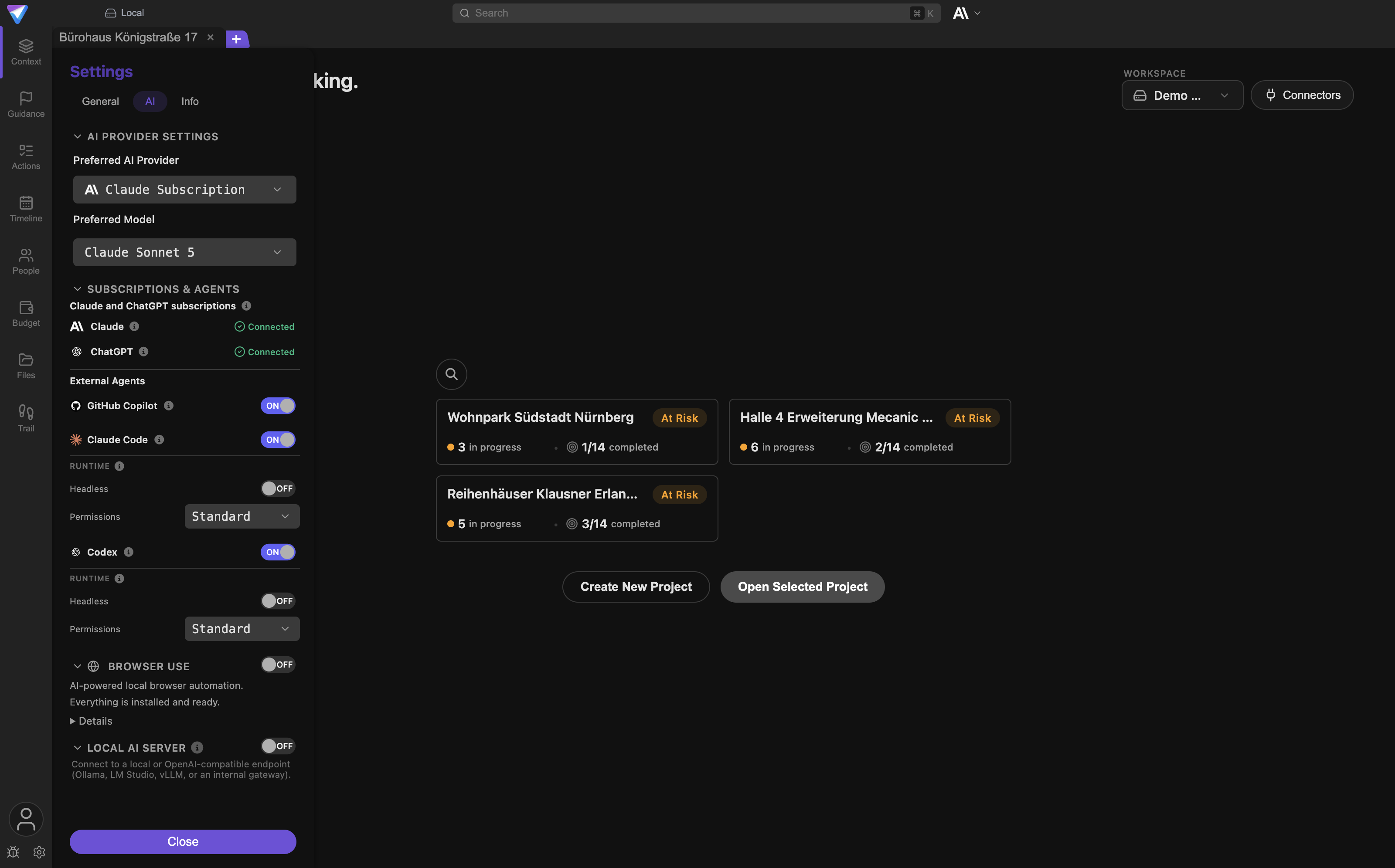
You enable them under Settings -> AI -> Subscriptions & Agents. The subsection is called
External Agents. The app checks by itself whether the program is installed. If it is missing, you
see a message such as Codex CLI not detected, and the toggle has no effect.
Work is handed over through an Action Item. In an Action Item's assignee picker, the enabled agents
appear under Available agents. The entry also names the device, because an agent always runs on
exactly the machine it is installed on. You pick a role alongside it, which states what you expect:
developer: implements features, fixes bugs, and updates technical artifactsarchitect: defines architecture and technical approachreviewer: reviews completed work
The run starts as soon as you save the assignment. The agent is told the title, description, status, priority, due date, dependencies, and attached files of the Action Item, plus its role and the working directory. It works inside the project folder of the project the Action Item belongs to.
If you remove the assignment while a run is in progress, TensorPM cancels the run.
Before you hand over an Action Item, four minutes of preparation pay off:
- Describe the outcome you want, not the route to it.
- Write down how you will know the work is finished.
- Attach the source material that is needed.
- Pick the narrowest permission that still gets the job done.
What comes out at the end of a run
A run does not end silently. You get three things.
First, the agent reports its result, and on success the Action Item moves to Completed.
Second, TensorPM writes a report file into the project folder, inside the subfolder for that Action Item. The file name carries the date, the time, and the outcome. The report holds a summary and a detailed part in which the agent lists which files it changed, which checks it ran, and what stayed open. If a run ends without a result, that report serves as the starting point for the next attempt.
Third, the files in the project folder really have changed. There is no intermediate approval here the way there is for an email. So look at the changes before you pass them on.
The architect role adds one twist: its result is also written into the Action Item description, so
the next agent can build on it.
The two permission modes
Below each enabled coding agent sits a Runtime section with two settings. The first is called
Permissions and has two values. The difference matters.
Standard is the safe default. With Codex, the agent runs inside a fenced-off area that allows
writing only within the working folder. With Claude Code, the program's own built-in safety prompts
stay active, and TensorPM additionally narrows which tools the agent may call at all.
Full (Unsafe) removes exactly those safeguards. The app describes it in its own words: "Bypasses
approvals/sandbox. Use only in trusted environments." The agent can then do whatever the program
allows, without asking.
The word "Unsafe" in the name is not decoration. Use Full (Unsafe) only when you know why you need
it, and only in a project folder whose loss you could live with.
The two runtime modes
The second setting in the Runtime section is the Headless toggle. It decides whether you can
watch the work happen.
With the Headless checkbox set, the agent runs invisibly in the background. That is the quiet mode
for work where you just want to wait for the result.
Without Headless, the agent runs interactively. TensorPM opens a window with a live terminal
session where you can read along and step in. That is useful when you want to keep an eye on a new
kind of task the first few times.
Only in interactive mode can TensorPM also offer to write a short pointer block into your project's instruction file, so the agent knows on its own that it should use TensorPM. The offer appears as a system dialog, and you can decline it permanently.
GitHub Copilot as a lookup agent
GitHub Copilot sits in the same list but plays a different part from the other two. It is never
assigned an Action Item and does not work inside your project folder. Instead, the TensorPM project
agent can consult it during a conversation whenever GitHub comes up. That is why it has no
Permissions selector and no Runtime selector, only the on/off toggle.
The app describes it like this: "Enable TensorPM to delegate suitable coding and repository tasks to GitHub Copilot." In practice that means questions about issues, pull requests, commits, branches, and source code.
Two points worth knowing. The access covers every GitHub repository your GitHub account can reach, not only the one belonging to the current project. If your account also reaches repositories of another client, an unfortunate question can land there. And within those queries there is no individual confirmation step: the toggle in Settings is the decision, not each single lookup.
It requires the standalone Copilot command-line tool on your machine plus an active GitHub Copilot
subscription. It is deliberately not bundled with TensorPM, because it would add several hundred
megabytes to the download. If it is missing, the app reports GitHub Copilot CLI not detected.
The browser agent
The browser agent drives a browser on your machine and works through a task you describe in plain language.
It has requirements of its own and therefore needs a one-time setup. You find it under Settings ->
AI in the Browser Use group, described as "AI-powered local browser automation."
The app checks three things and shows you the outcome as a summary:
- Python 3.11 or newer. You have to install this part yourself. If it is missing, the app says
Python 3.11 or newer is required. - The browser-use package. If it is missing, the app says
browser-use is not installed yet.and theInstall browser-usebutton handles it. - Chromium. If it is missing, the app says
browser-use is installed, but Chromium is still missing.and theInstall Chromiumbutton fetches it.
Once everything is there, the app reports Everything is installed and ready. The process can take a
while, which the app flags with This may take a minute.... Details shows the state of each
individual requirement.
The Headless toggle decides whether you can watch. The app explains it as: "Headless: Browser runs
invisibly in the background. Disable to see the browser window during automation." For your first
attempts, turn Headless off. Then you can see what the agent actually clicks. The visible mode is
the default.
You start the browser agent from the chat. Open the + menu there and choose Start Browser Agent.
While a session runs, the entry reads Stop Browser Agent. TensorPM opens a separate chat for it, so
your existing conversation stays untouched. A toggle with two options appears above the input field:
Chat sends your message to the project agent as usual, Browser sends it to the running browser
session. That lets you steer mid-run.
Closing the panel while the session runs only minimises it. The session keeps working and reports
back later. To end it for real, use Stop Browser Agent or the Stop button in the panel. If a
session gets stuck, TensorPM ends it after a while by itself.
Results such as screenshots, PDFs, or text files are written into the project folder, in a dedicated subfolder for that run.
Two points for perspective. The agent uses a Chromium of its own that TensorPM installs for this purpose. It does not use your normal browser and none of its saved logins. That is intentional: an automation sitting inside your signed-in everyday browser could act in your name.
The second point: the browser agent only appears in the + menu when a usable AI access is set up.
If it is missing, the app deliberately shows no greyed-out entry, but no entry at all.
What an external agent can see and what it cannot
Read this section carefully once before you set up your first connection.
A program connected over MCP sees:
- the list of your projects and workspaces
- the full context of a project it fetches: goals, scope, success criteria, milestones, risks, people, decisions
- the Action Items of a project
It can also change:
- create and update Action Items
- record, supersede, or withdraw decisions
- propose changes to the project context
It does not see:
- passwords or credentials of your connectors
- your AI keys; over MCP they can only be set, never read back, and only with a Business account
- content of other programs on your machine
The configuration TensorPM writes into another program is deliberately thin and holds no secrets. The access key is not in it either.
A local coding agent has broader access. It is a real program on your machine running with your
user rights. Its working directory is the project folder. In Standard mode it is confined to that
area for writing, or held back by its own program's safety prompts. In Full (Unsafe) mode it is
neither.
That is the most important difference between the two directions: an MCP program talks to TensorPM, a local agent works on your disk. If you pointed your project at a different folder in its settings, for example a code repository, that is the folder the agent works in.
The browser agent has no access to your saved logins, because it uses a freshly installed browser of its own. It can, however, open websites and fill in forms without asking you before each click. Do not give it a task that requires signing in somewhere with your credentials. For its own thinking it also gets access to the AI provider you have configured.
One rule applies everywhere: a useful agent explains what it wants to change and waits for your approval. Do not approve a request that reaches further than the task you set.
Common questions
Does the TensorPM app have to be running for the connection to work? Yes. Both MCP and A2A are provided by the running app. With the app closed, a connected program finds nothing.
Does a connection cost AI credits? MCP access itself does not. It only reads and writes data. Thinking that happens on the other side is billed by the other side. A2A is different: there the TensorPM project agent answers, and its answers consume credits like any answer in the chat. The same applies to the MCP tool another program uses to send the project agent a message.
Do my MCP settings travel to my second device? No. The app says so itself: MCP servers are configured per device. Set them up again on each machine.
Can I remove a connection later?
Yes. For an external server, clear Enabled in the form: the setting is kept but no longer used.
Alternatively, delete the entry outright. For the programs in the MCP Server section, remove the
TensorPM entry from that program's config file; the app shows you the path under Target config.
Can I switch MCP access off completely? Yes, from the TensorPM program menu. There is a menu item for MCP that toggles between on and off. The app warns you beforehand that connected programs will lose their connection.
What is the difference between a connector and an agent integration? A connector is a saved link to a source such as a mailbox or a calendar. It feeds signals into your project. An agent integration, by contrast, links two programs to each other. Both live in the same panel because both are connections to the outside.
I do not have a software project. Is any of this useful to me? Direction 1 and A2A are, if you already work with an AI chat program. The local coding agents, however, are built for software work. The browser agent is useful independently of that, for research for instance.
Is Always allow dangerous?
It applies only to the one server you grant it for, and only to actions without the Changes data
marker. For a server you registered yourself and know, it is a reasonable choice.
Can an outside program simply overwrite my project profile or my budget? Not directly. Over A2A those areas are readable for external programs; only the TensorPM project agent can change them. Over MCP there are tools for Action Items and decisions, while changes to the project context arrive as proposals that you confirm.
If something does not work
The other program does not find TensorPM.
Check in order: is TensorPM running? Was the other program fully quit and restarted after the
installation, not just its window closed? If the program still shows INSTALL in the + menu, the
configuration was never written. Repeat the installation.
It used to work and broke after an update.
An update can move the program path. Open the MCP Server section, select the affected program, and
click Reinstall. Do not copy old paths by hand.
The status stays on Disconnected with IDLE.
That means the entry is in the config file, but the program has never reported in. Restart the
program and ask it something that involves TensorPM. Only then does the status flip to Connected.
The Manual setup view shows no path.
The message reads MCP server binary path could not be resolved. That points to an incomplete
TensorPM installation. Reinstall the app.
An external MCP server shows no tools.
If the detail view says Server is disabled - enable it to load tools., tick Enabled. If it says
No tools exposed by this server., the cause is the server itself. Check Last error for what was
reported.
An external MCP server reports Not authorized.
Click Authorize. A server that requires a sign-in opens your browser for it. Afterwards the status
should flip to Authorized.
Saving the form fails.
The app names the reason right below the form. Common ones are: Name is required.,
Command is required for stdio transport., URL must start with http:// or https://., or
Select a project for project-scoped servers. when Scope is set to project.
The launch command is rejected.
The message reads Command contains shell metacharacters. Enter only the program name or a full
path. Chaining with special characters is not supported here.
An external agent cannot be switched on.
The message Claude Code CLI not detected, Codex CLI not detected, or
GitHub Copilot CLI not detected means the program is missing on your machine. Install it first,
then restart TensorPM so the check runs again.
The Start Browser Agent entry is missing from the + menu.
Two possible reasons. Either the Browser Use group under Settings -> AI is not fully set up, or
there is no usable AI access. Check the summary in the Browser Use group first.
Installing browser-use fails.
The message Installation failed almost always points to a missing or outdated Python. Open
Details in the Browser Use group and check whether it says >= 3.11 not found.
The local coding agent stops mid-run. Check whether the agent is still assigned to the Action Item. TensorPM ends a running job on purpose as soon as the assignment is removed. Also read the report in the project folder: it names the point where the agent stopped.
Next steps
- Connect email and calendar: Connectors & Approvals
- Prepare work for an agent: Action Items
- Get to know the chat and the
+menu: AI Panel - Understand AI access and credits: Account & AI Modes
- What skills are and how they differ from agents: Skills