
Project structure
In short
The project context is the collection of every confirmed fact about your project: goal, scope, success criteria, requirements, milestones, timeframe, budget, and risks. TensorPM stores these facts as individual fields and tables, not as one long document. Everything else in the app builds on it: the analyses, the suggested work, the project status, and every agent that reaches the project through MCP or A2A.
This article is the reference for the Project Context view and its sub-tabs Info, Profile,
Resources, Content, Planning, and Risks.
Why a clean context is the foundation for everything else
Imagine handing your project over to a new colleague. She gets no access to your mailbox and no time for follow-up questions. All she gets is what the project context says. That is exactly how the TensorPM project agent works.
Three simple rules follow from that:
- What is not in the context does not exist for the analysis.
- What is wrong in the context produces wrong recommendations.
- What is vague in the context produces vague recommendations.
The project agent invents nothing. It also cannot guess whether a date is contractually binding or a rough idea. It reads what you confirmed. That is why half an hour of careful maintenance up front saves hours of discussion later.
The word "confirmed" matters. Anything arriving by email, document, or message first lands as a signal in the incoming signals panel, and the Distiller turns it into individual proposed changes. Only when you approve a proposal does it become part of the project context. The context therefore never holds unchecked claims. Details are in Files, Intake & Trail.
When you need this
- You are setting up a new project and want to know which fields actually matter.
- A project review returns thin or obviously wrong suggestions.
- A project review skips an area and you want to know why.
- Two people on the team have different ideas about the scope.
- You want to connect an external agent over MCP and give it a solid starting point.
- A project has been running for months and the context is visibly out of date.
Where the project context lives
Open a project and click Context in the left sidebar. The view is called Project Context and has
six sub-tabs.
| Sub-tab | What you maintain there |
|---|---|
Info |
Overview and analysis. Nothing is entered here. |
Profile |
Name, description, goals, scope, success criteria |
Resources |
Project budget, project timeline, overview of the people |
Content |
Requirements, technologies and methods |
Planning |
Milestones and dependencies |
Risks |
Risks with impact and mitigation |
Every field is edited in place: click, type, click elsewhere. There is no Save button for context
fields. The change is applied immediately and recorded in Trail.
Info: the overview of where the project stands
The Info sub-tab is the project's home page. You do not enter anything here, you read.
What you see here
- Project Check-in: the latest proactive note from the project agent, if check-ins are active.
You can dismiss it or send it straight into the chat with
Discuss with AI. - The three stages
Context,Analysis,Suggestions: a small bar showing how solid the current state is.ContextreadsConfirmedwhen no signals are left open, andReview neededwhen proposed changes are still waiting for your decision.AnalysisandSuggestionsshow how fresh the evaluations are. Today's Focus: the one thing the project agent considers most important today.Current Bottleneck: where things are stuck, derived from timeline, scope, and budget.Risk Summary: the one or two risks that carry the most weight.Project Health,Project Progress,Project Metrics,Project Insights: cards with figures on status, progress, budget, and effort.
The Review project button triggers a fresh evaluation. It reassesses status, risks, bottlenecks,
and next steps, then refreshes the suggestions and the recommended order.
What does not belong here
The Info sub-tab is not an input surface. When a statement on this page looks wrong, the cause is
almost always in one of the other five sub-tabs or in missing action items. Fix it there, then run
Review project.
Profile: what the project is for
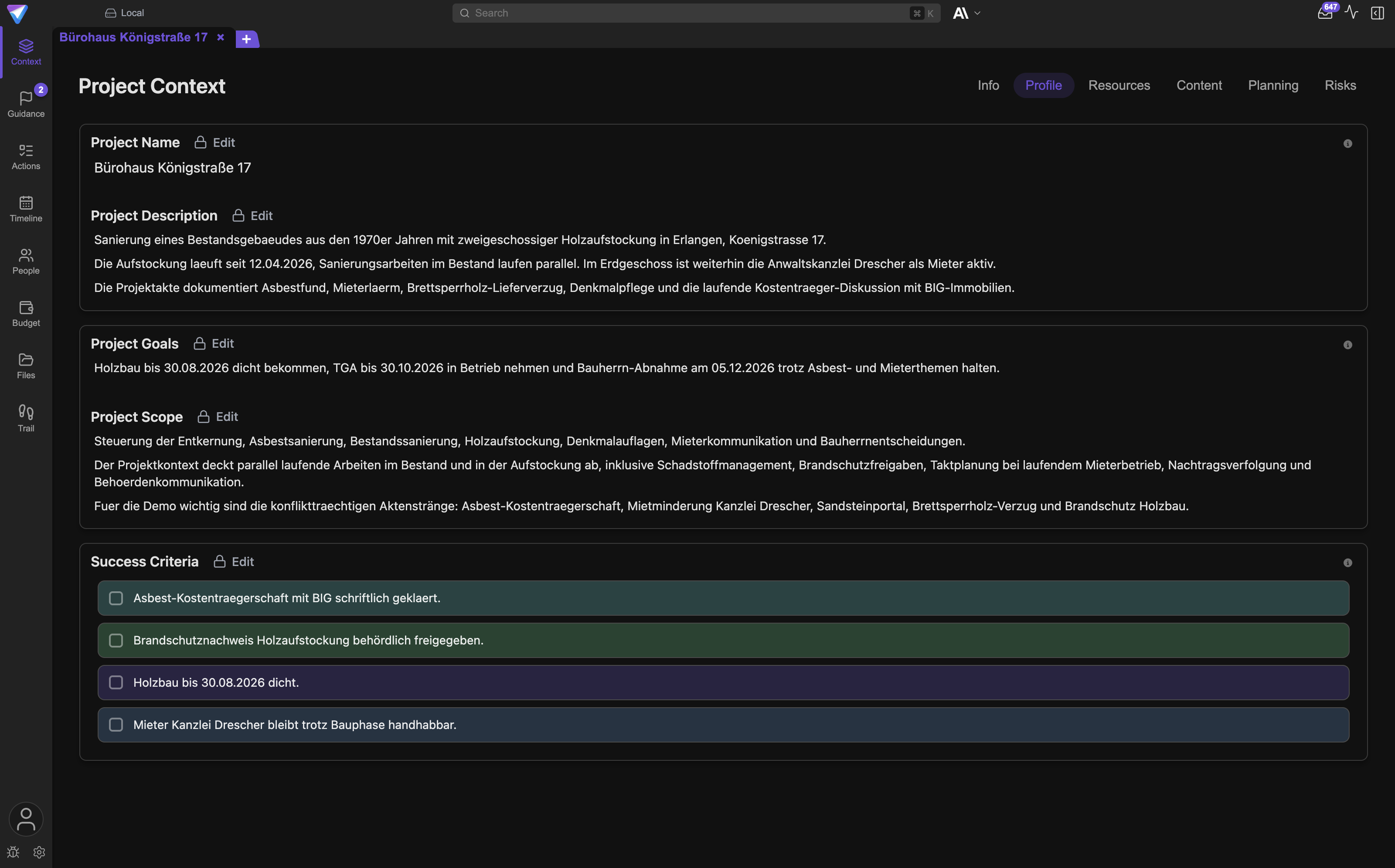
Project Name
A short, unambiguous name. It appears everywhere the project is listed.
- Good:
Königstraße 17 office building, shell and fit-out - Bad:
Project 2026-04orNew build
Customer numbers, status words such as "ongoing", and version numbers do not belong here. Status changes, the name should stay stable.
Project Description
Two to five sentences in plain language: what is being built, delivered, or introduced, for whom, and under which conditions.
- Good:
Refurbishment of a five-storey office building during ongoing operation. The client is Königstraße Immobilien GmbH. The top two floors stay rented for the entire construction period. - Bad:
Refurbishment of a building.
Goals, dates, and risks do not belong here. They have their own fields. Storing something twice means maintaining two places and forgetting one of them.
Project Goals
What has to be achieved in the end, seen from the client's side. A goal describes an outcome, not an activity.
- Good:
All rental space on the ground floor and floors 1 to 3 is handed over ready for occupancy, without restricting ongoing operation on floors 4 and 5. - Bad:
Carry out construction work.
Individual work steps do not belong here. "Put up scaffolding" is an action item, not a project
goal. Action items live in the Action Items view, see
Actions & Recurring Work.
Project Scope
What is included and, just as important, what is not. A scope without exclusions is nearly worthless, because every later discussion stays open.
- Good:
Included: shell, facade, electrical, plumbing, interior fit-out of floors 0 to 3. Not included: outdoor areas, underground car park refurbishment, furniture, tenant relocation services. - Bad:
Full conversion.
Conditions and assumptions ("provided the weather holds") do not belong here. Sentences like that
belong in the Risks sub-tab or as a dependency under Planning.
Success Criteria
A list of checkable statements. They answer the question: how will we know the project succeeded? One criterion per line.
- Good:
Handover by 30 October with no critical defects - Good:
Operating cost reduced by at least 12 percent in the first year - Good:
Less than two hours of planned service interruption during the switchover - Bad:
High quality - Bad:
Happy client
Wishes without a measure do not belong here. A criterion nobody can verify helps neither you nor the project agent. If a number is missing, at least name the event that proves it.
Resources: money and time
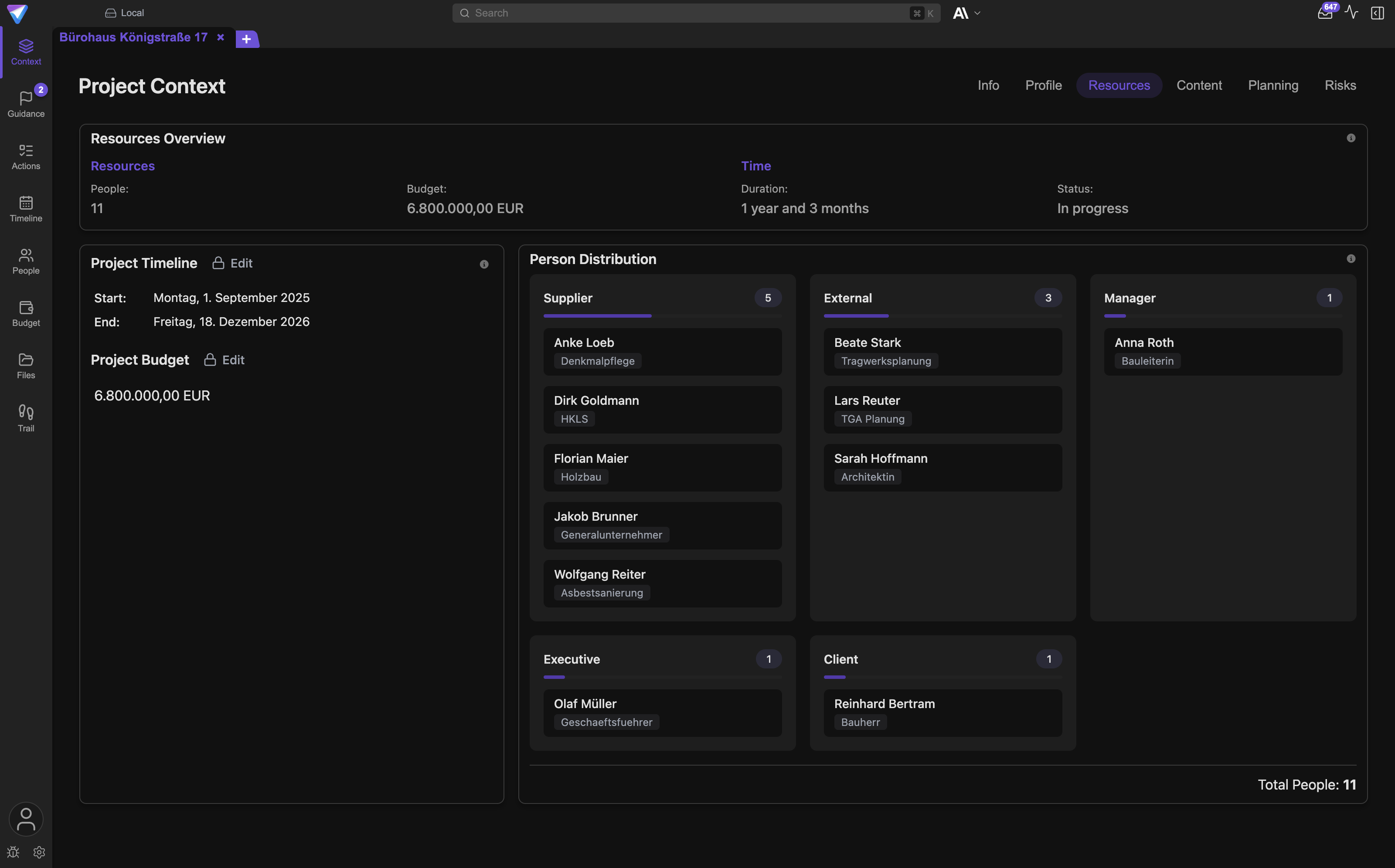
Project Budget
The project's total budget in the configured currency. It is the reference value for the
plan/actual comparison in the Budget & Material view.
- Good: the confirmed contract value or the approved budget, as a single number.
- Bad: a rough idea that was never approved anywhere.
Partial budgets for individual trades do not belong here. Use budget buckets and per-item budgets instead. How to run budget in detail is described in People & Budget.
Project Timeline
Start and end date of the project. From both dates TensorPM calculates the duration and the status:
Not started, In progress, or Completed. If either date is missing, the timeline status stays
empty and the Planning sub-tab cannot show progress over time.
- Good: the contractually agreed period, even when it is ambitious.
- Bad: a wish date nobody on the team knows about.
Milestone dates do not belong here. They live in the Planning sub-tab.
People in the resources overview
The sub-tab also shows Resources Overview, People, and Person Distribution. Those are
evaluations, not input fields. You create people in the People view. Roles, role groups, and
influence are described there: People & Budget.
If Person Distribution is missing a role that makes decisions in the project, that is a real blind
spot. The project agent then cannot attribute responsibility.
Content: what is delivered and with what
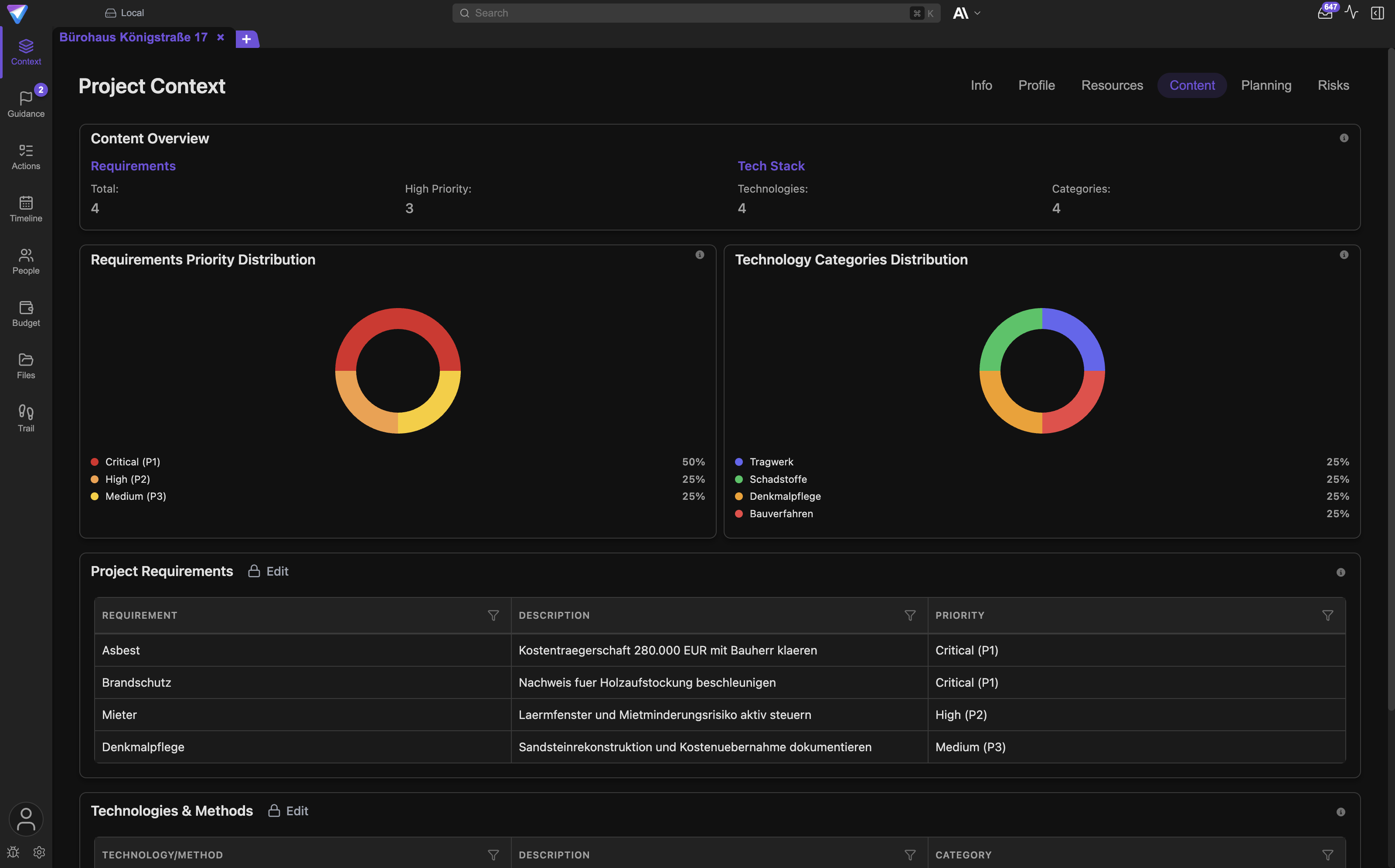
Project Requirements
A table with the columns Requirement, Description, and Priority. This is where the substantive
demands on the result live.
- Good: Requirement
Step-free access on the ground floor, DescriptionThreshold-free main entrance and ramp per DIN 18040-1, PriorityHigh. - Bad: Requirement
Accessibilitywith no description and no priority.
Action items do not belong here. "Order the ramp" is a work step, not a requirement. The requirement says what must hold true; the action item says who does what and when.
The priority feeds the Requirements Priority Distribution chart. If you leave the column empty,
the requirement does not appear there.
Technologies & Methods
A table with the columns Technology/Method, Description, and Category. It records what you
work with: construction methods, standards, software, project methodology.
- Good:
Technology/Method: BIM model per IFC 4,Description: coordination model is updated weekly by the specialist planner,Category: Planning. - Bad:
Technology/Method: Software, with no description and no category.
Tools that are not actually used in the project do not belong here. If something is explicitly forbidden or only an experiment, write that in the description. Otherwise the project agent assumes it is settled standard.
The category drives the Technology Categories Distribution chart. Keep category names consistent,
otherwise the distribution falls apart into one-offs.
Planning: milestones and dependencies
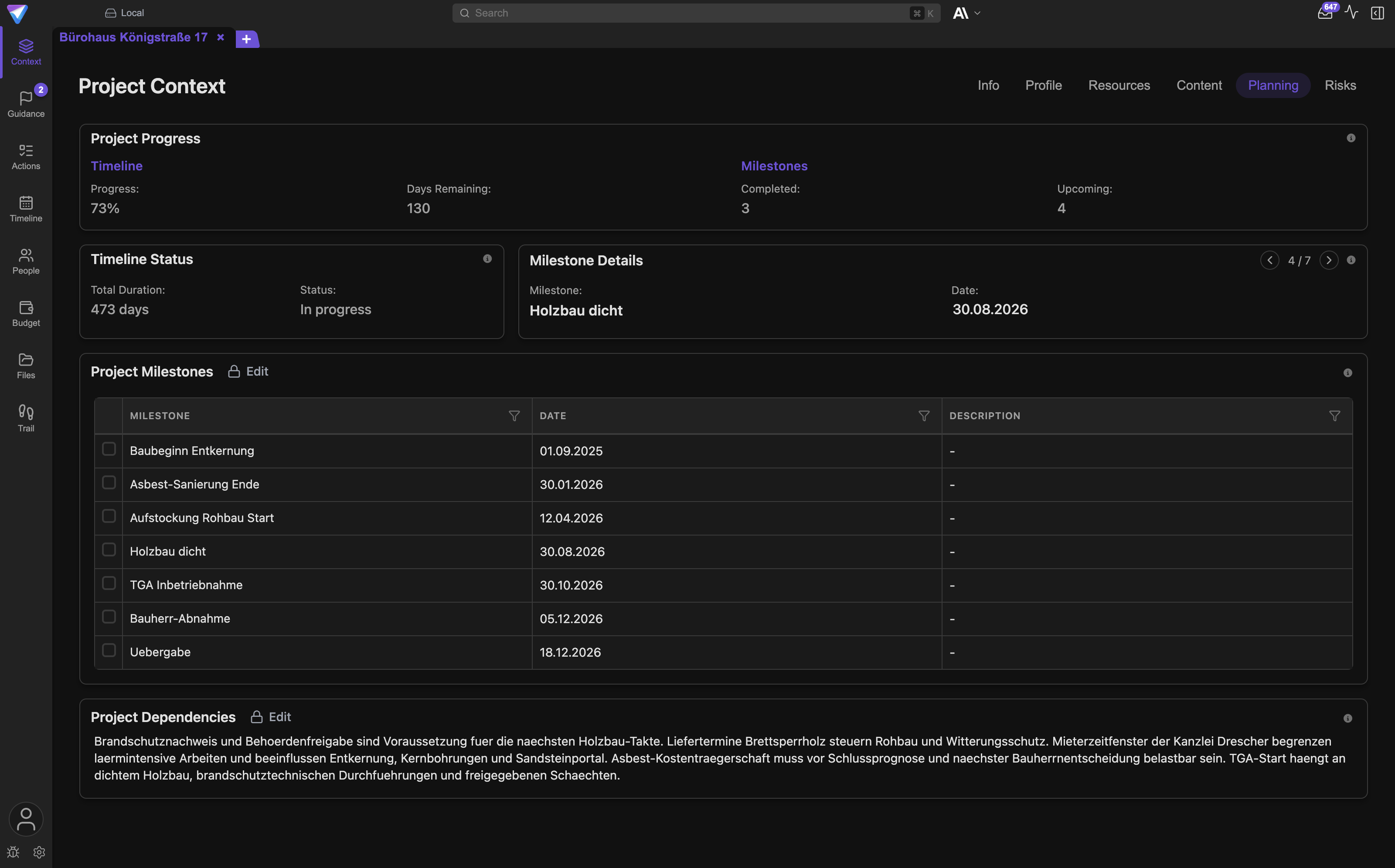
Project Milestones
A table with the columns Milestone, Date, and Description. Each row can be ticked off once the
milestone is reached.
- Good: Milestone
Shell accepted, Date2026-09-15, DescriptionAcceptance by structural inspector and client representative, report on file. - Bad: Milestone
Phase 2with no date.
A milestone is a verifiable state at a point in time, not an activity over a period. "Interior fit-out" is not a milestone, "interior fit-out completed" is.
Action items with due dates do not belong here. Milestones are the few points at which the project is measured. Ten to fifteen are enough for most projects.
Without a date TensorPM can neither sort a milestone nor flag it as overdue. It then appears under
Milestone Details with the note Milestone date not set.
Project Dependencies
A free-text field for things outside your control that the project waits on: permits, deliveries, decisions by other departments, preparatory work by other trades.
- Good:
Building permit for the facade change is pending, decision from the building authority expected by 15 May. Without it the scaffolding cannot be removed. - Bad:
Authorities
Dependencies between individual action items do not belong here. Those are real item dependencies
with the types FS, SS, FF, and SF, described in
Actions & Recurring Work.
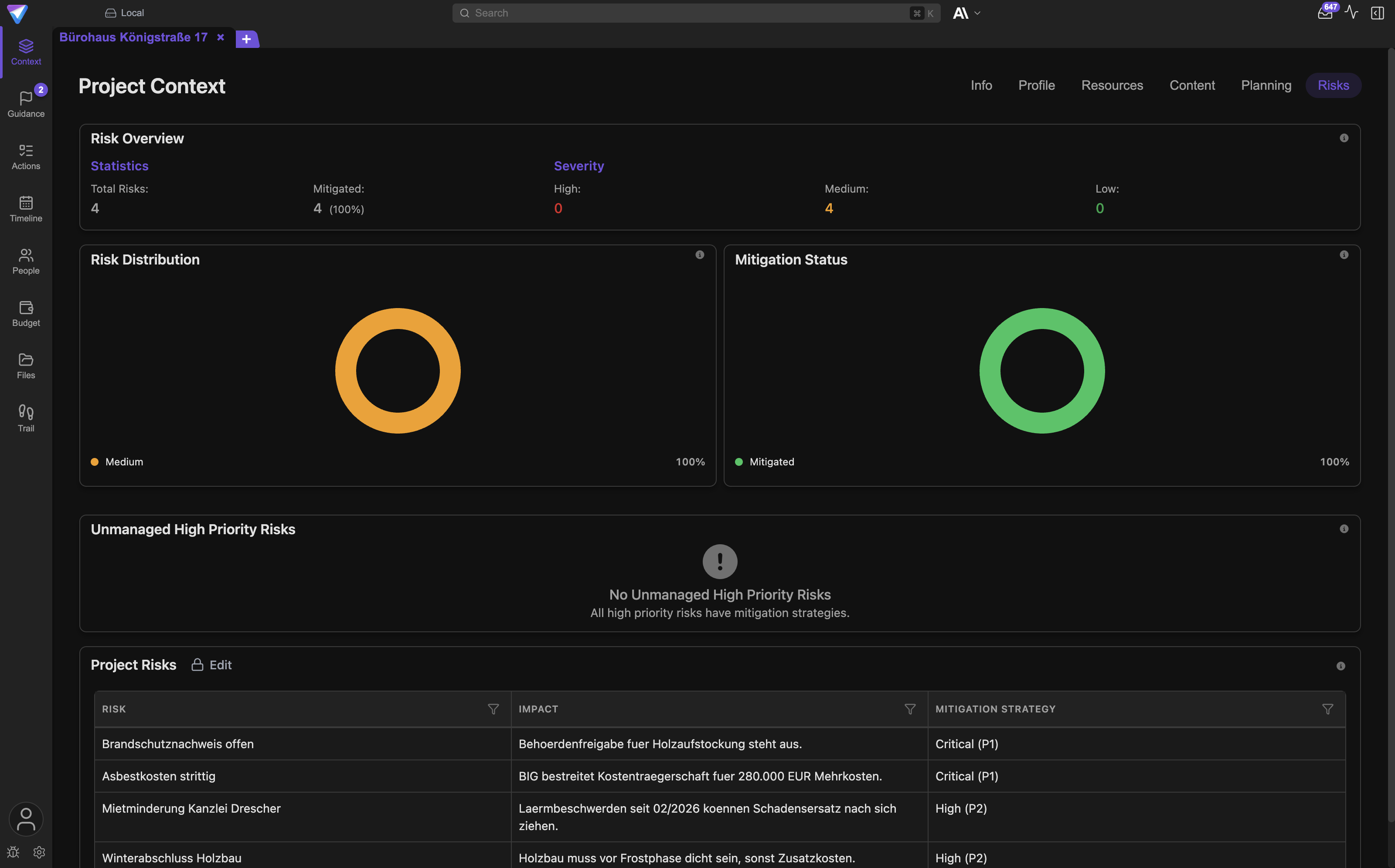
Risks: what can go wrong
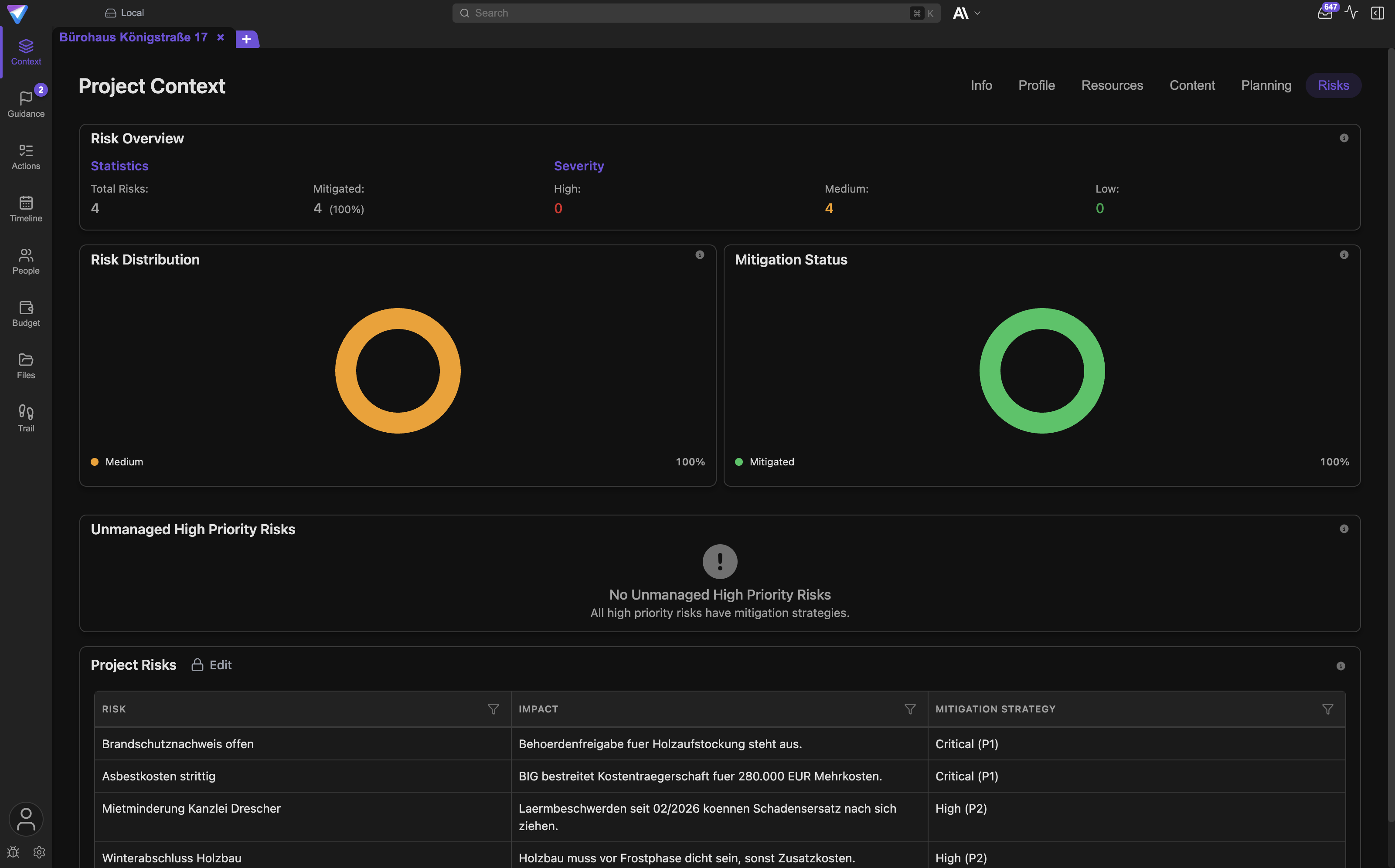
Project Risks
A table with the columns Risk, Impact, and Mitigation Strategy.
- Good: Risk
Window delivery delay, ImpactHigh, pushes interior fit-out by up to four weeks, Mitigation StrategySecond supplier contacted, advance sample by 12 June, weekly status call with the manufacturer. - Bad: Risk
Delays, Impactbad, Mitigation Strategy empty.
A good risk names a concrete event, its consequence for schedule, cost, or quality, and a practical response. General truisms ("construction is risky") and problems that already happened do not belong here. What has already occurred is no longer a risk, it is work.
The Unmanaged High Priority Risks card lists exactly the rows where the Mitigation Strategy
column is empty and the impact was recognized as high. Keep that list empty.
How severity is recognized
The Impact column is a text field. TensorPM derives the severity from that text and sorts every
row into High, Medium, or Low. It recognizes the words high, major, critical, and severe as
high, and low, minor, and small as low. Everything else counts as medium.
In practice: put one of those words at the start of the Impact cell and follow it with the
explaining sentence. If you only write noticeable delay, the risk is counted as medium even when
you consider it critical. The Risk Distribution chart and the Unmanaged High Priority Risks card
both depend on this classification.
Context quality: what the rating means
Context quality is not a number TensorPM adds up from filled fields. It is the result of the
Context Analysis, an AI evaluation of your project context. You trigger it with the
Review project button in Pulse or through the Context Analysis quick action in the AI panel,
and its findings arrive as suggestions carrying the chip Context.
How the rating is produced
The Context Analysis reads the project description, goals, scope, success criteria, requirements,
technologies and methods, milestones, timeframe, budget, risks, and the people. It judges three
things:
- Completeness: is anything essential missing?
- Correctness: is anything visibly wrong or unsupported?
- Consistency: do the entries fit together, for example timeframe and milestones?
Action items, progress, and execution status are explicitly not part of this rating. The context analysis judges the context only.
The result is one of five levels:
| Level | Meaning |
|---|---|
Excellent |
complete, no visible gaps |
Good |
minor gaps, solid overall |
Decent |
usable, several places should be tightened |
Needs improvement |
critical gaps, treat recommendations with care |
Poor |
too thin for a meaningful evaluation |
Because an AI does the judging, the same data can land one notch apart on two runs. Read the level as a direction, not as an exact measurement. Alongside the level, the analysis returns concrete notes on which spots it considers weak. Those notes are the real value.
What the rating unlocks
The level decides which analyses will run at all:
| Analysis | Requirement |
|---|---|
Context Analysis |
none, this is the analysis itself |
Strategy |
context analysis rated Decent or better |
Coverage Analysis |
context analysis rated Decent or better and at least one action item |
Execution |
context analysis rated Needs improvement or better and at least two action items |
When an analysis cannot run, the review skips it and names exactly this reason afterwards. That is not a fault, it is a deliberate brake: strategic recommendations built on a thin context would be guessed, not derived. More on this in Suggestions & Order.
How to improve the rating
In this order the effort pays off the most:
- Sharpen
Project GoalsandProject Scope, including the exclusions. - Make
Success Criteriameasurable. A criterion nobody can verify barely counts. - Set
Project TimelineandProject Budget, or mark them explicitly as open. - Enter the three to five most important
Project Requirementswith description and priority. - Give every entry in
Project Milestonesa date. - Add a
Mitigation Strategyfor every high-impact risk. - Create people with roles so responsibility can be attributed.
- Run
Review projectagain and work through the notes from the analysis.
Naming a gap honestly beats filling it. Write "budget not yet approved" instead of an invented number. Otherwise the project agent assumes a confirmed value.
Where each part of the project lives
Some terms sound similar and live in different places. This table resolves that.
| Term | What it is | Where it lives |
|---|---|---|
| Goal | intended outcome | Context -> Profile -> Project Goals |
| Scope | what is in and what is out | Context -> Profile -> Project Scope |
| Success criterion | checkable statement about success | Context -> Profile -> Success Criteria |
| Requirement | substantive demand on the result | Context -> Content -> Project Requirements |
| Milestone | verifiable state on a date | Context -> Planning -> Project Milestones |
| Timeframe | start and end of the project | Context -> Resources -> Project Timeline |
| Budget | total budget of the project | Context -> Resources -> Project Budget |
| Risk | possible event with a consequence | Context -> Risks -> Project Risks |
| Decision | a durable commitment already made | Trail -> Decisions |
| Action item | a concrete work step | Action Items view |
| Work package | bounded deliverable with an owner | Work Packages area |
| Person | participant with role and influence | People view |
| Expense | cost that actually occurred | Budget & Material view |
Decisions deliberately do not live in the project context. A decision is an event with a timestamp,
a rationale, and a status. It can later be superseded or withdrawn without erasing the history. That
is why it lives in Trail, see Files, Intake & Trail.
Work packages and the work breakdown structure (WBS) are a separate layer above action items and are described in Work Packages & WBS.
Who may change the context
- In a local workspace: only you. A workspace is the boundary in which projects are stored and shared. A local workspace never leaves your device.
- In a cloud workspace: anyone with access to the workspace. The roles Owner, Admin, and Member govern member management, not the editing of individual context fields. There is no read-only role for the project context.
- The project agent: can change context fields when you ask it to in the chat. Every such change
appears in
Trailwith a link back to the message that triggered it. - The Distiller: never changes anything by itself. It prepares proposals, and you decide with
Approve,Append, orSkip. - External agents over MCP or A2A: can read and write once you have set them up. Write tools ask for approval in the chat unless you explicitly granted them permanently. See Agent Integrations.
Before larger changes to a shared project, a short word with the team pays off. TensorPM does not prevent simultaneous edits, it only makes them visible.
How changes stay traceable
Every change to a context field lands in the Trail view on the Changes tab. There you see:
- which field changed, under names such as
Project Goal,Project Scope,Success Criteria,Main Requirements,Milestones, orRisks - the value before and after
- when the change happened
- where it came from
The origin is the most important part. When a change came out of the chat, the entry carries a
Chat source chip. Clicking it opens a small panel with Open in chat and jumps to exactly the
message that triggered the change. For external agents it reads MCP agent, A2A agent, or
Telegram instead.
That lets you answer months later why the scope grew by two items, without digging through email. The full description is in Files, Intake & Trail.
Checklist: is my project context good enough
Walk through the list before you rely on the suggestions. Seven out of ten satisfied points are fine for daily work; below five, some rework pays off.
- The
Project Nameis unambiguous and carries no status wording. - The
Project Descriptionexplains in a few sentences what this is and for whom. - The
Project Goalsname outcomes, not activities. - The
Project Scopecontains explicit exclusions. - At least three
Success Criteriaare phrased so that someone can verify them. Project TimelineandProject Budgetare set, or explicitly noted as open.- The most important
Project Requirementshave a description and a priority. - Every entry in
Project Milestoneshas a date. - Every high-impact risk has a
Mitigation Strategy. - The
Unmanaged High Priority Riskscard is empty. - Everyone who makes decisions in the project exists under
People. - No assumptions are presented as facts in the context.
- The
Contextstage on theInfosub-tab readsConfirmed, so no proposed changes are waiting. - The last
Context Analysisis not older than the last significant project change.
What happens in the background
The project context is stored as structured records in the local database on your device, not as a document. That has three practical consequences:
- A changed date takes effect everywhere at once: in the
Planningsub-tab, in theTimelineview, in the suggestions, and for connected agents. You copy nothing. - In chat, the project agent does not receive the whole project but the fields that fit the question. Clean field content and short phrasing therefore act directly on answer quality.
- External agents over MCP and A2A read the same fields. What you write in the
Profilesub-tab is what a connected agent reads, word for word.
In a cloud workspace the context is additionally synchronized in encrypted form between your devices and the members of the workspace. Details in Cloud Sync and Encryption.
You do not need the internal project ID for normal work. It only becomes relevant for technical integrations or for support diagnosis.
Frequently asked questions
Do I have to fill in every field?
No. Start with Project Goals, Project Scope, and Success Criteria. Those three produce most of
the recommendations. The rest grows with the project.
How often should I maintain the context? Whenever something binding changes: a new date, a scope change, a new risk. Plus a short pass through the checklist once a month. Much of it arrives through signals anyway and only needs confirming.
Why is my milestone missing from the evaluation?
Milestones without a date cannot be sorted. Add the date in the Date column.
Why does my critical risk count as medium?
Severity is derived from the text in the Impact column. Without a recognized keyword, a row counts
as medium. See the severity section above.
Can I create custom fields? No. The project context has a fixed set of fields so that evaluations and agents can rely on it. Extra information belongs in the description columns of the tables or in files.
What is the difference between a goal and a success criterion? The goal says what should be achieved. The success criterion says how you will know it was achieved. "Building handed over ready for occupancy" is a goal; "handover by 30 October with no critical defects" is a criterion.
Is the context updated automatically? No, never without you. Incoming information becomes proposals that you approve or reject.
Where do I see who changed something?
In the Trail view on the Changes tab, including the origin of the change.
When something does not work
The review skips Strategy.
A Context Analysis rated Decent or better is missing. Run Review project and work through the
suggestions from the analysis.
The review still skips Execution even though the context is good.
Execution additionally needs at least two action items. Coverage Analysis needs at least one.
The context analysis stays at Needs improvement even though every field is filled.
Filled is not the same as solid. Check the Success Criteria for measurability first, then the
Project Scope for exclusions. The analysis also returns concrete notes on what it considers weak.
The Info sub-tab shows Review needed for Context.
Signals or proposed changes are waiting for your decision. Open the incoming signals through the
mailbox icon in the top bar and work through the proposals.
My change disappeared after I clicked away.
Context fields are saved when you leave the field. After typing, click once next to the field. If
the change is still missing, check Trail: someone else in the same cloud workspace may have
overwritten it.
The timeline status stays empty.
Project Timeline needs both a start and an end. If either is missing, no duration can be
calculated.
The budget shows a different currency than expected.
You set the display and storage currency under Settings -> General -> Currency. Changing the
storage currency converts all existing data. Check that beforehand.
Next steps
- Learn the views: Navigation & Views
- Steer the project: Suggestions & Order
- Structure the work: Work Packages & WBS
- Maintain the work: Actions & Recurring Work
- Run people and budget: People & Budget
- Trace changes: Files, Intake & Trail
- Look up terms: Glossary