
Install & Get Started
In short
TensorPM is an AI project agent for complex projects. It holds what is actually true about your project, tells you what deserves your attention next, and does concrete work when you ask it to. The app runs on your own computer, and you decide for every proposal whether it becomes part of the project.
This article takes you from download to your first useful project. No prior knowledge required. Plan for roughly 30 minutes, about 10 of which are download and installation.
What TensorPM does
The app works in three stages. They appear in the app as Understand. Steer. Execute. on the very
first welcome screen.
Understand. TensorPM collects in one place what actually holds true in your project: goal, scope, dates, budget, people, risks, open decisions. That collection is called the project context. It does not appear on its own: TensorPM proposes entries and you confirm them. Only confirmed entries count.
Steer. Based on that project context, TensorPM checks where the gaps, contradictions, and
bottlenecks sit, and tells you what to do now. You find this part in the Pulse view.
Execute. After that, TensorPM can take over work: write a status report, prepare an email, plan a meeting, derive a list of action items. Anything that leaves the app or changes data is put in front of you for approval first.
Important: TensorPM is not a tool for the site or the field. It is a tool for the office where projects get steered.
The methodology behind the product is called Context-Driven Project Management (CDPM). You do not need to know it to use the app.
What you need
| Operating system | Requirement |
|---|---|
| macOS | macOS 11 or later, Apple Silicon only (M1 or newer). Intel Macs are not supported. |
| Windows | Windows 10 or later, 64 bit |
| Linux | Ubuntu 20.04 or a comparable distribution |
In addition:
- roughly 1 GB of free disk space for the application, plus space for your project files
- an internet connection for download, updates, sign-in, hosted AI, and Cloud Sync
- permission to install programs on your computer
You can keep working without internet access: your local projects and their files live on your device and can be opened and edited offline. Only the AI features, sign-in, and synchronization need a connection.
Installing TensorPM
Every operating system offers two routes: through its package manager (the software that installs and updates programs for you) or as a file you download directly. Both routes install the same application.
macOS
Route 1, with Homebrew. If you already use Homebrew, open the Terminal app and enter:
brew install --cask neo552/tensorpm/tensorpm
Homebrew downloads, installs, and tells you about later updates. You will then find TensorPM in
your Applications folder.
Route 2, as a file. Download the installer directly:
Download TensorPM for macOS. You receive a file ending in .dmg.
Double-click it, drag the TensorPM icon onto the Applications folder in the window that opens,
then eject the window.
On first launch. macOS asks about programs downloaded from the internet. You see a dialog along
the lines of "TensorPM is an app downloaded from the Internet. Are you sure you want to open it?".
Confirm with Open. This question appears only once.
If instead you see a message saying macOS cannot check the app for malicious software, open
System Settings -> Privacy & Security, scroll to the Security section, and choose Open Anyway. Alternatively, right-click the app in Applications and choose Open.
Later on, macOS may ask twice more: for calendar access when you connect the local calendar, and for incoming network connections, because TensorPM offers local interfaces to other programs. You may decline both if you do not use those features.
Windows
Route 1, with winget. Open Command Prompt or Windows PowerShell and enter:
winget install --id Neo552.TensorPM
Route 2, as a file. Download the installer directly:
Download TensorPM for Windows. You receive a file named
TensorPM-Setup.exe. Start it with a double-click. The setup assistant asks for language and
install location and creates shortcuts in the Start menu and on the desktop. By default it installs
for your user account only, so you normally do not need administrator rights.
On first launch you meet the SmartScreen notice. Windows shows a blue window reading "Windows
protected your PC". That does not mean anything is wrong with the file. TensorPM is properly signed,
and the dialog names TensorPM as the publisher. SmartScreen keeps warning as long as an
application has few installations.
Here is how to handle it:
- Click
More infoin the dialog. - Check that the publisher reads
TensorPM. - Click
Run anyway.
On first launch the Windows firewall may also ask whether TensorPM may accept network connections. That is normal, because the app offers local interfaces. For ordinary use you can decline.
Linux
Download the AppImage file: Download TensorPM for Linux. An AppImage is a single program file that you do not have to install. Make it executable and start it:
chmod +x TensorPM-Linux.AppImage
./TensorPM-Linux.AppImage
Alternatively, in your file manager open the context menu, go to Properties, and tick "Allow
executing file as program".
Two notes for Linux:
- AppImages need the FUSE system library. If the file does not start, install
libfuse2through your distribution's package manager. - Cloud Sync needs an unlocked system key store so your encryption key can be held safely. Install
and unlock GNOME Keyring or KDE Wallet for that. Without it, the sync status stays on
Keyring.
The first launch
On the very first launch, TensorPM greets you with a guided conversation instead of an empty screen. The sequence:
- Welcome screen. The title reads
Welcome to TensorPM, below itUnderstand. Steer. Execute.. At the bottom you can switch the language. ClickStart. - Your name. TensorPM asks what to call you. You can skip the question with
Continue without a name. - How active the agent should be. A slider with three levels:
On request,Daily project status review, andStatus review + automatic prioritization. This setting controls whether TensorPM looks at your project on its own schedule. Those regular reviews consume AI credits. If you are unsure, pickOn request. You can change it any time in the settings. - What you are working on. Here you describe your first project in ordinary sentences. You can
attach documents as well. If you do not want to create a project yet, choose
Later. - Connect AI. Three tabs appear:
Login,Local, andBusiness API key. Details are in the AI section further down. - A short tour. At the end TensorPM offers a guided tour of the interface. Take it, it lasts a
few minutes. You can start it again any time through
Settings->General->Guided Tour->Start tutorial.
You can cut onboarding short with Skip onboarding. The first time round, it is worth going
through it.
Your first decision: local or cloud
A workspace is the container your projects live in. There are two kinds, identified by the type
Local or Cloud.
A Local workspace lives on this computer only. Nothing is transmitted. That is the default after
installation.
A Cloud workspace is additionally mirrored, encrypted, to the TensorPM servers so that your other
devices and your colleagues see the same state. Encryption happens on your device before anything
is uploaded. The servers cannot read the contents.
Choose local when:
- you want to try TensorPM out first
- the project should stay on this computer
- nobody else needs to work on it yet
Choose cloud when:
- you work on more than one device
- colleagues need access
- changes should be reconciled automatically
Important: Cloud Sync is included on every plan,
Trialas well. What the plan decides is how many cloud workspaces you may own: one onTrial, unlimited onProandBusiness. Beyond that allowance the server refuses withWORKSPACE_LIMIT_REACHED.
You do not have to decide right away. Start local. You can convert an existing local workspace
later from the account popover in the bottom left with Enable Cloud Sync. Create a backup before
such a conversion: Settings -> General -> Database Backup -> Create Backup.
Creating your first project
From a short description
The quickest route is a description in your own words. A workable description answers four questions:
- What should be achieved?
- What is included, and what is explicitly excluded?
- Which date and which budget matter?
- What is uncertain or risky today?
Example:
We are replacing the heating system of an occupied office building by October. The budget is 480,000 euros. Planning, permits, procurement, installation, and acceptance are included. Tenant fit-out is excluded. The main risks are lead times and working during normal operations.
TensorPM turns that into a first project context with goals, scope, milestones, and risks. Treat the result as a draft, not as truth. Walk through it once before you rely on it.
The four routes at a glance
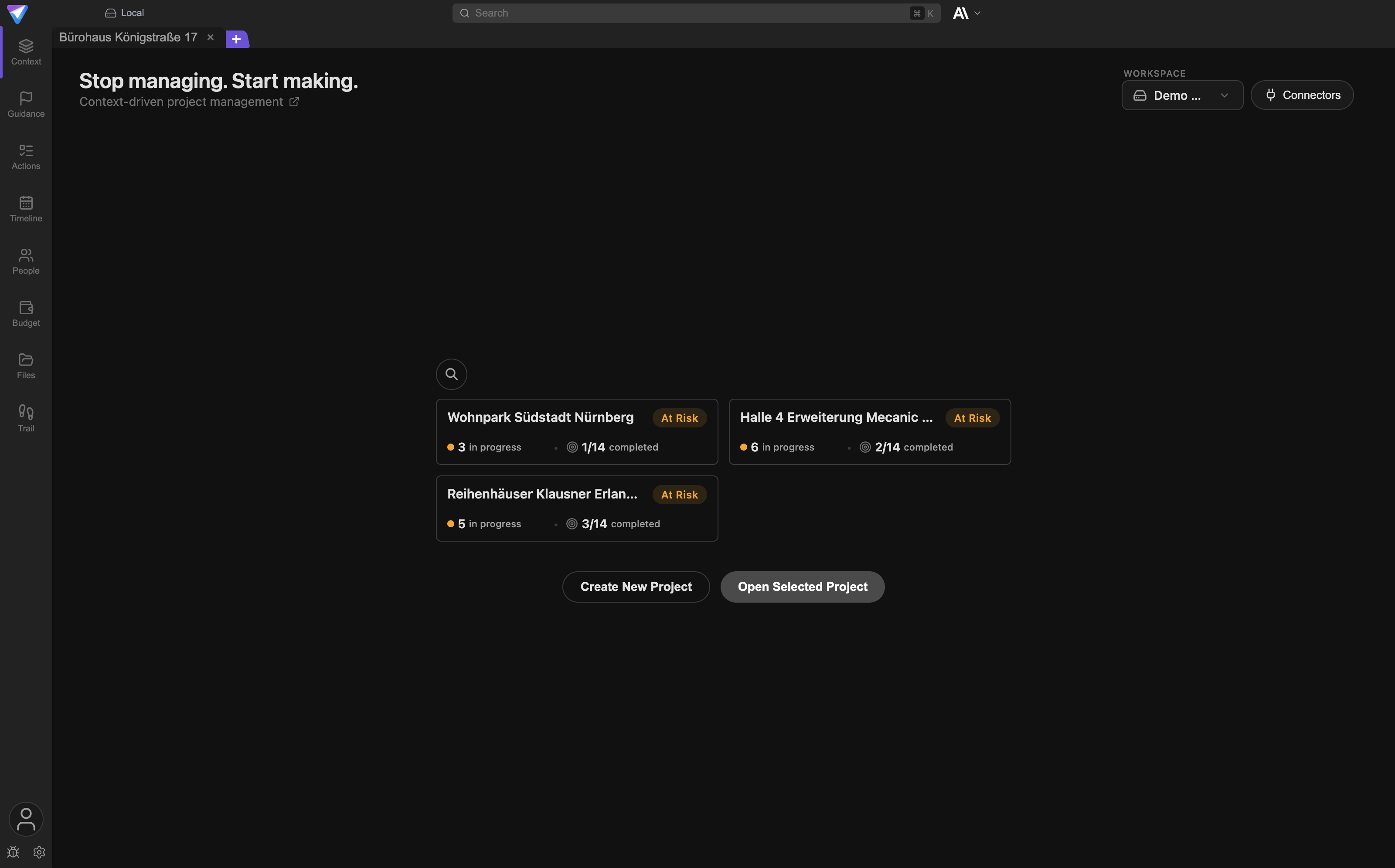
When no project is open, you see the start screen with your existing projects and the buttons
Create new project and Open selected project. The workspace selector and the Connectors
button sit in the top right. If a project is already open, you open project creation through the
+ next to the project tabs.
Project creation offers four routes:
| Route | When it fits |
|---|---|
From Prompt |
You describe the project in a few sentences, optionally with documents or images. TensorPM drafts a project structure for you to review. |
From Document |
A brief, a specification, or a contract already exists. TensorPM reads the files and proposes the project context from them. |
Start Wizard |
You want to think the project through yourself, step by step. The wizard walks you through eleven areas. |
Empty project |
You want to build the context by hand on purpose. |
For a first attempt, From Prompt is the best choice: you see a result quickly and learn how
TensorPM interprets your text.
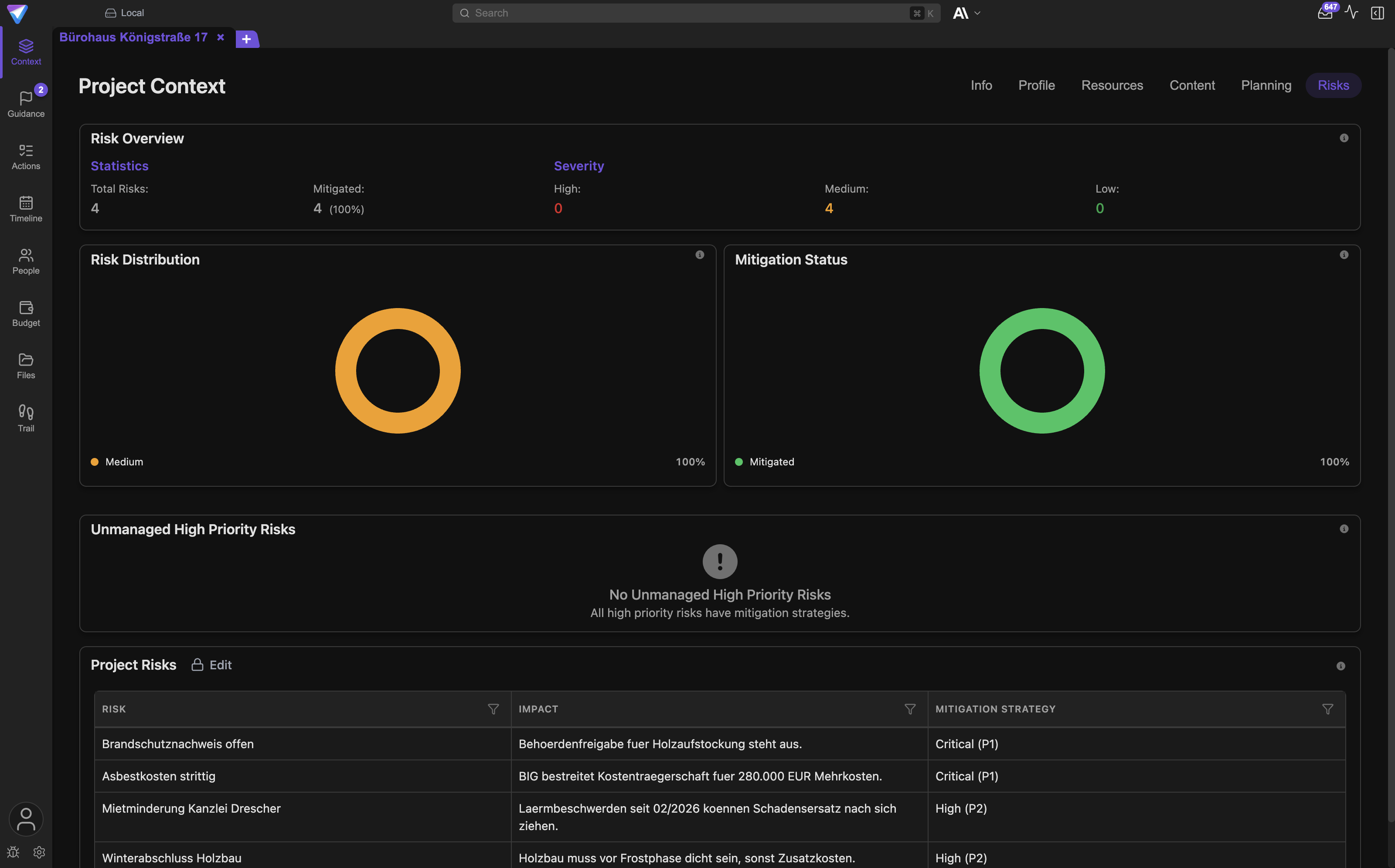
After creation you land in the project context. The tabs in the top right switch between Info,
Profile, Resources, Content, Planning, and Risks.
Finding your way around
The left-hand navigation
The narrow bar on the left follows the work of a project manager. From top to bottom:
Context: goals, scope, resources, content, planning, and risks. The project context lives here.Pulse: checks, suggestions, priorities, and the recommended next step.Work: the Work Packages area with the work breakdown structure (WBS), the hierarchical breakdown of the project into deliverables. Note: this entry appears only in projects where the work breakdown structure is switched on. The label is shortened for space; the tooltip readsWork packages and project structure.Actions: individual action items, asList,Board, orRecurring.Timeline: the project plan over time.People: participants, roles, and contact details.Budget: budget and material.Files: the project's files.Trail: what changed and when, split intoChangesandDecisions.
If a fresh project has no Work entry, nothing is broken. You switch the work breakdown structure
on under Settings -> General -> Work Breakdown Structure.
Header bar and bottom corner
The header holds search, the AI model selector, and on the right the toggles for incoming signals
and for the project agent panel (Show AI Panel). The panel can dock left, right, top, or bottom,
and it can also open as a full page.
Three icons sit in the bottom left: the account (Account, or Login before you sign in), a bug
icon for reporting problems, and a gear for Settings. The account popover is where you find
subscription status, AI credits, vouchers, passkeys, and the management of your workspaces.
Settings is a different place and has exactly three tabs: General, AI, and Info.
A good first 20 minutes
Work through this list once. Every step has a visible result.
- Correct the project goal (3 minutes). Open
Context->Profile. Read the goal TensorPM wrote. Change it into a sentence you would read out to your management as it stands. Result: a goal you stand behind. - Add exclusions (3 minutes). Stay in
Profileand add to the scope what is explicitly not part of the project. That is exactly where disputes start later. Result: a clear boundary. - Check dates and budget (2 minutes). Open
Context->Planning. Check start, end, and milestones. Result: a timeframe that holds. - Enter three risks (4 minutes). Open
Context->Risksand enter the three items that actually keep you awake on this project, each with a mitigation. Result: the risk table is no longer empty. - Create five action items (4 minutes). Open
Actionsand create five concrete items with an owner and a due date. Result: a list that shows who does what by when. - Review the project (2 minutes). Open
Pulseand clickReview project. With AI set up it runs the four analyses and fills theSuggestionscard. Start with the suggestions carrying the chipContext: they tell you which facts are still missing. Result: a list of open points. - Ask the agent (2 minutes). Open the project agent panel and ask a real question, for example: "Which information is still missing before we can plan the next four weeks?" Result: you see how good your project context already is.
Important: Do not import every file on day one and do not generate dozens of action items right away. A small, reviewed project context is worth more than a large, unreviewed one. Everything the AI proposes becomes project truth only through your confirmation.
Without AI set up, no analysis runs and the Suggestions card stays absent. That is intentional:
the four checks need an AI provider.
Setting up AI
The four routes to AI
You can use TensorPM without AI, but the strengths of the product sit in its analysis and steering. There are four routes, and you only need one of them.
| Route | What it takes | Cost |
|---|---|---|
| TensorPM AI | a free TensorPM account | consumes the AI credits of your plan |
| Claude or ChatGPT subscription | an existing subscription plus the provider's locally installed application | no credits, you pay your subscription |
| Local AI | an AI server on your machine or in your company network, such as Ollama, LM Studio, or vLLM | no credits, no data leaves your network |
| Your own provider keys | a Business workspace and your own key from OpenAI, Anthropic, Google, or Mistral | you pay the provider directly |
On the first route: AI credits are the unit of consumption for the AI that TensorPM provides. The
Trial plan includes 2,000,000 credits once, with no time limit. Pro includes 10,000,000 credits
per month. You see how much you have used in the account popover in the bottom left.
On the second route: here you sign in to Claude or ChatGPT through their official browser sign-in.
Your credentials stay inside the provider's locally installed application and never reach TensorPM.
This requires that application to be installed on your computer, otherwise the status reads
Not installed.
On the fourth route: your own provider keys exist on the Business plan only. On Trial and Pro
the option is not available.
Where you set this up
Open Settings through the gear in the bottom left and switch to the AI tab.
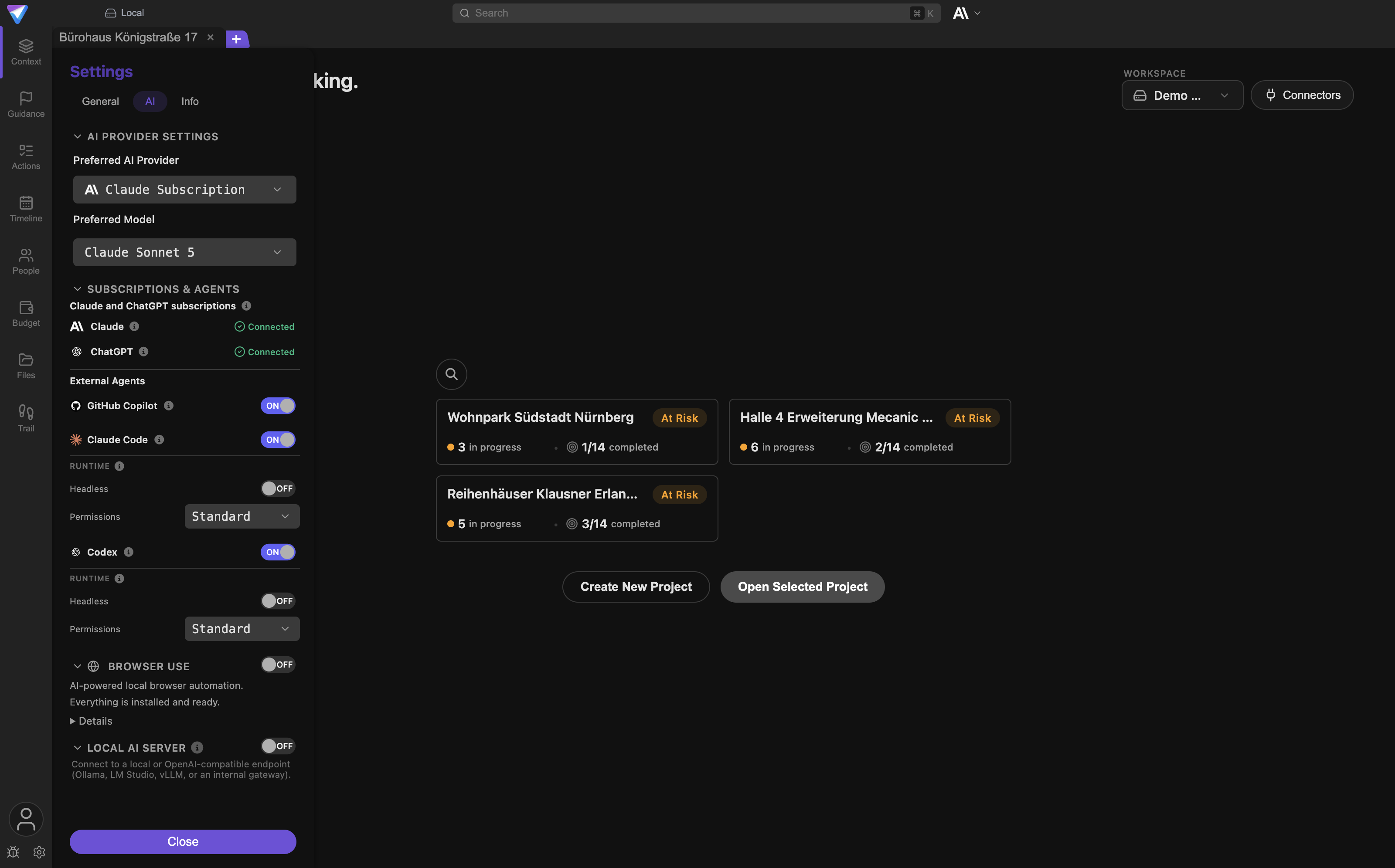
The sections from top to bottom:
AI Provider Settings:Preferred AI ProviderandPreferred Model. The list contains only what is genuinely available on your device and for your account.Subscriptions & Agents: this is where you sign in underClaude and ChatGPT subscriptions. The status then switches toConnected. Below it,External Agentslists the local coding agents that TensorPM can hand suitable tasks to.- Further down sit the switch for local browser automation and the local AI server.
AI Keys: visible on theBusinessplan only. This is where you store your own provider keys. They are encrypted locally and never sent to TensorPM servers.
If you start an AI feature without a provider set up, TensorPM does not show a generic error. It
opens the place that fixes the cause: sign-in, key management, the note about exhausted credits, or
the AI tab.
All details on plans, credits, subscription sign-in, and local AI are in Account & AI Modes.
Checklist before your first real project
Go through these seven points before you create a project that actually counts.
- Storage location clear. You know which folder holds the project files. The project folder is an ordinary working folder on your disk.
- Backup created.
Settings->General->Database Backup->Create Backup. TensorPM suggests the folderDocuments->TensorPM Backupsand writes a file ending in.gitdbackupthere. Note: this backup holds the project database, not the files in your project folder. Back those up separately. - Workspace decided. You know whether the project stays local or belongs in a cloud workspace, and who gets access to it.
- AI set up and tested. One route is enough. Ask a test question in the project agent panel and check that an answer comes back.
- AI proposals understood. You know that AI-generated context is a proposal that you accept or reject.
- Only the connections you need. Connect only the mailboxes, folders, calendars, and external agents this project genuinely needs. Every connection brings volume and review effort with it.
- Update channel set.
Settings->General->System->Update Channel. For production use that belongs onStable.Betainstalls pre-release builds.
When something does not work
| Symptom | Cause | Fix |
|---|---|---|
| Windows shows "Windows protected your PC" | SmartScreen does not yet know this young application | More info -> check that the publisher reads TensorPM -> Run anyway |
| macOS says the app cannot be checked for malicious software | Gatekeeper has not cleared the file yet | System Settings -> Privacy & Security -> Open Anyway, or right-click the app -> Open |
| The app does not start on the Mac at all | The Mac has an Intel processor | There is currently only an Apple Silicon build (M1 or newer) |
| The AppImage does not start on Linux | File not executable, or FUSE missing | Set chmod +x, install libfuse2 |
| A cloud workspace cannot be created | You are on the Trial plan |
Move to Pro, or keep working locally |
The sync status stays on Keyring |
The system key store is unavailable or locked | On Linux install and unlock GNOME Keyring or KDE Wallet, then restart TensorPM |
| AI features are greyed out | No AI provider is set up | Open Settings -> AI and finish one of the four routes |
The Work entry is missing from the navigation |
The work breakdown structure is not active in this project | Settings -> General -> Work Breakdown Structure |
No Suggestions card in Pulse |
No AI is set up, or no review has run yet | Set up AI, see above, then click Review project |
More cases are covered in Troubleshooting.
Frequently asked questions
Do I need an account to use TensorPM? No. The app runs locally, even without signing in. You need a free account only if you want to use the AI that TensorPM provides. With your own Claude or ChatGPT subscription, or with local AI, you get AI features without an account too.
What does it cost?
Trial is free, has no time limit, includes 2,000,000 AI credits once, Cloud Sync, and several
cloud workspaces of your own. Pro costs 99 euros per month or 990 euros per year and includes 10,000,000
credits monthly plus unlimited own cloud workspaces. Business is agreed individually and is the
only plan with your own provider keys. Members are free and unlimited on all three.
Does my project data sit on somebody else's server? Only if you choose that. Local workspaces never leave your computer. Cloud workspaces are encrypted on your device before they are transmitted, and the servers cannot read the contents. See Encryption.
Can I use TensorPM on two computers?
Yes. That needs a cloud workspace and therefore at least the Pro plan.
Can I switch from local to cloud later?
Yes. Through the account popover in the bottom left and Enable Cloud Sync. Create a backup first.
How many projects may I create?
Locally the number is not limited. Cloud workspaces have a limit on simultaneously active projects:
Pro allows one active project, while archived projects stay accessible and do not count.
Business is agreed per level.
Does the AI change my project without asking? No. Changes to the project context are put to you as proposals that you approve, append, or skip. Anything that leaves the app, such as an email or a calendar entry, additionally needs an explicit approval.
Can I repeat the guided tour?
Yes, any time through Settings -> General -> Guided Tour -> Start tutorial.
How do I get updates?
The app checks for new versions itself. Installations made through Homebrew or winget can also be
updated through that package manager. You set the channel under Settings -> General ->
System -> Update Channel.
How do I remove TensorPM again?
Through Settings -> Info -> uninstall the app. See Uninstall.
Next steps
- Understand the working model: How TensorPM Works
- The guided start in detail: Onboarding
- Create a project step by step: Project Creation Wizard
- Learn the main views: Navigation & Views
- Plans, credits, and AI routes in detail: Account & AI Modes
- Connect mailbox, calendar, and agents: Connectors & Approvals
- Look up a term: Glossary
- Fix a setup problem: Troubleshooting