
So funktioniert TensorPM
Kurz gesagt
TensorPM ist kein weiteres Werkzeug, in das du Aufgaben einträgst. Es ist ein Projektagent, der ein vollständiges, aktuelles und von dir bestätigtes Bild deines Projekts pflegt und dich damit bei der Steuerung unterstützt. Das Denkmodell dahinter ist: Verstehen -> Steuern -> Umsetzen. Zuerst entsteht ein verlässliches Projektbild, dann folgen Analyse und Empfehlungen, und erst zuletzt kann der Projektagent konkrete Arbeit übernehmen.
Dieser Artikel erklärt nicht, welche Knöpfe es gibt. Er erklärt, warum die App so arbeitet, wie sie arbeitet. Wenn du diesen Artikel gelesen hast, ergeben alle anderen Artikel Sinn.
Das Grundproblem: das Projektwissen liegt verstreut
In einem einfachen Projekt passt der Stand in einen Kopf. In einem komplexen Projekt passt er in keinen. Das Wissen verteilt sich auf E-Mails, Protokolle, Pläne, Angebote, Chat-Nachrichten, Telefonate und auf das, was einzelne Beteiligte gerade wissen.
Woran du das im Alltag merkst
- Eine Frist verschiebt sich in einer E-Mail an drei Personen. Im Terminplan steht sie noch alt.
- In einer Besprechung fällt eine Entscheidung. Sie steht im Protokoll, aber niemand zieht sie im Budget nach.
- Ein Nachtrag wird mündlich zugesagt. Vier Wochen später weiß niemand mehr, wer was zugesagt hat.
- Du wirst gefragt, wie das Projekt steht, und brauchst einen halben Tag, um es zusammenzutragen.
Das ist kein Disziplinproblem. Der Stand ist einfach nie an einer Stelle vollständig. Jede Auskunft über das Projekt ist deshalb eine Rekonstruktion, und jede Rekonstruktion kostet Zeit und kann falsch sein.
Was TensorPM daran ändert
TensorPM hält den Projektstand an einer Stelle: im Projektkontext. Der Projektkontext ist die Menge der Fakten, die du bestätigt hast, also Ziel, Umfang, Erfolgskriterien, Termine, Budget, Anforderungen, Meilensteine, Risiken, beteiligte Personen und getroffene Entscheidungen.
Entscheidend ist das Wort "bestätigt". Der Projektkontext füllt sich nicht automatisch, weil sonst niemand ihm trauen könnte. Er füllt sich über einen Kreislauf, in dem du der Kontrollpunkt bist. Diesen Kreislauf beschreibt der übernächste Abschnitt.
Die drei Schichten
TensorPM hat drei Schichten. Sie bauen aufeinander auf, und die Reihenfolge ist keine Geschmacksfrage.
Schicht 1: Kontext als Fundament
Die unterste Schicht ist das bestätigte, aktuelle Projektwissen. Du findest es in der Ansicht
Kontext, aufgeteilt in die Untertabs Info, Profil, Ressourcen, Inhalte, Planung und
Risiken.
Der Tab Info ist die Übersicht: Fokus für heute, aktueller Engpass, Risikozusammenfassung. Die
anderen Tabs enthalten die Substanz, aus der diese Übersicht entsteht.
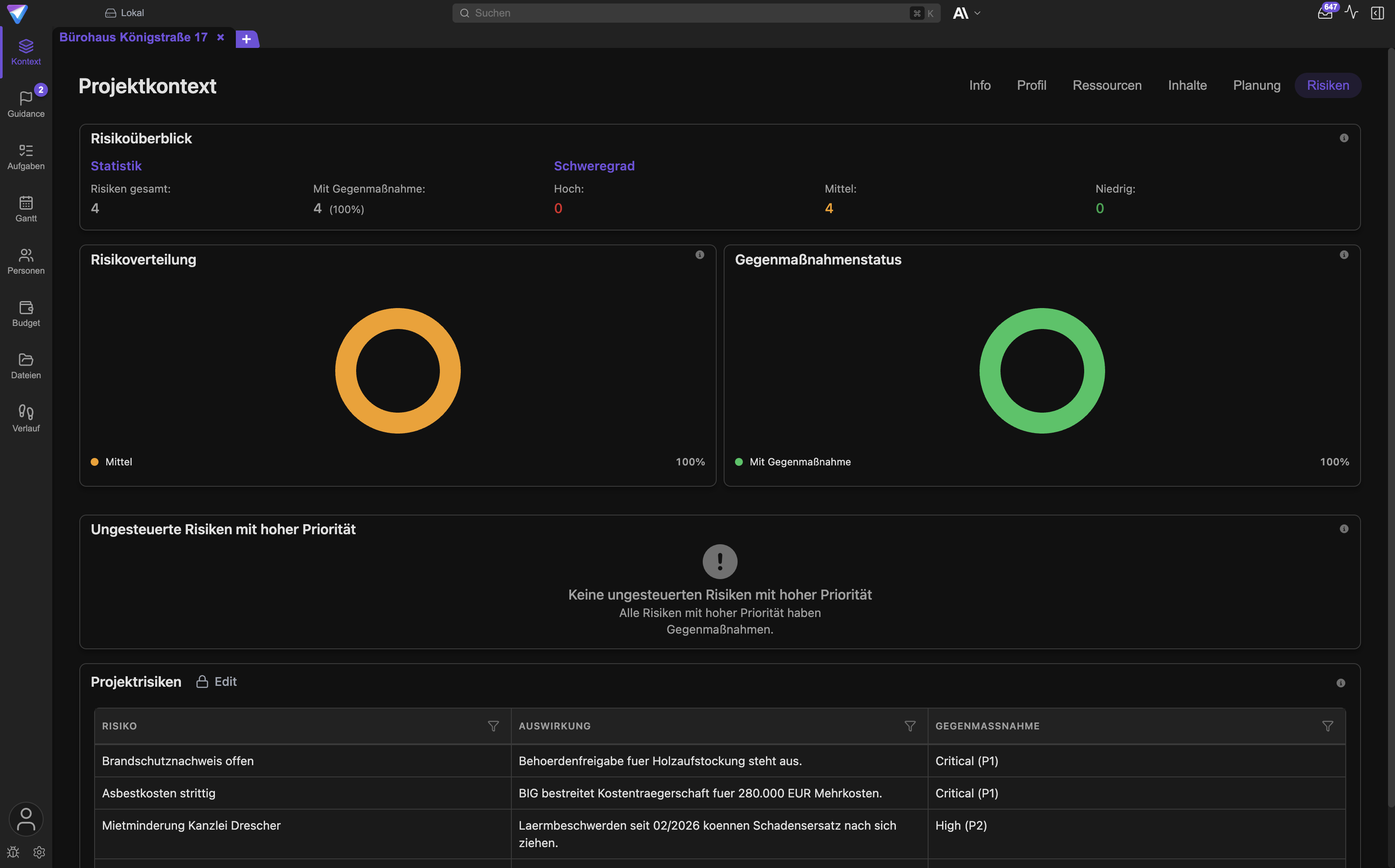
Das ist mehr als ein Dokument. Dieselben strukturierten Angaben speisen alles Weitere: die die Analysen, die Gantt-Darstellung, die Antworten des Projektagenten und die Daten, die externe Werkzeuge über eine Schnittstelle lesen dürfen. Wenn der Kontext falsch ist, ist alles darüber falsch. Deshalb ist er das Fundament und nicht ein Feature unter vielen.
Die praktische Regel lautet: Ändert sich das Projekt, ändert sich der Kontext. Eine neue Entscheidung darf nicht nur in einer E-Mail stehen bleiben.
Schicht 2: Steuerung als Kern
Die mittlere Schicht ist der eigentliche Produktwert. Sie beantwortet die zwei Fragen, die eine Projektleitung wirklich beschäftigen: Was ist gerade der Engpass, und was kommt als Nächstes.
Dafür gibt es Projekt analysieren in der Ansicht Pulse. Ein Durchgang erzeugt vier Analysen:
Kontextanalyse: Fehlen wichtige Angaben, oder widersprechen sie sich?Strategie: Zahlen die aktuellen Entscheidungen auf das Projektziel ein?Abdeckungsanalyse: Deckt die geplante Arbeit Ziel und Erfolgskriterien wirklich ab?Ausführung: Was ist dringend, blockiert, verspätet oder auf demKritischer Pfad?
Die Ergebnisse landen an zwei Stellen. Die ersten drei werden zu Vorschlägen in der Karte
Vorschläge im Pulse, jeder mit Beobachtung, Auswirkung und vorgeschlagenem Schritt sowie den
Knöpfen Übernehmen, Im Chat besprechen und Verwerfen. Die Ausführungsanalyse wird zum Tab
Reihenfolge in der Ansicht Aufgaben, der die Arbeit entlang des kritischen Pfads ordnet.
Wichtig: Eine eigene Ansicht
Guidancegibt es in der linken Leiste nicht mehr, und auch keinen Modus-SchalterAI+/Userdafür. Als Paar ausKI+undNutzerexistieren weiterhin der Projektstatus in der Statuskarte und die Priorität einer einzelnen Aufgabe.
Das ist eine Entscheidungshilfe und kein Entscheider. Jeder Vorschlag nennt, worauf er sich stützt. Prüfe die Belege, bespreche die Empfehlung und wähle die Maßnahme, die zur wirklichen Lage passt. Details stehen in Vorschläge & Reihenfolge.
Schicht 3: Umsetzung als Erweiterung
Die oberste Schicht ist optional. Hier erledigt der Projektagent konkrete Arbeit: Er entwirft E-Mails, bereitet Termine vor, erstellt Auswertungen, schreibt Dokumente, Tabellen oder Präsentationen und kann geeignete technische Aufgaben an lokale Coding-Agenten wie Claude Code, Codex oder GitHub Copilot weitergeben.
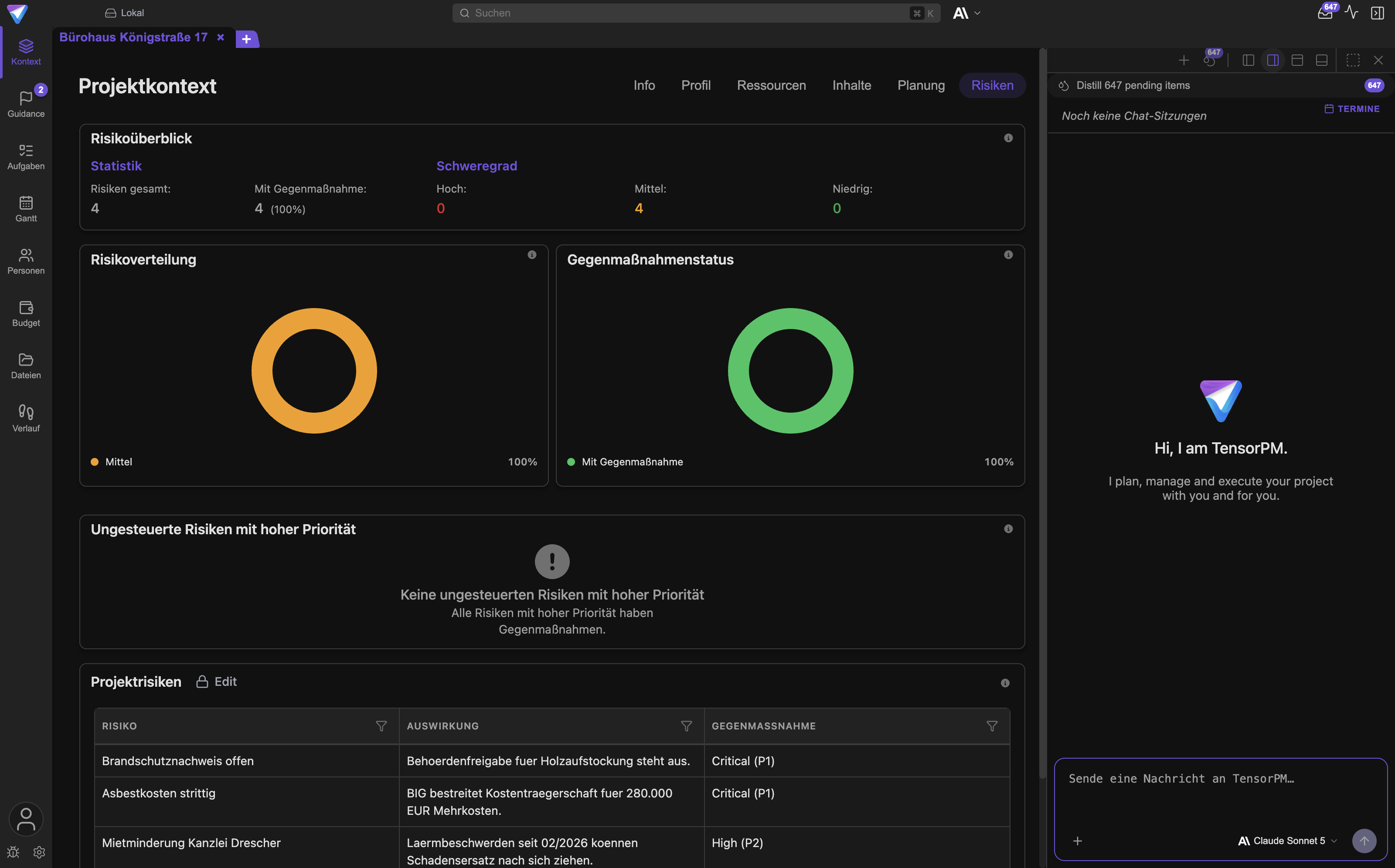
TensorPM bleibt vollständig nutzbar, wenn du die Umsetzung selbst übernimmst. Delegation ist eine Erweiterung, keine Voraussetzung. Mehr dazu in Projektagent, Chat & Schnellaktionen und in Skills.
Warum die Reihenfolge zählt
Viele KI-Werkzeuge beginnen bei Schicht 3. Sie schreiben eine gute E-Mail, kennen aber das Projekt nicht. Das Ergebnis liest sich flüssig und ist trotzdem falsch, weil die Grundlage fehlt.
TensorPM beginnt bei Schicht 1. Ein Agent, der Ziel, Umfang, Termine, Zusagen und Risiken kennt, gibt andere Empfehlungen als einer, der nur die letzten zehn Nachrichten sieht. Der Aufwand, den du in bestätigten Kontext steckst, zahlt sich in jeder Analyse und in jedem Arbeitsergebnis darüber aus.
Der Kreislauf: vom Signal zum bestätigten Kontext
Das Herzstück von TensorPM ist ein Kreislauf mit fünf Stationen. Er sorgt dafür, dass der Projektkontext aktuell bleibt, ohne dass er unkontrolliert wächst.
Schritt 1: Ein Signal kommt herein
Ein Signal ist eine einzelne Information, die für das Projekt bedeutsam sein könnte: eine E-Mail, ein hochgeladenes Dokument, eine Datei im Projektordner oder eine Meldung, die ein externes Werkzeug einliefert.
Signale kommen aus diesen Quellen:
- dem
E-Mail-Konnektor(klassisches Postfach über IMAP und SMTP) Microsoft 365Lokale E-Mails(Apple Mail auf deinem Gerät, ohne Passwort und ohne Serverzugriff)- Dateien und Dokumenten, die du dem Projekt hinzufügst
- externen Agenten, die über eine Werkzeugverbindung Signale einliefern; im Filter heißen sie
MCP-Signale
Ein Konnektor ist dabei eine gespeicherte Verbindung zu einer solchen Quelle. Nicht jeder Konnektor
liefert Signale: Telegram ist eine Chat-Brücke und Lokaler Kalender ein Kalenderzugang. Beide
laufen bewusst nicht in diesen Kreislauf.
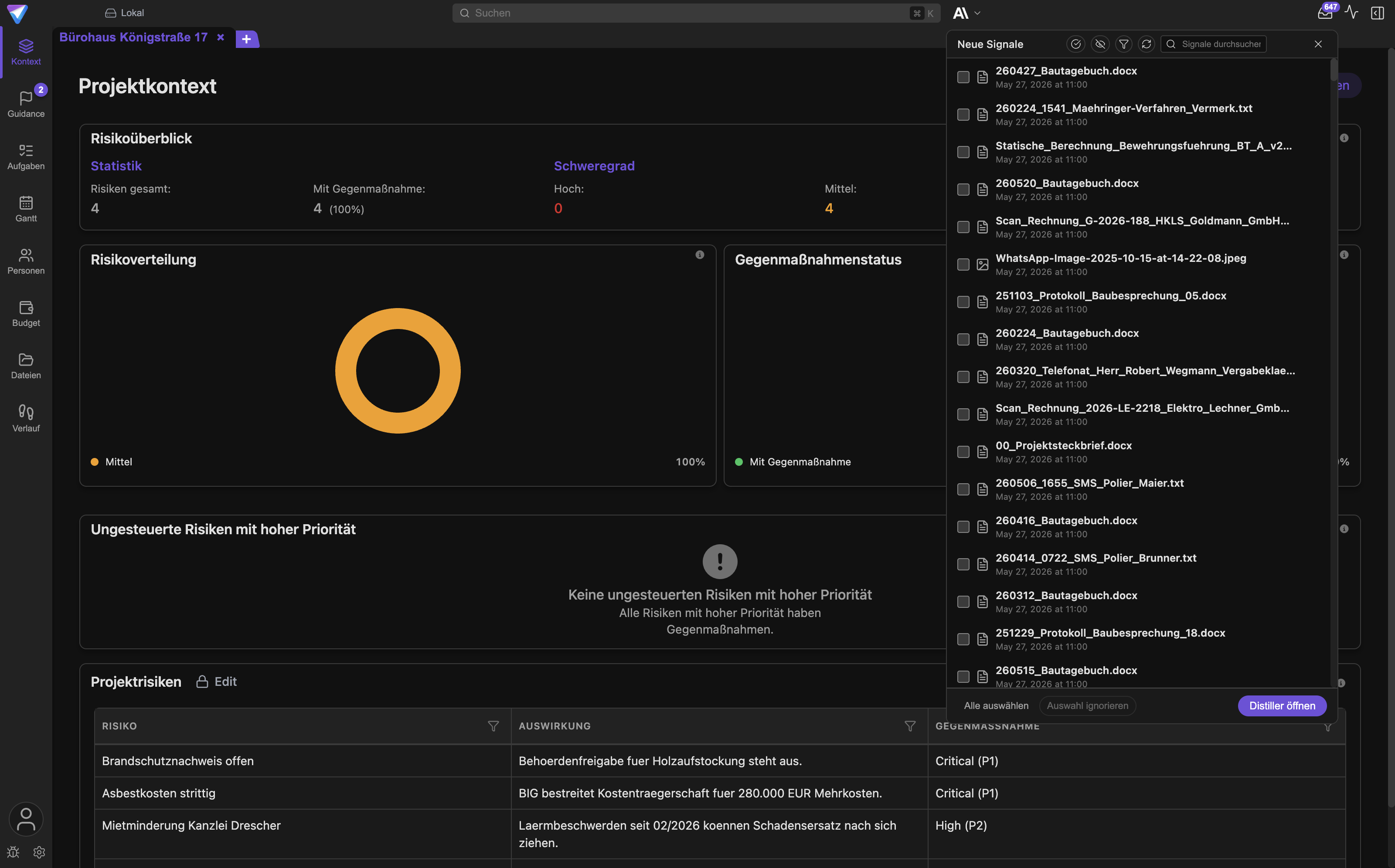
Neue Signale sammeln sich hinter dem Postfach-Symbol in der Kopfleiste. Das Panel hat drei
Ansichten: Neue Signale, Änderungsvorschläge und Ignorierte Signale.
Optional prüft TensorPM eingehende Konnektor-E-Mails vorab auf Relevanz. Die Einstellung heißt
Automatische Relevanzprüfung für Intakes. Sie sortiert offensichtliches Rauschen mit Begründung
nach Ignorierte Signale. Wichtig: Diese Prüfung sortiert nur. Sie ändert nie den Projektkontext,
und du kannst jedes aussortierte Signal wiederherstellen.
Schritt 2: Der Distiller macht einzelne Vorschläge
Der Distiller ist der Prüfschritt zwischen Signal und Projektkontext. Er liest ein Signal und schlägt daraus einzelne, klar abgegrenzte Änderungen vor. Jeder Vorschlag ist so klein, dass du ihn für sich annehmen oder verwerfen kannst.
Aus einer einzigen Baustellen-E-Mail können zum Beispiel vier getrennte Vorschläge entstehen:
- Der Meilenstein "Rohbau fertig" verschiebt sich um zwei Wochen.
- Eine neue Anforderung zur Brandschutztür kommt hinzu.
- Ein Risiko "Lieferverzug Fenster" wird ergänzt.
- Eine Zusage des Bauherrn wird als Entscheidung festgehalten.
Der Zuschnitt ist Absicht. Wenn ein Signal nur als Ganzes annehmbar wäre, müsstest du zwischen "alles übernehmen inklusive der schlecht formulierten Teile" und "gar nichts übernehmen" wählen. Beides wäre schlecht für die Qualität des Kontexts.
Schritt 3: Du entscheidest je Vorschlag
Jeder Vorschlag kommt als eigene Karte. Zu jeder Karte siehst du, was genau geändert werden soll und woher die Information stammt. Du entscheidest je Karte:
Annehmen: Der vorgeschlagene Wert ersetzt den bisherigen.Anhängen: Der vorgeschlagene Text wird ergänzt, statt zu ersetzen. Sinnvoll bei Listen und Sammlungen.Überspringen: Die Karte bleibt unentschieden und du kommst später darauf zurück.- Ablehnen: Die Karte wird verworfen.
Du kannst den Text vor der Entscheidung korrigieren. Am Ende bestätigst du den Stapel mit dem Knopf
{{count}} Einträge übernehmen. Was du entschieden hast, siehst du an den Kennzeichnungen
Angenommen, Angehängt, Abgelehnt und Übersprungen.
Bevor du eine Karte annimmst, lohnen sich vier Blicke:
- Vollständigen Vorschlag lesen, nicht nur die Überschrift.
- Quelle und betroffenes Projekt prüfen.
- Unklare oder verkürzte Formulierungen korrigieren.
- Nur genau die Änderung freigeben, die du willst.
Schritt 4: Erst die Bestätigung ändert den Kontext
Ein Vorschlag ist keine Änderung. Bis du eine Karte annimmst oder anhängst, bleibt der Projektkontext unverändert. Es gibt in der App keinen Weg, auf dem ein eingehendes Signal den Projektkontext von allein verändert.
Jede bestätigte Änderung landet im Verlauf, im Tab Änderungen. Dort siehst du den alten und den
neuen Stand, den Zeitpunkt und die Herkunft. Dauerhafte Zusagen führt der Tab Entscheidungen
getrennt, mit Status und Ablösekette.
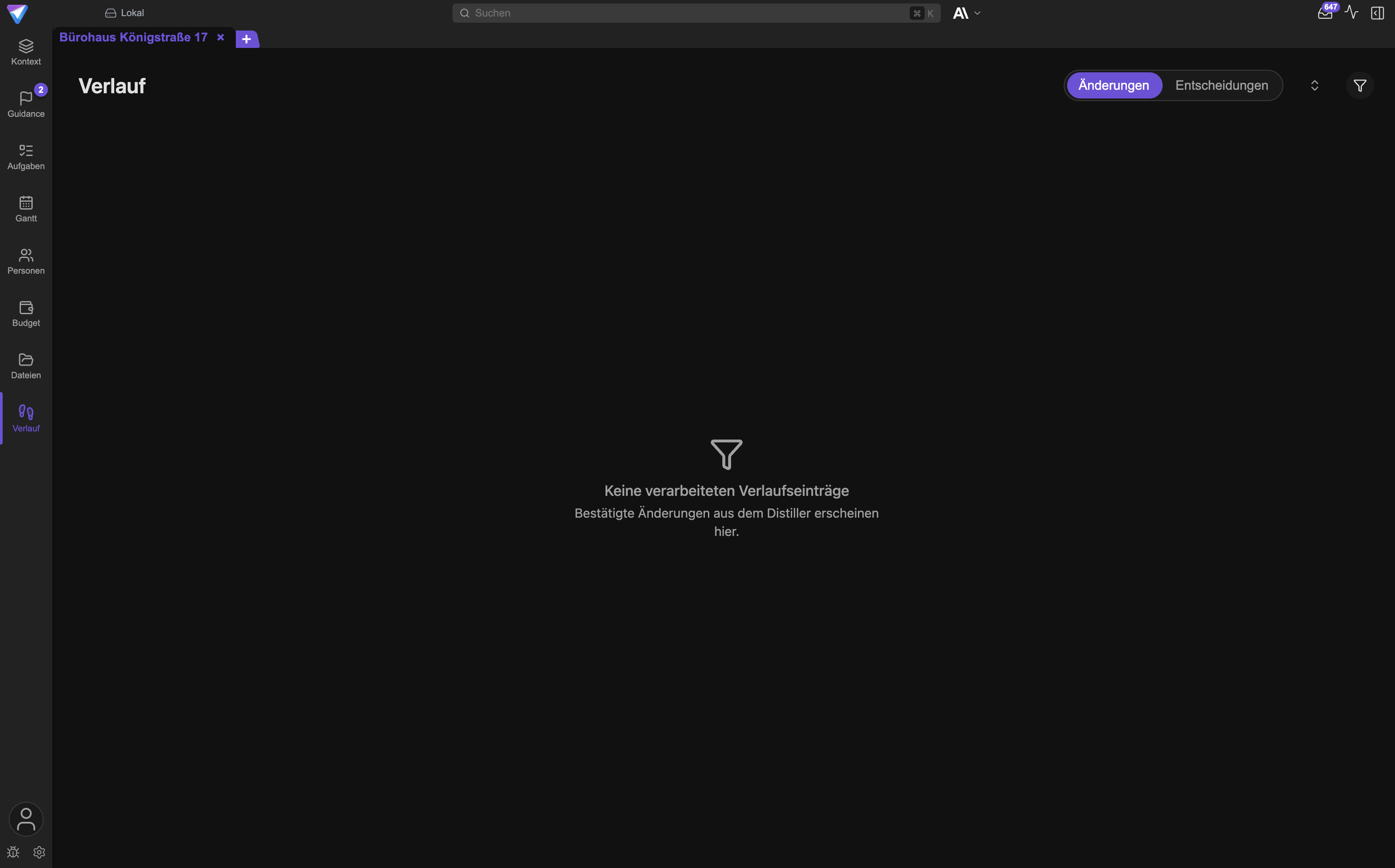
Diese Nachvollziehbarkeit ist der Grund, warum der Kreislauf überhaupt Sinn ergibt. Du kannst zu jeder Aussage im Projektkontext zurückverfolgen, wer sie wann auf welcher Grundlage bestätigt hat. Mehr dazu in Dateien und Verlauf.
Schritt 5: Die Analysen rechnen mit dem neuen Stand
Sobald der Kontext aktualisiert ist, arbeiten alle darüberliegenden Funktionen mit dem neuen Stand. Eine verschobene Frist verschiebt den kritischen Pfad. Ein neues Risiko taucht in der Risikozusammenfassung auf. Eine ergänzte Anforderung verändert die Abdeckungsanalyse.
Damit schließt sich der Kreis: Neue Information trifft ein, wird zu Vorschlägen, wird von dir bestätigt, wird Teil des Kontexts, und die Steuerung rechnet neu.
Nichts ändert sich still im Hintergrund
Das ist die wichtigste Zusage der App, deshalb hier ausdrücklich und mit den Grenzfällen.
Was von allein läuft und was es tut
Vier Dinge laufen im Hintergrund. Keines davon verändert deinen Projektkontext:
| Funktion | Was sie tut | Standard |
|---|---|---|
Automatische Relevanzprüfung für Intakes |
sortiert offensichtliches Rauschen nach Ignorierte Signale, wiederherstellbar |
aus |
Automatische KI-Priorisierung |
berechnet die KI-Priorität einer neuen oder bearbeiteten Aufgabe | an |
Täglicher Projektstatus-Check |
erstellt einmal täglich eine KI-Einschätzung zu Status und Fortschritt, getrennt von deiner eigenen Statusangabe | aus |
Proaktive Projekt-Check-ins |
prüft aktive Projekte nach Zeitplan und schickt eine Systembenachrichtigung mit einem Bericht | aus, nur Pro und Business |
Alle vier stehen in Einstellungen -> Allgemein und lassen sich abschalten. Check-ins sind in
Projekt-Check-ins beschrieben.
Was der Projektagent im Chat tut, wenn du ihn darum bittest
Eine Unterscheidung ist wichtig, damit du dich nicht wunderst: Wenn du den Projektagenten im Chat direkt beauftragst, etwa "trag das neue Enddatum ein" oder "leg diese Person an", dann führt er das aus, ohne dir vorher eine Freigabekarte zu zeigen. Das ist gewollt, denn du hast es gerade selbst angewiesen. Der Unterschied zum Kreislauf oben ist die Herkunft: Ein Signal von außen wird geprüft, dein eigener Auftrag wird ausgeführt.
Auch diese Änderungen stehen anschließend im Verlauf mit ihrer Herkunft. Du kannst also jederzeit
nachsehen, was der Agent in deinem Auftrag geändert hat.
Warum diese Trennung wichtig ist
Ein Projektkontext, der sich von allein füllt, wird schnell unbrauchbar. Ein Missverständnis in einer E-Mail wird sonst zur Projektentscheidung. Eine Höflichkeitsfloskel wird zur Zusage. Ein Angebot, das du nie angenommen hast, steht als Fakt im Budget.
Sobald das ein einziges Mal passiert, glaubst du dem gesamten Projektbild nicht mehr, und dann ist auch jede Analyse darauf wertlos. Die menschliche Bestätigung ist deshalb keine Bremse, sondern die Bedingung dafür, dass der Kontext überhaupt etwas wert ist. Externe Agenten, die über eine Schnittstelle andocken, dürfen aus demselben Grund nur Vorschläge einliefern und niemals direkt in den Projektkontext schreiben.
Jede Aktion nach außen braucht eine eigene Freigabe
Änderungen am Projektkontext bleiben im Haus. Eine gesendete E-Mail nicht. Deshalb gilt für alles, was das Projekt verlässt oder außerhalb von TensorPM etwas verändert, eine eigene, sichtbare Freigabe. Details stehen in Konnektoren und Freigaben.
E-Mail senden
Der Projektagent kann einen Entwurf schreiben, aber nicht senden. Der Entwurf erscheint als Karte im
Chat, mit Empfängern, Betreff, vollständigem Text, Anhängen und dem verwendeten Konnektor. Erst
Bestätigen & Senden verschickt ihn. Bis dahin steht der Status auf Freigabe ausstehend.
Bearbeitest du den Entwurf, verfällt die alte Freigabe und du musst erneut bestätigen. Sonst könnte zwischen deinem Blick auf den Text und dem Versand etwas anderes stehen als das, was du gelesen hast.
Termine anlegen und ändern
Kalenderänderungen laufen genauso. Der Agent bereitet die Änderung vor, du siehst sie im Detail, und
erst Bestätigen & Übernehmen schreibt sie in den Kalender. Das gilt für Microsoft 365 ebenso wie
für den Lokaler Kalender auf dem Mac. Der lokale Kalender kann lesen, anlegen und ändern, aber
nicht löschen und keine Teilnehmer ändern.
Externe Werkzeuge über MCP
MCP ist eine Werkzeugverbindung, über die der Agent Programme außerhalb von TensorPM benutzen kann.
Ruft er ein solches Werkzeug auf, erscheint eine Karte Berechtigung angefragt mit dem Namen des
Werkzeugs und dem, was es tun soll. Verändert der Aufruf Daten, ist er zusätzlich mit Ändert Daten
gekennzeichnet.
Du wählst Erlauben, Nicht erlauben oder Immer erlauben. Immer erlauben gilt dauerhaft für
diesen Server, also überlege dir das einmal in Ruhe statt fünfmal unter Zeitdruck. Reine
Leseaufrufe, die sich selbst als solche ausweisen, laufen ohne Nachfrage durch.
Skills, die Programme ausführen
Ein Skill ist eine Erweiterung, die im Projektordner liegt und Fachwissen oder ausführbaren Code
mitbringt. Ausführbare Skills brauchen Skill freigeben. Die Freigabe ist an den genauen Inhalt und
an die angeforderten Berechtigungen gebunden. Ändert sich eine Datei oder verlangt der Skill mehr
Rechte als zuvor, erlischt die Freigabe und du wirst erneut gefragt. Siehe Skills.
Warum Freigaben nicht gebündelt werden
Es wäre bequem, einmal "alles erlauben" zu klicken. Genau das wäre aber wertlos. Eine Freigabe ist nur dann eine Kontrolle, wenn sie sich auf eine konkrete Handlung bezieht, die du vor dir siehst: diese E-Mail, an diese Empfänger, mit diesem Text. Eine pauschale Freigabe ist keine Kontrolle, sondern eine Unterschrift auf einem leeren Blatt.
Was lokal bleibt und was in die Cloud geht
TensorPM ist local-first. Das heißt: Die App funktioniert vollständig ohne Internet, und die Cloud ist eine Ergänzung, keine Voraussetzung.
Immer lokal
- die Projektdatenbank auf deinem Gerät
- der Projektordner mit allen Dateien
- alle Konnektor-Einstellungen, so wie es das Panel
Konnektoren einrichtenauch schreibt: "Einstellungen bleiben lokal." - Passwörter und Zugangsdaten von Konnektoren, im Schlüsselspeicher deines Betriebssystems, in der
App als
Keyringbezeichnet - eigene KI-Schlüssel und die Zugangsdaten lokaler Coding-Agenten
- Dateiinhalte, auch bei aktivem Cloud Sync
Ein Lokaler Workspace verlässt dein Gerät nie. Ein Workspace ist dabei die Klammer um eine Gruppe
von Projekten.
Nur mit Cloud Sync
Cloud Sync ist eine Funktion der Tarife Pro und Business. Ist sie aktiv, gleicht TensorPM die
Projektdaten eines Cloud-Workspace zwischen deinen Geräten und den Personen im Workspace ab.
Zwei Punkte dazu:
- Die Daten sind
Ende-zu-Ende-verschlüsselt. Ohne einsatzbereite Geräteschlüssel startet der Cloud-Sync gar nicht erst. Der Server sieht verschlüsselte Inhalte, nicht deine Projekte. - Dateiinhalte werden nicht mitgesendet. Auf einem zweiten Gerät siehst du zu einer Datei die Angaben dazu, aber nicht automatisch die Datei selbst.
Mehr dazu in Cloud Sync, Workspaces und Verschlüsselung.
Was zum KI-Anbieter geht
Das ist ein getrennter Weg, unabhängig vom Cloud Sync. Damit eine KI antworten kann, muss der Ausschnitt des Projekts, um den es geht, an den KI-Anbieter geschickt werden. Wohin, hängt von deiner Einstellung ab:
- TensorPM-KI: Die Anfrage läuft über den TensorPM-Dienst und verbraucht
KI-Credits. - Eigene Schlüssel (BYOK): Die Anfrage geht direkt an deinen Anbieter, nicht über TensorPM. Das
ist dem Tarif
Businessvorbehalten. - Lokale KI: Mit Ollama, LM Studio oder vLLM bleibt auch die KI-Anfrage auf deiner Maschine.
Ohne KI-Anbieter funktioniert TensorPM weiter, nur eben ohne die KI-gestützten Teile. Siehe Konto und KI-Modi.
CDPM: die Methode hinter dem Produkt
Was CDPM bedeutet
CDPM steht für Context-Driven Project Management, also kontextgetriebene Projektsteuerung. Die Grundannahme ist eine einzige: Die Qualität jeder Projektentscheidung hängt von der Qualität des verfügbaren Projektkontexts ab.
Daraus folgen drei Arbeitsprinzipien:
- Es gibt eine gemeinsame, bestätigte Grundlage statt vieler halbaktueller Kopien.
- Diese Grundlage bleibt aktuell, weil neue Information in einem geregelten Kreislauf einfließt.
- Jede Empfehlung und jedes Arbeitsergebnis stützt sich auf diese Grundlage und nennt seine Belege.
TensorPM ist die Umsetzung dieser Prinzipien in Software. Der Projektkontext ist die gemeinsame Grundlage, der Distiller-Kreislauf hält sie aktuell, und jede Analyse stützt sich darauf.
Wie sich CDPM zu deiner Methode verhält
CDPM ergänzt die Methode, mit der du arbeitest. Es ersetzt sie nicht und stellt sie nicht infrage.
Scrum, Wasserfall, SAFe, PRINCE2, Lean Construction oder eine gewachsene Hausmethode beantworten alle die Frage: Wie organisieren wir die Arbeit? Sie legen Rollen, Rhythmen, Artefakte und Freigabewege fest. CDPM beantwortet eine andere Frage: Woher weiß jeder Beteiligte jederzeit, wie das Projekt wirklich steht?
Beide Fragen sind nötig, und sie stehen sich nicht im Weg:
| Deine Methode | Was CDPM ergänzt |
|---|---|
| Scrum | Product Backlog und Sprint-Ziele bleiben. Der Projektkontext liefert Zielbezug, Abhängigkeiten und Risiken über den Sprint hinaus. |
| Wasserfall | Phasen und Meilensteine bleiben. Der Kreislauf sorgt dafür, dass Planänderungen zwischen den Phasen nicht in E-Mails versanden. |
| SAFe | Program Increment und Kadenz bleiben. Der Projektkontext gibt jedem Zug dieselbe Faktenlage. |
| PRINCE2 | Business Case, Stage Gates und Rollen bleiben. Der Verlauf dokumentiert Entscheidungen und Zusagen mit Herkunft. |
| Hausmethode | Alles bleibt, wie es ist. Der Projektkontext füllt die Lücke zwischen den Terminen, an denen ohnehin berichtet wird. |
Praktisch heißt das: Du musst deine Prozesse nicht umstellen, um TensorPM zu benutzen. Du bekommst unter deinen Prozess eine Ebene, die den Stand hält.
Ein Beispiel
Ein Bauprojekt arbeitet klassisch nach Terminplan und Leistungsphasen. Der Bauleiter bekommt am Dienstag eine Mail, dass die Fenster vier Wochen später kommen.
Ohne gemeinsamen Kontext passiert Folgendes: Die Mail liegt im Postfach. Der Terminplan bleibt alt. In der Jour-fixe-Runde am Donnerstag erinnert sich niemand daran. Zwei Wochen später fällt der Verzug auf, jetzt zusammen mit einem Folgeverzug beim Innenausbau.
Mit TensorPM ändert sich am Prozess nichts. Weiterhin Terminplan, weiterhin Jour fixe. Aber: Die
Mail wird zum Signal, der Distiller schlägt eine Terminverschiebung und ein Risiko vor, der Bauleiter
bestätigt beides in einer Minute, und am Donnerstag steht im Tab Info, dass der Innenausbau der
neue Engpass ist. Die Methode ist dieselbe. Die Faktenlage ist besser.
Welche Ansicht welche Frage beantwortet
Die linke Leiste im Projekt ist nach Fragen sortiert, nicht nach Datentypen. Diese Übersicht sagt dir, wo du nachsiehst und wo der ausführliche Artikel steht.
| Ansicht | Beantwortet die Frage | Ausführlich in |
|---|---|---|
Kontext |
Worum geht es in diesem Projekt, und was ist der Rahmen? | Projektstruktur und Kontext |
Pulse |
Was ist gerade der Engpass, und was kommt als Nächstes? | Vorschläge & Reihenfolge |
Arbeits |
Wie ist die Arbeit gegliedert, und wer nimmt sie ab? | Arbeitspakete und PSP |
Aufgaben |
Was ist konkret zu tun, von wem, bis wann? | Aufgaben |
Gantt |
Wann passiert was, und was hängt woran? | Navigation und Ansichten |
Personen |
Wer ist beteiligt, und wer entscheidet? | Ressourcen und Personen |
Budget |
Was kostet es, und was ist bestellt oder geliefert? | Material und Beschaffung |
Dateien |
Welche Dokumente und Ergebnisse gehören dazu? | Dateien und Verlauf |
Verlauf |
Was hat sich geändert, wann, und auf welcher Grundlage? | Dateien und Verlauf |
Zwei Hinweise dazu:
- Der Bereich Arbeitspakete erscheint nur, wenn für das Projekt der Projektstrukturplan (PSP)
aktiviert ist. Du aktivierst ihn unter
Einstellungen->Allgemein->Projektstrukturplan. - Die Ansicht
Budgethat zwei Tabs:BudgetundMaterial. Der TabMaterialführt Beschaffung mit eigenem Statusmodell und ist in Material und Beschaffung beschrieben.
Nicht in der linken Leiste, aber genauso wichtig: das Postfach-Symbol in der Kopfleiste für neue
Signale und das Projektagent-Panel, das du über KI-Panel anzeigen ein- und ausblendest.
Eine Steuerungsroutine für die Woche
Der Kreislauf funktioniert am besten, wenn er einen festen Platz hat. Diese Routine dauert bei einem laufenden Projekt etwa zwanzig Minuten:
- Neue Signale durchgehen und die Vorschläge des Distillers entscheiden.
- Den Tab
ÄnderungenimVerlaufüberfliegen: Was hat sich seit letzter Woche geändert? - Offene Punkte aus Terminen, Budget und Risiken im
Kontextnachziehen. - Blockierte, verspätete und abgeschlossene Aufgaben aktualisieren.
- Im
PulseaufProjekt analysierenklicken oder die vorhandenen Vorschläge abarbeiten. - Die zwei oder drei Eingriffe entscheiden, die wirklich etwas bewegen.
- Konkrete Arbeit an den Projektagenten geben, wo es sich lohnt.
- Dauerhafte Zusagen als Entscheidung festhalten, statt sie im Chat zu lassen.
Der wichtigste Punkt ist der erste. Ein Kreislauf, dessen Vorschläge niemand entscheidet, hält den Kontext nicht aktuell.
Begriffe, die dir begegnen
- Projektkontext: die bestätigten Fakten und Rahmenbedingungen des Projekts
- Signal: eine einzelne eingehende Information, die für das Projekt bedeutsam sein könnte
- Konnektor: eine gespeicherte Verbindung zu einer externen Quelle, etwa einem Postfach oder einem Kalender
- Distiller: der Prüfschritt, der aus einem Signal einzelne Änderungsvorschläge macht
- Vorschlag: ein Analysebefund mit Auswirkung und vorgeschlagenem nächstem Schritt
- Projektagent: die TensorPM-KI, die mit dem gesamten Projektkontext arbeitet
- Verlauf: die Historie von Änderungen und Entscheidungen samt Herkunft
- Freigabe: deine ausdrückliche Bestätigung für eine Aktion nach außen
- Workspace: die Klammer um eine Gruppe von Projekten, lokal oder in der Cloud
- CDPM: Context-Driven Project Management, die Methode hinter dem Produkt
- MCP: eine Werkzeugverbindung, über die ein anderes KI-Werkzeug Projektdaten lesen oder Vorschläge einliefern kann
- A2A: eine Gesprächsschnittstelle, über die ein anderes KI-Werkzeug TensorPM um Analyse oder Arbeit bittet
Für die tägliche Projektarbeit brauchst du MCP und A2A nicht. Sie werden erst wichtig, wenn du TensorPM mit anderen KI-Werkzeugen verbindest. Eine vollständige Liste steht im Glossar.
Häufige Fragen
Muss ich den ganzen Kontext auf einmal ausfüllen? Nein. Fang mit Ziel, Umfang und Terminen an. Der Rest wächst über den Kreislauf, weil dein Projektalltag ohnehin laufend Signale erzeugt.
Was passiert, wenn ich eine Woche lang keine Vorschläge entscheide? Nichts geht verloren. Die Signale und Vorschläge bleiben liegen, bis du sie entscheidest. Der Projektkontext bleibt so lange auf dem alten Stand, und die Analysen rechnen mit diesem alten Stand.
Kann ich TensorPM ohne KI benutzen?
Ja, mit Einschränkungen. Kontext, Aufgaben, Termine, Budget, Personen und Verlauf funktionieren
ohne KI-Anbieter. Der Distiller und die vier Analysen brauchen einen. Ohne sie bleiben dir die
Ansichten Liste und Board deiner Aufgaben, aber keine Vorschläge und kein Tab Reihenfolge.
Ändert die KI etwas an meinem Projekt, ohne dass ich es merke?
Aus eingehenden Signalen nie. Auf deine direkte Anweisung im Chat schon, und das steht anschließend
im Verlauf. Im Hintergrund laufen nur die vier oben aufgeführten Funktionen, und keine davon
verändert den Projektkontext.
Verschickt TensorPM E-Mails selbstständig?
Nein. Der Projektagent kann einen Entwurf vorbereiten. Versendet wird erst nach
Bestätigen & Senden.
Muss ich meine Projektmethode umstellen? Nein. CDPM ergänzt deine Methode, egal ob du nach Scrum, Wasserfall, SAFe, PRINCE2 oder einer eigenen Hausmethode arbeitest.
Liegen meine Projektdaten in der Cloud?
Nur wenn du einen Cloud-Workspace mit Pro oder Business benutzt, und dann
Ende-zu-Ende-verschlüsselt. Ein Lokaler Workspace bleibt auf dem Gerät.
Nächste Schritte
- Zuerst installieren und einrichten: Erste Schritte
- Verlässlichen Kontext aufbauen: Projektstruktur und Kontext
- Den Kreislauf in Betrieb nehmen: Konnektoren und Freigaben
- Steuerungsunterstützung nutzen: Vorschläge & Reihenfolge
- Mit dem Projektagenten arbeiten: Projektagent, Chat & Schnellaktionen
- Änderungen nachvollziehen: Dateien und Verlauf
- Sich von selbst melden lassen: Projekt-Check-ins