
Cloud Sync
In short
Your projects always live on your device. Even with Cloud Sync switched on, the database on your own disk is what you actually work in. The cloud is a way to reconcile that work across your devices and across the people on your team. It is not a storage place you depend on.
That has one very practical consequence: without internet you keep working normally. You can create action items, change the project context, talk to the project agent and plan dates. TensorPM remembers everything and uploads it once the connection is back.
You need Cloud Sync as soon as more than one device or more than one person should see the same
project state. It is part of every plan, Trial included.
When you need Cloud Sync
There are four situations where the cloud pays off:
- You work on two devices. For example an office machine and a laptop you take to site. Without the cloud you maintain two separate states and reconcile them by hand.
- Several people look after the same project. Project manager and project controller see the same action items, the same decisions and the same project context.
- You want a second device as a safety net. Cloud Sync is not a backup, but a second signed-in device does hold a complete, current copy of the synchronized data.
- You are replacing a machine. New laptop, sign in, done. Without the cloud you would have to
restore a
Database Backup.
If none of that applies, a local workspace is the calmer choice. It needs no account, no connection and no subscription.
Important: A workspace is the container your projects live in. Every workspace is either
LocalorCloud. You make that choice per workspace, not per project.
What you need
An account, on any plan
Cloud Sync is included on every plan, Trial as well. You only need to be signed in to TensorPM.
What the plan decides is how many cloud workspaces your account may own: one on Trial, unlimited
on Pro and Business. Creating one beyond that allowance is refused by the server with
WORKSPACE_LIMIT_REACHED.
If a Pro subscription lapses, you keep your data and your collaborators. The account falls back
to the Trial credit budget and the one-active-project limit until payment succeeds.
Working in somebody else's workspace
Being a member of a workspace you do not own is free and unlimited on every plan. Nobody pays for it, and no plan caps how many people a workspace may have.
You get in through an invitation from the person who owns the cloud workspace. The workspace
management then shows a Pending Invitations section with the line
Invited by {{email}} as {{role}} and an Accept button. Once accepted, that workspace
synchronizes like any other.
AI requests you make inside that workspace are charged to the workspace owner's credit budget, on every plan. An engineering office can therefore bring external participants into a project without anybody needing a subscription of their own.
Turn on Cloud Sync
Workspace management does not live in Settings. You reach it through the account button in the
bottom left corner.
- Click
Accountin the bottom left. - Choose
Workspacesin the popover.
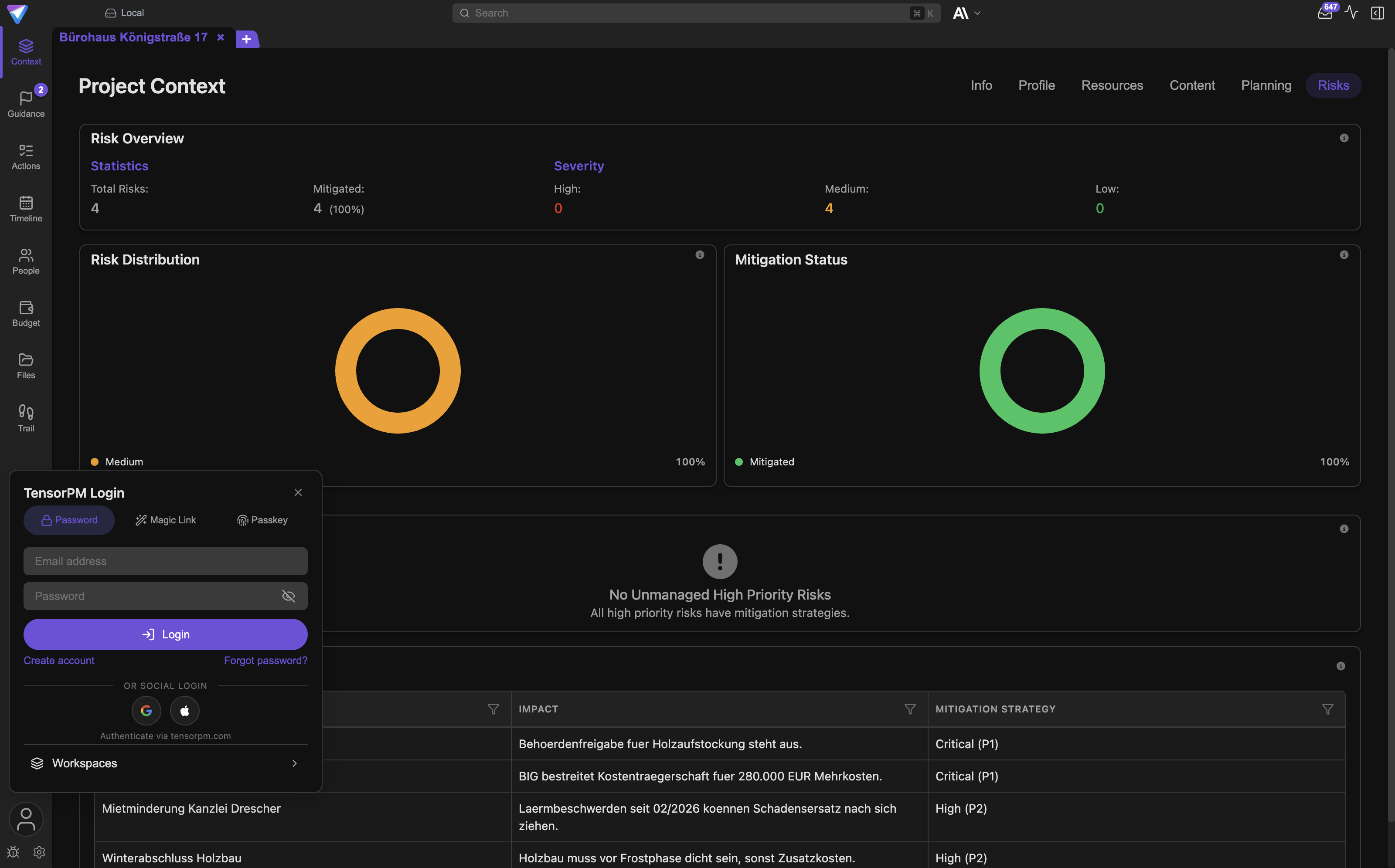
From here there are two routes, depending on whether the workspace is new or already exists.
Create a new cloud workspace
- Click
Workspacein workspace management. The creation form opens. - Enter a name. The field reads
Workspace name.... - Pick
Cloudinstead ofLocalfor the type.Localis preselected. - Add a description if you want. The field only appears for
Cloud. - Click
Create.
You know it worked when TensorPM reports Workspace "{{name}}" created successfully and the row
in the list carries a cloud icon instead of a hard-disk icon.
Convert an existing local workspace
If you have already been working locally and want to bring the existing projects along, convert the workspace instead of creating a new one.
- Find the row of the local workspace in workspace management.
- Click the cloud icon in that row. The tooltip reads
Enable Cloud Sync. The icon only appears for local workspaces and only if your account is allowed to create cloud workspaces. - The
Enable Cloud Syncdialog opens. It explains theZero-Knowledge Architecturein three points:Your data is encrypted on this device before upload,Only you and your team members can decrypt it,TensorPM servers never see your unencrypted data. - Read the notice
Your encryption key stays on your devices. Cross-device sync will be enabled. - Confirm with
Enable Cloud Sync.
TensorPM then reports Sync enabled for workspace "{{name}}". Sync starts automatically once encrypted key storage is available. The badge in that row moves from Local through
E2E Setup... to E2E Ready.
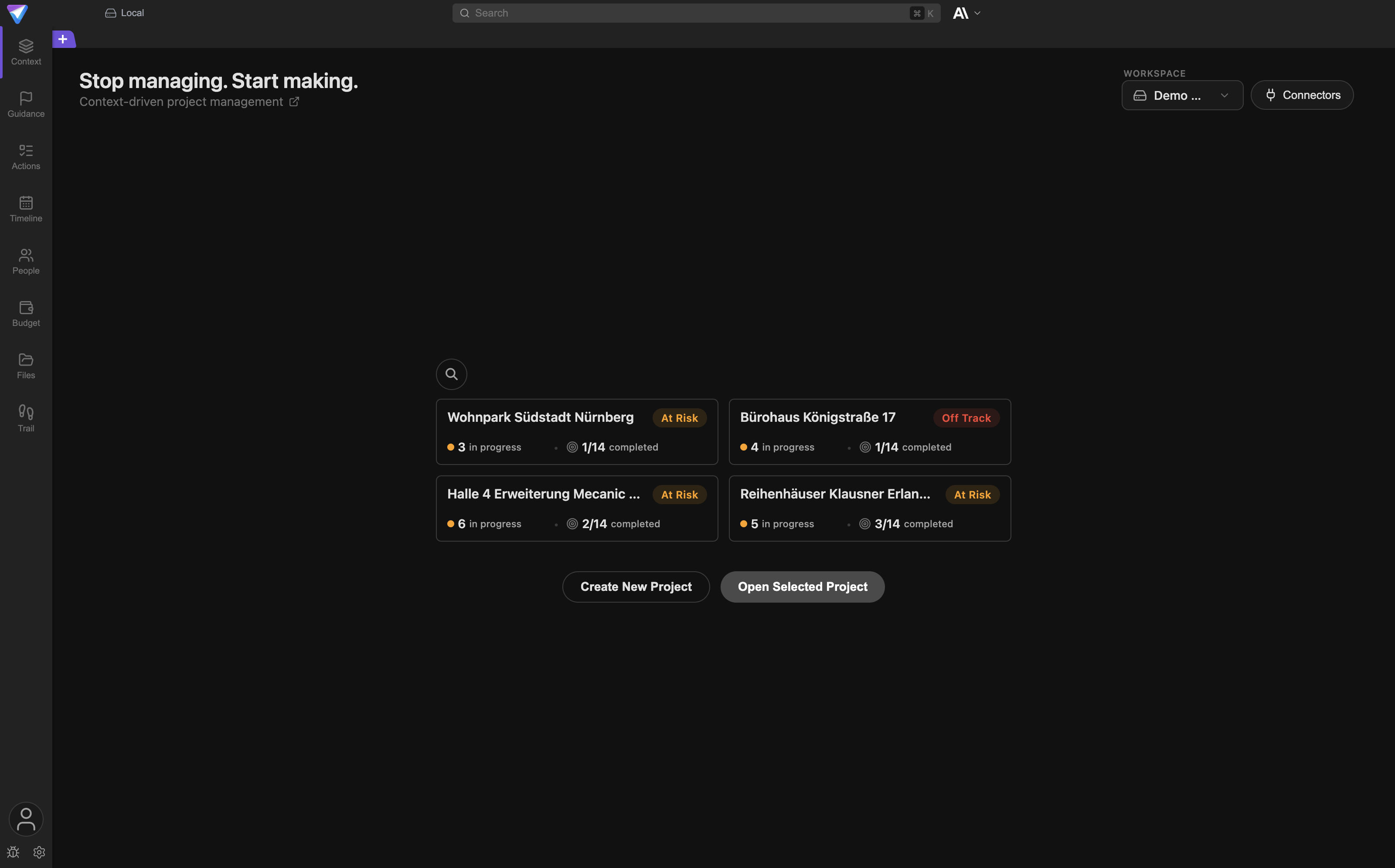
The active workspace also sits in the top right of the start screen under the heading WORKSPACE.
That is where you switch between workspaces day to day.
Important: Conversion is a one-way street. TensorPM offers no way to turn a cloud workspace back into a local one. Create a
Database Backupfirst underSettings->General->Database Backup.
What syncs and what stays local
Not everything travels to the cloud. TensorPM deliberately separates project knowledge that a team should share from credentials and device settings that are nobody else's business.
What is synchronized
| Area | Examples |
|---|---|
| Projects and project context | Goals, scope, success criteria, planning, risks, content |
| Action items | Action items, assignments, status, dependencies, status history |
| Work packages and structure | Work Breakdown Structure (WBS), categories, progress |
| Time and money | Effort, budget, budget buckets, expenses, timers |
| Material | Material items, suppliers, status |
| People | People, roles, role groups, labels |
| Chat with the project agent | Chats and messages |
| Trail and decisions | Changes in Trail, decisions and their links |
| Analyses and suggestions | Analysis results, suggestions, evaluations, analysis history |
| Files | references only: path, description, summary |
| Signals and Distiller | Proposed changes, Distiller runs, ignore decisions |
What deliberately stays on the device
| Area | Why |
|---|---|
| Connector credentials | Mailbox passwords and sign-in tokens live in the operating system's secure storage and are never written into a database row |
| Connector configuration | Which mailboxes and calendars you connected is a device decision |
| Your AI keys | Your own provider keys (Business) never leave the device |
| MCP configuration | The configuration files for external agents are files in the project or user folder |
| Emails, Telegram messages, calendar proposals | The fetched content of your mailboxes stays local. Only the distilled changes become project knowledge |
| Settings and view preferences | These are device-specific, so one machine does not reconfigure another |
| Check-in runs and schedules | They run on whichever device is switched on |
| Sync issues | The issue list describes this device, not the team |
| The files in your project folder | TensorPM uploads no documents. It only remembers that they exist |
The last point matters most in daily use: documents, drawings and photos in your project folder are not synchronized. When a colleague sees a file you attached, she sees the reference, not the file itself. So keep shared documents on a shared drive and back them up separately.
Read the sync status indicator
Top left, right next to the logo, there is a small icon with a word beside it. That is the sync status indicator. It is the fastest answer to "does my colleague have this yet?".
The states at a glance
| Indicator | Meaning | What to do |
|---|---|---|
Live |
Everything is reconciled and connected | Nothing |
| Just a spinner with no text | TensorPM is connecting or transferring | Wait a moment |
Pending |
The workspace is still waiting for the encryption key from another device | Briefly start another already set-up device or ask a team member to |
Local |
This workspace is local and is not reconciled | Nothing, that is intended |
No network |
The device has no internet connection | Keep working, TensorPM saves locally and catches up |
Offline |
Sync is inactive for some other reason | Open the status panel, the reason is there |
Log in |
You are not signed in | Click Sign in in the status panel |
Upgrade |
No active Pro subscription; sync continues on the Trial budget |
Move to Pro for the larger credit budget |
No access |
Your access to this workspace was revoked | Contact the workspace owner |
Keyring |
The device cannot store the encryption key safely | See below |
Error |
There is a concrete sync problem | Open the status panel and read the message |
Keyring is the one state whose name sounds technical. It means your operating system's secure
key storage. On macOS and Windows it is always present. On Linux it is not: there TensorPM says
Install and unlock GNOME Keyring or KDE Wallet, then restart TensorPM. Without that storage
TensorPM deliberately switches sync off rather than leaving the key unprotected on disk.
The detail panel
Click the status indicator. A panel opens with three areas.
Connection at the top. When connected it reads End-to-End Encrypted with a note below that
only your devices can decrypt. While connecting it reads Connecting securely. If it reads
Disconnected, there is currently no connection to the sync service.
Times in the middle. Last: {{time}} plus separate times for upload and download. If nothing
has happened yet it reads No sync activity yet.
Issues and actions at the bottom. Every issue carries a type: Upload failed,
Download failed, Conflict, Validation, Auth error or Network error. You can hide single
messages with Dismiss or all of them with Dismiss all.
Depending on the situation the panel offers three actions:
Retry failed uploadssends stuck changes up again.Restart sync servicerebuilds the connection from scratch. That is the right first move for a stubbornError.Export diagnostics for supportproduces a package for support. Attach it to your message before you write.
Only dismiss a message once you understand or resolved it. A dismissed message does not mean the problem went away.
Conflicts: when two people change the same thing
TensorPM does not ask. It decides by a fixed rule so nobody has to dismiss a dialog in the middle of their work.
The rule is: the later change wins. Every record carries a timestamp of its last change. If the server sends a version newer than the local one, it replaces the local one. If the local one is newer, it stays and becomes the valid version on the next upload.
What matters is how finely this applies. The comparison happens per record, not per project. If you rename one action item while a colleague reschedules a different one, there is no conflict. Both changes survive. A conflict only arises when both of you touch the same action item, the same person or the same context field before reconciliation ran.
Some special cases are resolved by the server. If two devices offline hand out the same action item number, the server assigns one of them a new number and reports that back as a resolved conflict. No action item is lost, only the number changes.
In practice that means:
- Before a meeting, wait briefly until it reads
Liveand nothing is pending. - For longer offline stretches, agree in advance who touches which area.
- After a long offline stretch, let reconciliation finish before you keep editing.
- Who saved last is visible in
Trail. You can read an accidentally overwritten change there and restore it by hand.
Signing in on a second device
On a second device there is no import and no copying of files. The flow:
- Install TensorPM on the second device.
- Sign in with the same account.
- Open
Account->Workspacesand select the cloud workspace. - Wait for reconciliation to finish.
Something happens in step four that is worth knowing. The new device generates its own key pair. Only the public part goes to the server, the secret part stays in the device's secure storage. For the new device to read the existing content, an already authorized device has to wrap the project key for it. That runs automatically, but it requires at least one already authorized device to come online.
Until that has happened, the status indicator shows Pending and the detail panel reads
Waiting for a team member to share sync access with you. or Waiting for encryption setup....
That is not an error. Just start the old device briefly with an internet connection.
Important: Set up the
Key Backupbefore you need a second device. You find it in the account popover. ClickEnablenext toKey Backupand choose a password. Without a backup and without a second authorized device, the cloud content is lost if your device goes missing. TensorPM cannot recover it for you either.
Encryption in one paragraph
Everything that carries meaning in a cloud workspace is encrypted on your device before it is uploaded. TensorPM's servers therefore store unreadable blocks, not project text.
The key for that lives with you and your team members, not with TensorPM. That is what
Zero-Knowledge Architecture in the conversion dialog refers to.
How this works technically, which methods are used and where the limits are is covered in detail in Encryption & Security.
What happens in the background
You do not have to know this, but it explains a few things you will notice.
TensorPM writes every change into the local database immediately. A separate service then looks at which records are newer than the last successful reconciliation, encrypts the sensitive fields and uploads them. In the other direction it fetches changes from other devices, decrypts them and writes them into the local database.
That leads to:
- The app never feels "slow because of the internet", because no save waits on the network.
- After a long offline stretch the first reconciliation can take a moment and the indicator stays on the spinner for a while.
- A single record can get stuck in
Errorwhile everything else keeps flowing. That is exactly what the sync issue list is for. - If you have two machines side by side, you will not see a change in the same second. A few moments of delay are normal.
Common questions
Do I need internet to work with TensorPM? No. Even in a cloud workspace you keep working fully offline. Only reconciliation pauses. What does need internet is creating, renaming and deleting cloud workspaces, plus AI responses when you use the TensorPM provider.
Is Cloud Sync a backup?
No. Reconciliation distributes changes, including deletions. If you delete an action item, it is
gone everywhere after reconciliation. A Database Backup under Settings -> General ->
Database Backup serves a different purpose and is still necessary.
Are my documents uploaded? No. Only the references to files are reconciled, never the files themselves.
Can TensorPM see my project content? No. The sensitive fields are encrypted before upload. The server sees structure and timestamps, not the text.
Can I exclude single projects from reconciliation? The decision is made at workspace level. If a project should not go to the cloud, create it in a local workspace.
What happens to my data if I cancel my subscription?
Nothing is lost. The local database stays complete on the device. Reconciliation stops and the
status indicator switches to Upgrade.
Can I turn a cloud workspace back into a local one? The app offers no route for that. So plan the conversion deliberately.
Does Cloud Sync consume my AI credits? No. Credits are only spent on AI requests through the TensorPM provider, never on data reconciliation.
Does everyone on the team need a subscription?
No. Nobody does. Cloud Sync is part of every plan, and being invited into somebody else's
workspace is free on Trial too.
If something does not work
The status indicator permanently reads Local.
The open workspace is a local one. Check the selector in the top right of the start screen under
WORKSPACE and switch to the cloud workspace.
The status indicator reads Log in.
You are signed out. Open the status panel and click Sign in.
The status indicator reads Upgrade.
A Pro subscription expired or was never active. Sync keeps working; the account is back on the
Trial credit budget and the one-active-project limit. Open Account and use
Manage subscription if you want the Pro budget back.
The status indicator reads No access.
Your membership in this workspace was revoked. Only the owner can restore it.
The status indicator reads Keyring.
The operating system provides no secure key storage. On Linux, install and unlock GNOME Keyring or
KDE Wallet and restart TensorPM. On other systems, enable secure storage and restart.
The status indicator stays on Pending.
The device is waiting for the encryption key. Start an already set-up device with an internet
connection, or ask a team member to. If you have none left, you need the Key Backup.
A change does not reach a colleague.
Check in order: does yours read Live? Does theirs read Live? Are you in the same workspace? Is
it really a synchronized field and not a file in the project folder or a device setting?
It reads Error and the list shows Upload failed.
Click Retry failed uploads. If that does not help, use Restart sync service.
None of this helps.
Click Export diagnostics for support in the status panel and send the file with a short
description to support. Mention which state is shown and since when.
Next steps
- Organize collaboration and memberships: Workspaces & Teams
- Understand encryption and recovery: Encryption & Security
- Subscription, credits and plans: Account & AI Modes
- Backups and settings: Settings & Backups
- Look up more sync symptoms: Troubleshooting