
Projektagent, Chat & Schnellaktionen
Kurz gesagt
Der Projektagent ist der Gesprächspartner in TensorPM. Du erreichst ihn im Chat des KI-Panels.
Er kennt den bestätigten Projektkontext, kann ihn erklären, kann Projektdaten ändern und kann mit
freigegebenen Verbindungen nach außen handeln. Du steuerst ihn mit normaler Sprache, du siehst nach
jeder Antwort, worauf sie sich stützt, und du kannst einen laufenden Vorgang jederzeit stoppen,
korrigieren oder ergänzen.
Wo der Projektagent sitzt
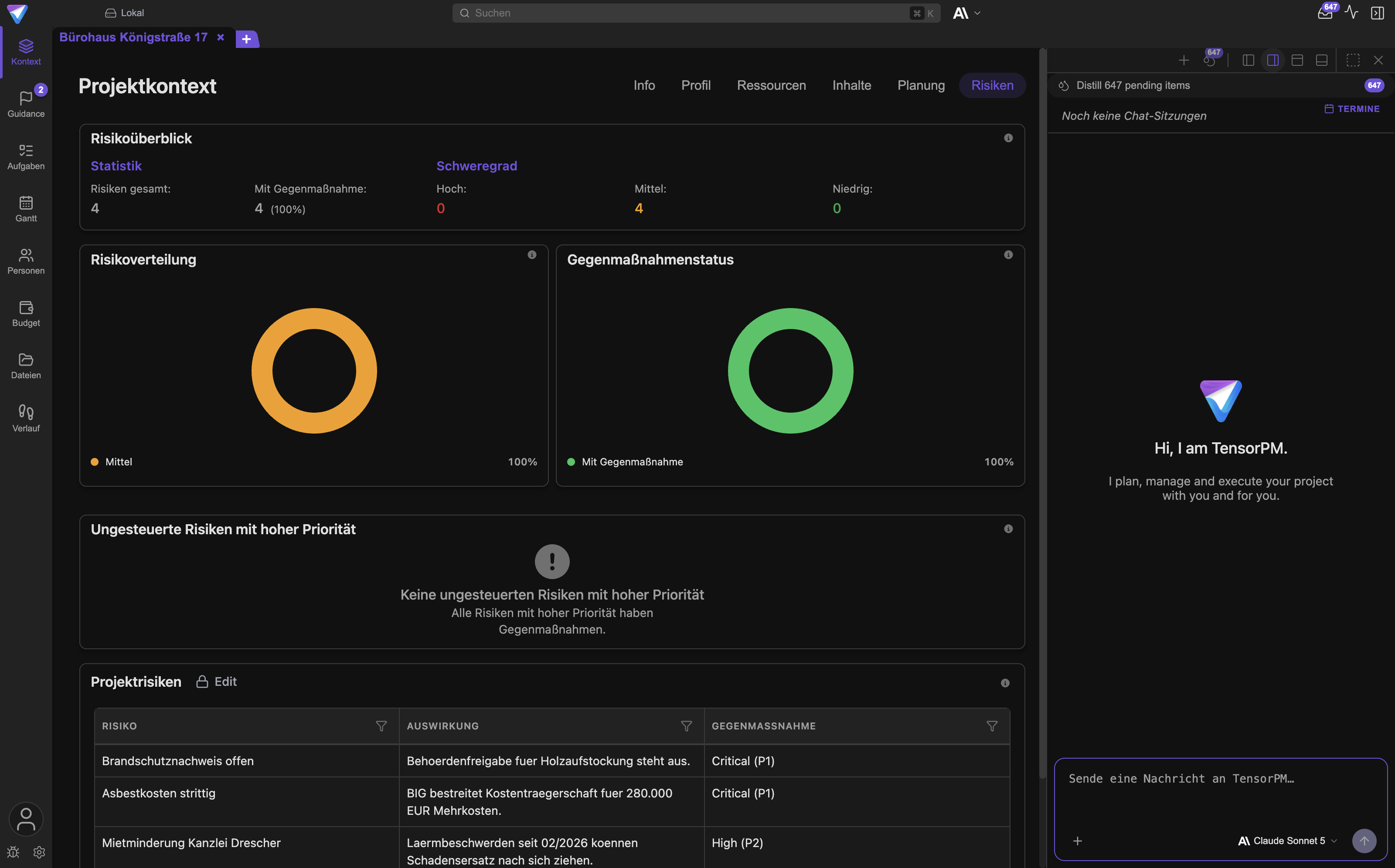
Panel öffnen und schließen
Der Schalter für das Panel liegt ganz rechts in der Kopfleiste, direkt vor den Fensterknöpfen. Der
Tooltip heißt KI-Panel anzeigen, solange das Panel zu ist, und KI-Panel ausblenden, solange es
offen ist. Der Schalter erscheint nur, wenn ein Projekt geöffnet ist.
Im Panel schreibst du in das Eingabefeld unten. Der Platzhaltertext lautet
Sende eine Nachricht an TensorPM…. Mit Enter sendest du, mit Umschalt und Enter machst du einen
Zeilenumbruch.
Position und Größe des Panels
Das Panel ist nicht auf die rechte Seite festgelegt. Über Panel-Position in der Panel-Kopfzeile
wählst du zwischen Links andocken, Rechts andocken, Oben andocken und Unten andocken.
Zusätzlich gibt es Chat als ganze Seite öffnen. Damit füllt der Chat das Fenster, was beim Lesen
langer Antworten und beim Prüfen von Werkzeugaufrufen hilft. Panel-Breite wiederherstellen bringt
dich zur vorherigen Breite zurück. Chat-Panel schließen schließt das Panel ganz.
Mehrere Chats und der Chatverlauf
Ein Projekt hat nicht nur einen Chat. Neuer Chat startet ein frisches Gespräch. Chatverlauf
öffnet die Liste der bisherigen Gespräche, gruppiert nach Sitzungen von heute,
Sitzungen von gestern, Sitzungen der letzten Woche, Sitzungen des letzten Monats und
Ältere Sitzungen. Zurück zur Chatliste bringt dich aus einem Chat zurück in die Übersicht.
Einzelne Chats kannst du über Umbenennen und Löschen verwalten.
Ein zweiter Bereich der Liste heißt Termine und zeigt Geplante Aufgaben. Wenn der Agent für
später ein Nachfassen eingeplant hat, steht der Eintrag dort und trägt im Chat das Kennzeichen
Geplant. Mit Plan abbrechen sagst du ihn ab, mit Beibehalten lässt du ihn stehen.
Ein Hinweis erscheint, wenn ein Gespräch sehr lang wird:
Dieser Chat wird lang. Für beste Ergebnisse einen neuen Chat starten. Nimm ihn ernst. Ein langer
Chat kostet mehr Credits pro Antwort und verwässert die Aufmerksamkeit des Agenten.
Wann du den Projektagenten brauchst
- Du willst vor einem Termin wissen, was gerade wirklich kritisch ist.
- Du hast ein Protokoll oder ein Foto von der Baustelle und willst wissen, was daraus folgt.
- Du willst eine Liste von Aufgaben aus einem Sachverhalt ableiten lassen, statt sie zu tippen.
- Du willst einen Statusbericht, eine Agenda oder eine Präsentation entwerfen lassen.
- Du willst prüfen, ob dein Projektkontext an einer Stelle widersprüchlich ist.
Drei Arten von Anfragen
Es hilft, vor dem Tippen zu wissen, welche der drei Arten du gerade auslöst. Sie unterscheiden sich darin, was hinterher passiert ist.
Fragen beantworten
Der Agent liest den Projektkontext und antwortet. Nichts wird verändert. Diese Anfragen sind risikolos und kosten nur Credits.
Beispiel: „Welche drei Risiken brauchen vor Freitag eine Entscheidung, und warum?“
Projektdaten ändern
Der Agent kann Aufgaben anlegen, Aufgaben aktualisieren, Kategorien anlegen, Personen pflegen,
Budgettöpfe und Ausgaben ändern, Zeitplan und Projekttexte anpassen und Entscheidungen festhalten.
Diese Änderungen laufen als Werkzeugaufrufe und werden sofort wirksam. Es gibt für sie keinen
Bestätigungsdialog. Sichtbar werden sie an zwei Stellen: als Zeile unter der Antwort im Chat und
als Eintrag im Verlauf.
Beispiel: „Lege aus dem Protokoll von gestern die offenen Punkte als Aufgaben an, mit Verantwortlichem und Termin.“
Nach außen handeln
Sobald etwas dein Projekt verlässt, greift eine Freigabe. Eine E-Mail geht erst nach
Bestätigen & Senden raus. Ein Kalendereintrag wird erst nach Bestätigen & Übernehmen
geschrieben. Ein Werkzeug eines externen MCP-Servers läuft erst nach Erlauben. Diese Schritte
kannst du nicht überspringen.
Beispiel: „Entwirf die Absage an den Fliesenleger und lege sie mir zur Freigabe vor.“
Gute Fragen und schlechte Fragen
Eine gute Frage nennt drei Dinge: die Entscheidung oder das Ergebnis, den Zeitraum und die erlaubte Wirkung.
Beispiele aus einem Bauprojekt
Gut:
- „Der Estrich im 2. OG ist zwei Wochen später fertig. Welche Folgegewerke verschieben sich, und welche Termine im Zeitplan muss ich anfassen?“
- „Fasse die Mängel aus dem Begehungsprotokoll vom 4. August zu Aufgaben zusammen. Ordne jede Aufgabe dem Gewerk zu und setze als Termin die Abnahme am 30. September.“
- „Vergleiche die geplanten Arbeitspakete mit unseren Erfolgskriterien und zeige mir, wo nichts hinterlegt ist. Ändere nichts.“
- „Bereite die Agenda für die Bauherrenbesprechung am Donnerstag vor: offene Entscheidungen, Risiken mit Termindruck, Budgetabweichungen über 5.000 Euro.“
- „Wie hoch ist die Abweichung im Budgettopf Rohbau, und aus welchen Ausgaben setzt sie sich zusammen?“
Schlecht:
- „Wie läuft das Projekt?“ Zu offen. Du bekommst eine Zusammenfassung, aber keine Entscheidung.
- „Mach das Projekt fertig.“ Kein Ergebnis, kein Zeitraum, keine Grenze.
- „Was sagt der Vertrag zur Vertragsstrafe?“ Der Agent kennt den Vertrag nur, wenn er als Datei oder als bestätigter Kontext im Projekt liegt.
- „Ruf den Statiker an.“ Telefonieren ist keine Fähigkeit der App.
- „Optimiere alles.“ Der Agent würde raten und dabei Projektdaten anfassen.
Woran eine schlechte Frage scheitert
Drei Muster erklären fast alle enttäuschenden Antworten:
- Die Frage nennt kein Ergebnis. Der Agent liefert dann eine Zusammenfassung, weil das die sicherste Antwort auf eine offene Frage ist.
- Die Information steht nicht im Projekt. Was nicht im Projektkontext, in den Aufgaben oder in einer angehängten Datei steht, existiert für den Agenten nicht.
- Die Frage vermischt Analyse und Änderung. „Prüf das und mach es gleich richtig“ führt dazu, dass Daten geändert werden, bevor du die Prüfung gelesen hast.
Sag dazu, ob geändert werden darf
Zwei Halbsätze reichen und ersparen viel Aufräumarbeit:
- „Ändere nichts, antworte nur.“ Der Agent bleibt im Lesemodus.
- „Schlage die Änderungen erst vor und warte auf mein Go.“ Du bekommst eine Liste statt vollendeter Tatsachen.
Das Modell im Eingabefeld wählen
Links unten im Eingabefeld steht das aktuell verwendete Modell mit dem Logo seines Anbieters. Der
Tooltip lautet Aktuell: <Name>. Ein Klick öffnet die Liste der Modelle, die gerade wirklich
nutzbar sind. Die Auswahl gilt ab der nächsten Nachricht.
Welche Einträge erscheinen, hängt davon ab, was du eingerichtet hast: die TensorPM-KI nach der Anmeldung, ein verbundenes Claude- oder ChatGPT-Abo über die lokale Anwendung, lokale KI über einen eigenen Server oder Business-Zugänge mit den Schlüsseln deiner Organisation.
Steht dort Keine Modelle verfügbar, ist noch kein Weg eingerichtet. Der Hinweis darunter lautet je
nach Anmeldestatus Logge dich für TensorPM ein oder richte lokale KI ein oder
Nutze TensorPM oder richte lokale KI in den Einstellungen ein. Der Senden-Knopf bleibt in diesem
Fall inaktiv.
Verlass dich auf die Namen in der App, nicht auf eine gedruckte Modellliste. Das Angebot ändert sich.
Das Plus-Menü im Eingabefeld
Das + links über dem Eingabefeld bündelt alles, was du dem Agenten zusätzlich mitgeben kannst. Der
Tooltip lautet Anhängen, Suchen und mehr.
Dateien hochladen
Dateien hochladen öffnet den Dateidialog deines Betriebssystems. Angenommen werden PDF, Word,
Text, Markdown, Excel, CSV, PowerPoint und Bilder in den Formaten JPG, PNG, GIF, WebP, BMP und TIFF.
Große Dokumente werden vor dem Gespräch aufbereitet. Solange das läuft, steht am Anhang
Wird verarbeitet…, danach Zusammenfassung fertig oder Zusammenfassung fehlgeschlagen.
Dateien suchen
Dateien suchen durchsucht den Projektordner, statt eine Kopie hochzuladen. Du tippst in das Feld
Dateien suchen… und hängst den Treffer direkt an. Findet die Suche nichts, steht dort
Keine Dateien gefunden. Ohne offenes Projekt erscheint Kein Projekt aktiv.
Bilder und Dokumente an den Agenten geben
Bilder kannst du auch direkt in das Eingabefeld einfügen, etwa ein Foto aus der Zwischenablage. Im
Chat erscheint eine Vorschau. Mit Bild vergrößern öffnest du sie groß, mit Vorheriges Bild und
Nächstes Bild blätterst du. PDFs bekommen eine eigene Vorschau mit Vorherige Seite,
Nächste Seite und der Anzeige Seite {aktuell}/{gesamt}.
Ein Foto ist oft die schnellste Art, einen Baustellensachverhalt zu übergeben: „Auf dem Bild ist der Anschluss der Attika zu sehen. Passt das zur Ausführungsplanung, die im Projekt hinterlegt ist?“
Hänge nur an, was zur Frage gehört. Eine kleine, passende Auswahl ist leichter zu prüfen, kostet weniger Credits und vermeidet, dass unbeteiligte Informationen im Gespräch landen.
Anhänge nach dem Senden behalten
Sobald ein Anhang am Eingabefeld hängt, erscheint daneben eine Stecknadel. Sie heißt
Anhänge nach dem Senden behalten. Ist sie aktiv, lautet der Tooltip
Anhänge bleiben nach dem Senden angeheftet, und dieselbe Datei begleitet auch die nächsten
Nachrichten. Das ist nützlich, wenn du ein Dokument in mehreren Schritten durchgehst. Denk daran,
die Nadel wieder zu lösen, wenn du das Thema wechselst.
Browser-Agent starten
Ist ein geeigneter KI-Zugang vorhanden, zeigt das Menü zusätzlich Browser-Agent starten. Damit
öffnest du eine lokale, KI-gesteuerte Browser-Sitzung. Über die Umschaltung Chat und Browser
entscheidest du, wer deine nächste Nachricht bekommt. Mit Browser-Agent stoppen beendest du die
Sitzung, mit Browser-Agent minimieren (läuft weiter) schiebst du sie in den Hintergrund. Der
Eintrag fehlt, solange kein passender Zugang eingerichtet ist.
Schnellaktionen
Schnellaktionen umschalten im Plus-Menü öffnet die Liste der wiederkehrenden Arbeitsschritte. Sie
ist in zwei Bereiche geteilt.
KI-Bewertungen enthält:
AufgabenundKategorienmit dem KnopfErstellen. Ein Stepper mitErhöhenundVerringernlegt fest, wie viele Einträge entstehen sollen.Neu bewertenundAufteilenfür ausgewählte Aufgaben.Projektstatusmit dem KnopfBewerten.
Analyse & Guidance enthält:
KontextanalysemitAnalysieren: prüft Vollständigkeit, Korrektheit und Widerspruchsfreiheit des Projektkontexts.Strategie-GuidancemitAbleiten: leitet aus der Analyse Handlungsoptionen ab.AbdeckungsanalysemitAnalysieren: prüft, wie gut die Aufgaben die Projektziele abdecken.Ausführungs-GuidancemitAbleiten: leitet Reihenfolge und nächste Schritte ab.
Unter Eigene Anweisungen kannst du jeder Schnellaktion einen Zusatz mitgeben, zum Beispiel
„nur Gewerk Rohbau“ oder „auf Deutsch, knapp“.
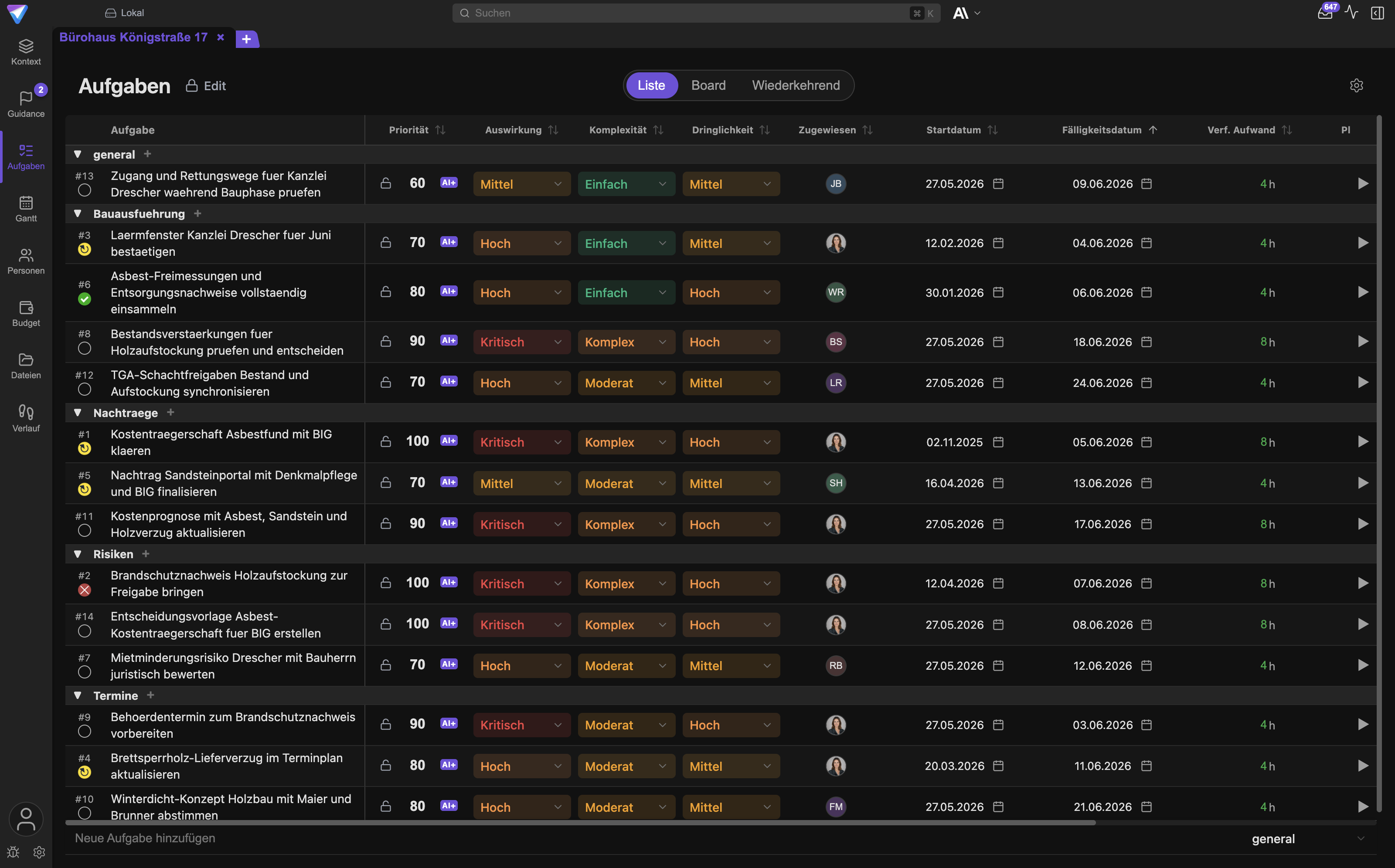
Neu bewerten und Aufteilen brauchen eine Auswahl. Die triffst du unter Aufgaben -> Liste ->
Bearbeiten. Ohne Auswahl steht im Tooltip
Im Bearbeitungsmodus Aufgaben auswählen, um neu zu bewerten.
Halte erzeugte Mengen klein genug, dass du sie noch prüfen kannst. Zwölf gute Aufgaben sind mehr wert als vierzig ungeprüfte.
Erkennen, worauf sich eine Antwort stützt
Das ist der wichtigste Abschnitt dieses Artikels. TensorPM zeigt dir zu jeder Antwort, welchen Ausschnitt des Projekts der Agent gelesen und welche Werkzeuge er benutzt hat.
Der Kontexthinweis unter der Antwort
In der Fußzeile jeder KI-Antwort steht neben der Uhrzeit ein kleiner Hinweis. Er lautet entweder
Voller Kontext oder {Anzahl} Felder.
Voller Kontextheißt: der Agent hatte das ganze Projekt vor sich. Der Tooltip erklärt, warum, zum BeispielErste Nachricht in diesem Chat, daher habe ich das ganze Projekt als Kontext geladen.oderDeine Anfrage war offen, daher habe ich das ganze Projekt als Kontext geladen.{Anzahl} Felderheißt: der Agent hat gezielt ausgewählt. Der Tooltip zeigt die Liste unterGeladene Felder:.
Damit prüfst du eine Antwort in zwei Sekunden: Steht das Feld, um das es dir ging, gar nicht in der Liste, hat der Agent es nicht gelesen. Frag dann noch einmal genauer nach oder hänge die passende Datei an.
Daneben steht ein Ring, der zeigt, wie voll das Gesprächsfenster ist, mit den Zahlen zum Token-Verbrauch im Tooltip.
Die Werkzeugaufrufe unter der Antwort
Unter der Antwort listet TensorPM jedes Werkzeug auf, das der Agent benutzt hat, in Alltagssprache
und mit Status. Während der Arbeit siehst du die aktive Form, etwa Erstellt Aufgaben,
Aktualisiert Projektbudget, Sucht im Web oder Führt Skill <Name> aus. Danach steht die
abgeschlossene Form, etwa Aufgaben erstellt, Projektbudget aktualisiert,
Websuche abgeschlossen.
Ein Haken bedeutet erfolgreich, ein Kreuz bedeutet fehlgeschlagen. Ein durchgestrichener Kreis mit
dem Text Abgebrochen - nicht erlaubt bedeutet, dass du diesen Aufruf abgelehnt hast. Gleiche
Aufrufe werden zusammengefasst und mit einer Anzahl versehen.
Während der Agent arbeitet, zeigt die Kopfzeile der laufenden Antwort die Phase an: Denkt nach,
Nutzt Tools, Bereitet Antwort vor, Antwortet.
Lies diese Liste immer, wenn du um eine Änderung gebeten hast. Sie ist der Beleg dafür, was wirklich passiert ist, und nicht nur dafür, was der Agent behauptet getan zu haben.
Vom Verlauf zurück in den Chat
Jede Änderung im Verlauf trägt ein Herkunftszeichen. Stammt sie aus einem Gespräch, steht dort
Chat. Ein Klick öffnet ein kleines Fenster mit den Details der Quelle und dem Knopf
Im Chat öffnen. Der bringt dich zu genau der Nachricht, die die Änderung ausgelöst hat.
Ist die Nachricht inzwischen gelöscht, steht dort
Die auslösende Nachricht ist nicht mehr vorhanden.
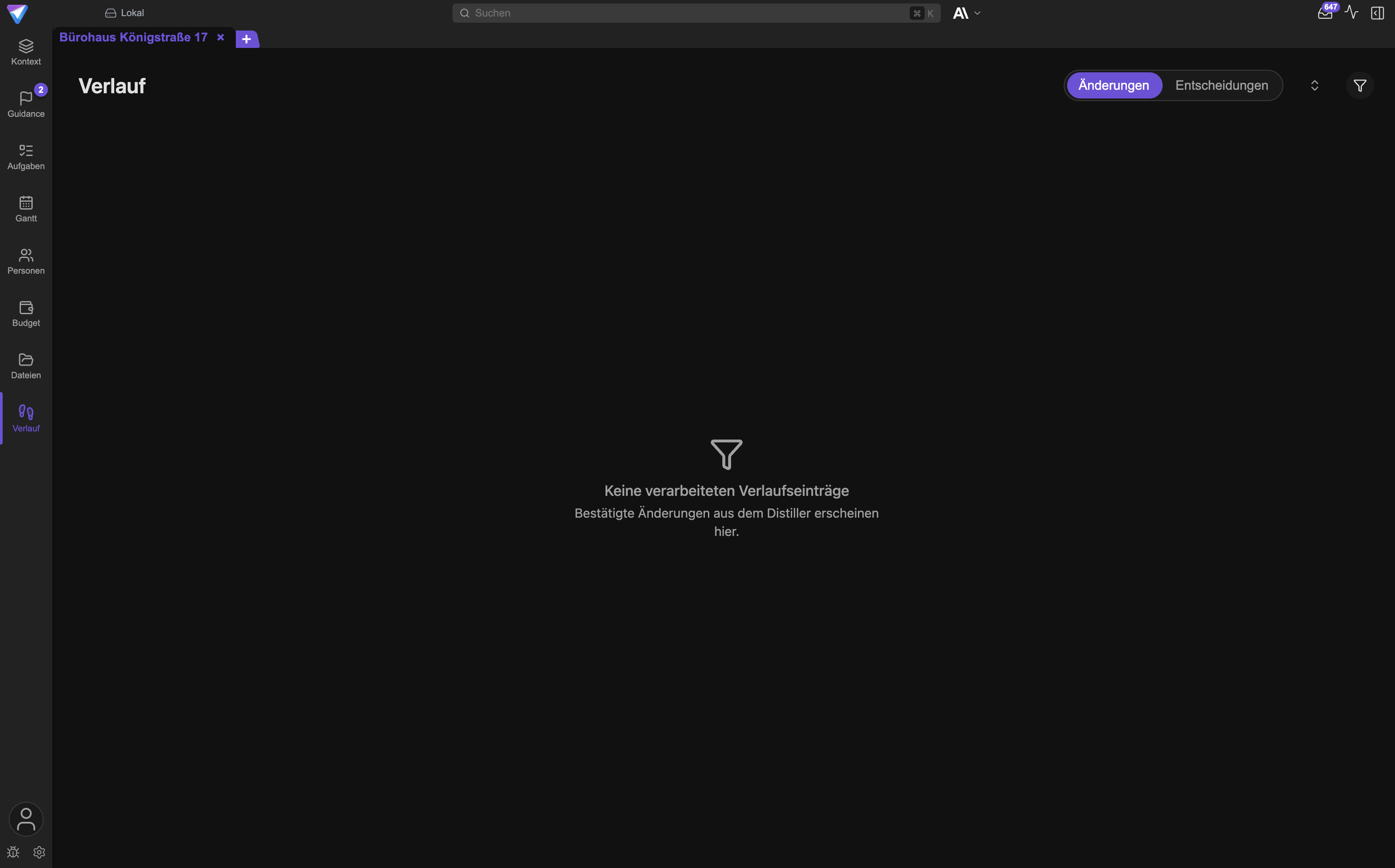
Damit hast du den Weg in beide Richtungen: vom Chat zur Änderung und von der Änderung zurück zum Satz, der sie ausgelöst hat. Mehr dazu steht in Dateien & Verlauf.
Was passiert, wenn der Agent Projektdaten ändert
Hier gilt es, eine verbreitete Fehlannahme auszuräumen: Änderungen an deinen eigenen Projektdaten werden nicht einzeln zur Bestätigung vorgelegt. Wenn du den Agenten bittest, Aufgaben anzulegen, legt er sie an. Wenn du ihn bittest, den Zeitplan zu verschieben, verschiebt er ihn.
Deine Kontrolle liegt also nicht in einem Klick vorher, sondern in drei Dingen:
- Der Auftrag. Sag ausdrücklich „ändere nichts“, wenn du nur eine Antwort willst.
- Die Werkzeugliste. Sie steht sofort unter der Antwort und nennt jede Änderung.
- Der
Verlauf. Dort steht jede Änderung dauerhaft, mit Vorher-Nachher-Vergleich und mit dem Rückweg in den Chat.
Es gibt keinen Rückgängig-Knopf. Eine unerwünschte Änderung korrigierst du entweder von Hand in der
betroffenen Ansicht oder du bittest den Agenten im selben Chat darum, sie zurückzunehmen. Prüfe das
Ergebnis danach im Verlauf.
Ein Sonderfall sind Vorschläge, die aus eingehenden Signalen entstehen. Die laufen nicht über den
Chat, sondern über den Distiller, und dort entscheidest du je Eintrag mit Annehmen, Anhängen
oder Überspringen. Das ist in E-Mail, Kalender & Freigaben beschrieben.
Was passiert, wenn der Agent nach außen handeln will
Alles, was dein Projekt verlässt, bekommt eine Freigabekarte im Chat.
E-Mail. Die Karte heißt E-Mail-Entwurf und zeigt Empfänger, CC, BCC, Betreff und über
E-Mail anzeigen den vollständigen Text. Der Status lautet Freigabe ausstehend, bis du
Bestätigen & Senden drückst. Verwerfen löscht den Entwurf. Nach dem Versand steht dort
Gesendet, bei einem Fehler Versand fehlgeschlagen mit Erneut senden. Schreibt der Agent den
Entwurf neu, bekommt der alte den Status Ersetzt, und die alte Freigabe gilt nicht mehr.
Kalender. Die Karte heißt Neuer Kalendertermin oder Terminänderung und zeigt Zeitraum und
Ort. Erst Bestätigen & Übernehmen schreibt in den Kalender, Verwerfen bricht ab.
Externe Werkzeuge. Ruft der Agent ein Werkzeug eines angebundenen MCP-Servers auf, erscheint die
Karte Berechtigung angefragt. Sie zeigt Konnektor, Aktion und über Details anzeigen auch die
Eingaben. Kann der Aufruf Daten verändern, steht zusätzlich Ändert Daten und der Hinweis
Diese Aktion könnte Daten ändern oder löschen. Du entscheidest mit Erlauben, Nicht erlauben
oder Immer erlauben. Immer erlauben gilt für alle künftigen Aufrufe dieses Servers. Aktionen, die
der Server selbst als zerstörend kennzeichnet, fragen trotzdem jedes Mal nach.
Skills. Ein Skill ist ein kleines Programm, das der Agent ausführen kann, zum Beispiel um eine Präsentation zu bauen. Skills müssen vorher freigegeben werden, und die Freigabe erlischt, sobald sich die verlangten Berechtigungen ändern. Mehr dazu in Skills.
Eine Freigabe gilt immer nur für den Vorgang, den du gerade siehst. Ein zweiter Entwurf braucht eine zweite Freigabe.
Einen laufenden Vorgang stoppen, korrigieren oder ergänzen
Du musst nicht warten, bis der Agent fertig ist. Über dem Eingabefeld entsteht eine Warteschlange.
Nachricht einreihen
Schreibst du, während eine Antwort läuft, wird der Senden-Knopf zum Einreihen. Der Tooltip lautet
Wird gesendet, sobald die aktuelle Antwort fertig ist, die Beschriftung Nachricht einreihen. Die
Nachricht steht danach als Zeile über dem Eingabefeld und geht automatisch raus, sobald die laufende
Antwort endet.
Jede Zeile hat drei Bedienelemente: Aus der Warteschlange entfernen, Nachricht bearbeiten und
unter Weitere Aktionen die restlichen Möglichkeiten. Du kannst eine eingereihte Nachricht also noch
umschreiben oder wieder wegnehmen, bevor sie gesendet wird.
Steuern
Steuern gibt deine Nachricht sofort in die laufende Antwort. Der Tooltip lautet
Diese Nachricht sofort in die laufende Antwort geben. Technisch wartet der Agent bis zur nächsten
sauberen Stelle zwischen zwei Arbeitsschritten und liest deinen Hinweis dann mit.
Gute Steuerhinweise sind kurz und eindeutig:
- „Konzentrier dich auf den Bauherrentermin am Donnerstag.“
- „Noch keine E-Mail entwerfen.“
- „Nur Gewerk Rohbau, den Rest lass weg.“
Zwei Einschränkungen:
- Nachrichten mit Anhängen können nicht steuern. Der Tooltip erklärt es:
Nachrichten mit Anhängen werden erst nach der aktuellen Antwort gesendet. Ein Anhang muss als vollständiger neuer Gesprächsschritt übergeben werden. - Im Distiller-Chat ist
Steuernnicht verfügbar.
Schick nicht mehrere widersprüchliche Korrekturen hintereinander. Eine klare Anweisung wirkt besser als drei halbe.
Stoppen und fortsetzen
Rechts unten neben der Modellauswahl erscheint während einer laufenden Antwort ein Stoppknopf,
beschriftet mit Antwort stoppen. Ein Klick bricht ab. Die abgebrochene Nachricht bekommt die
Kennzeichnung Antwort unterbrochen und einen Knopf Fortsetzen, mit dem der Agent an derselben
Stelle weitermacht.
Nutze das Stoppen, wenn du merkst, dass der Agent in die falsche Richtung läuft. Es ist billiger als eine lange falsche Antwort abzuwarten.
Wenn die Warteschlange pausiert
Bricht die laufende Antwort ab, hält die Warteschlange an, statt weiterzufeuern. Über den Zeilen
steht dann Warteschlange pausiert, weil du die Antwort unterbrochen hast oder
Warteschlange pausiert, weil die Antwort fehlgeschlagen ist, im Fehlerfall zusammen mit der
Fehlermeldung. Deine eingereihten Nachrichten bleiben erhalten.
Mit Fortsetzen schickst du sie los. Vorher lohnt sich ein Blick: Wenn der Grund für den Fehler noch
besteht, laufen sonst alle Nachrichten der Reihe nach in denselben Fehler.
Der KI-Aktivitätsverlauf
Neben dem Chat gibt es eine zweite Sicht auf die Arbeit der KI. Das Symbol KI-Aktivitätsverlauf
sitzt in der Kopfleiste und dreht sich, solange etwas läuft. Es erscheint nur mit geöffnetem Projekt.
Die Liste zeigt jeden KI-Vorgang mit Namen, Status und Dauer, nicht nur die Chats. Enthalten sind
zum Beispiel Aufgaben erstellen, Projektstatus bewerten, Datei zusammenfassen,
Bild analysieren, Projektkontext analysieren, Coding-Agent ausführen und
Projekt-Heartbeat ausführen. Der Status ist In Bearbeitung, Abgeschlossen, Abgebrochen oder
Fehler.
Ein laufender Vorgang lässt sich hier mit Vorgang abbrechen beenden. Mit
Aus Verlauf entfernen (Token-Gesamtwerte bleiben erhalten) räumst du die Liste auf, ohne die
Verbrauchszahlen zu verfälschen.
Filter
Über Filter umschalten blendest du die Filterzeile ein: Status:, Typen:, Kategorien:, dazu
die Schalter Nur Fehler und Technische KI-Schritte anzeigen. Zurücksetzen löscht alle Filter.
Das Suchfeld heißt Aktivitäten durchsuchen….
Technische KI-Schritte anzeigen ist der Blick unter die Haube. Dort stehen die einzelnen
Modellaufrufe eines Vorgangs mit Input, Output, Cache gelesen, Cache erstellt und
Reasoning. Für den Alltag brauchst du das nicht. Für die Frage „warum hat diese eine Antwort so
viel gekostet“ ist es der richtige Ort.
Token-Verbrauch
Token-Verbrauchsstatistik öffnet die Auswertung Token-Verbrauch nach Kategorie. Die Kategorien
heißen Chat, Projekterstellung, Aufgaben und Projektstruktur, Guidance und Projektanalysen,
Dokumente und Dateien, Automatische Projektunterstützung, KI-Agenten und Sonstiges. Über
Alle Modelle schränkst du auf ein einzelnes Modell ein.
Das ist der einzige Ort in der App, an dem du sehen kannst, wofür dein Verbrauch entstanden ist. Wenn dir die Credits schneller weglaufen als erwartet, fang hier an.
Grenzen des Projektagenten
Was er nicht weiß
- Alles, was nicht im Projektkontext, in den Aufgaben, im Zeitplan, im Budget oder in einer angehängten Datei steht. Ein Gespräch am Bau, das niemand erfasst hat, kennt er nicht.
- Den Inhalt von Dokumenten, die nur im Projektordner liegen, aber nicht angehängt oder eingelesen wurden.
- Alles nach dem Wissensstand des gewählten Modells, außer er sucht ausdrücklich im Web.
- Andere Projekte. Ein Chat sieht das Projekt, in dem er geöffnet ist.
- Bei
{Anzahl} Felderunter der Antwort: alle Felder, die nicht in der Liste stehen.
Was er nicht darf
- Eine E-Mail senden, ohne dass du
Bestätigen & Sendengedrückt hast. - Einen Kalendereintrag schreiben, ohne
Bestätigen & Übernehmen. - Ein Werkzeug eines externen Servers ausführen, das du nicht mit
ErlaubenoderImmer erlaubenfreigegeben hast. - Einen Skill starten, der nicht freigegeben ist.
- Etwas außerhalb von TensorPM und den eingerichteten Verbindungen tun. Er telefoniert nicht, er unterschreibt nichts, er meldet nichts bei Behörden an.
Wann du misstrauisch sein solltest
- Die Antwort nennt Zahlen, Termine oder Namen, die du im Projekt nicht wiederfindest. Prüfe den Kontexthinweis in der Fußzeile.
- Die Antwort behauptet eine Änderung, aber unter der Antwort steht kein passender Werkzeugaufruf.
- Der Kontexthinweis zeigt
{Anzahl} Felder, und das entscheidende Feld fehlt in der Liste. - Die Antwort klingt sehr sicher bei einer Frage, die im Projekt gar nicht beantwortbar ist. Frage dann nach der Quelle: „Woher hast du das? Nenne mir das Feld oder die Datei.“
- Bei rechtlichen, vertraglichen und sicherheitsrelevanten Fragen. Der Agent ist ein Werkzeug zur Projektsteuerung, keine Rechtsberatung und keine Fachplanung.
Kosten und Credits
Jede Anfrage über die TensorPM-KI verbraucht Credits. Der Verbrauch hängt davon ab, wie viel Kontext
geladen wurde, wie lang die Antwort ist und wie viele Werkzeugaufrufe nötig waren. Ein Chat mit
Voller Kontext kostet mehr als einer mit wenigen Feldern, ein langes Gespräch mehr als ein frisches.
Deshalb ist Neuer Chat bei einem Themenwechsel auch aus Kostensicht die bessere Wahl. Sind die
Credits aufgebraucht, meldet der Chat Credit-Limit erreicht. Nutzt du stattdessen ein eigenes
Claude- oder ChatGPT-Abo, lokale KI oder Business-Schlüssel, laufen die Anfragen nicht über TensorPM
und verbrauchen keine Credits. Wie du deinen Stand siehst und den Zugang umstellst, steht in
Konto & KI-Modi.
Ein sicheres Arbeitsmuster
- Bitte zuerst um eine Analyse und schreib „ändere nichts“ dazu.
- Lies den Kontexthinweis in der Fußzeile. Stimmt die Grundlage?
- Lass dir die Änderung vorschlagen, mit gekennzeichneten Annahmen.
- Gib den Auftrag zur Umsetzung, so eng abgegrenzt wie möglich.
- Prüfe die Werkzeugliste unter der Antwort.
- Prüfe den
Verlaufund, falls eine Datei entstanden ist, die Datei selbst.
Häufige Fragen
Muss ich jede Änderung bestätigen? Nein. Änderungen an deinen eigenen Projektdaten laufen ohne Rückfrage. Bestätigt wird nur, was nach außen geht: E-Mail, Kalender, externe Werkzeuge, Skills.
Kann ich eine Änderung rückgängig machen?
Nicht mit einem Knopf. Du korrigierst sie von Hand oder bittest den Agenten im selben Chat darum. Was
passiert ist, steht im Verlauf.
Woher weiß ich, welche Projektdaten der Agent gelesen hat?
Aus dem Hinweis in der Fußzeile der Antwort: Voller Kontext oder {Anzahl} Felder mit der Liste im
Tooltip.
Was ist der Unterschied zwischen Nachricht einreihen und Steuern?
Eine eingereihte Nachricht wartet, bis die laufende Antwort fertig ist. Steuern gibt sie sofort in
die laufende Antwort hinein.
Warum ist Steuern bei meiner Nachricht ausgegraut?
Weil sie einen Anhang hat, oder weil du in einem Distiller-Chat bist.
Warum sehe ich Browser-Agent starten nicht?
Weil kein dafür geeigneter KI-Zugang eingerichtet ist. Die App zeigt den Eintrag dann gar nicht,
statt ihn ausgegraut anzubieten.
Kann ich mehrere Chats parallel führen?
Ja. Neuer Chat und Chatverlauf verwalten sie. Für ein neues Thema lohnt sich ein neuer Chat.
Sieht der Agent meine E-Mails? Nur, was über einen eingerichteten Konnektor in dein Projekt gelangt ist. Siehe E-Mail, Kalender & Freigaben.
Wenn etwas nicht klappt
Der Senden-Knopf reagiert nicht.
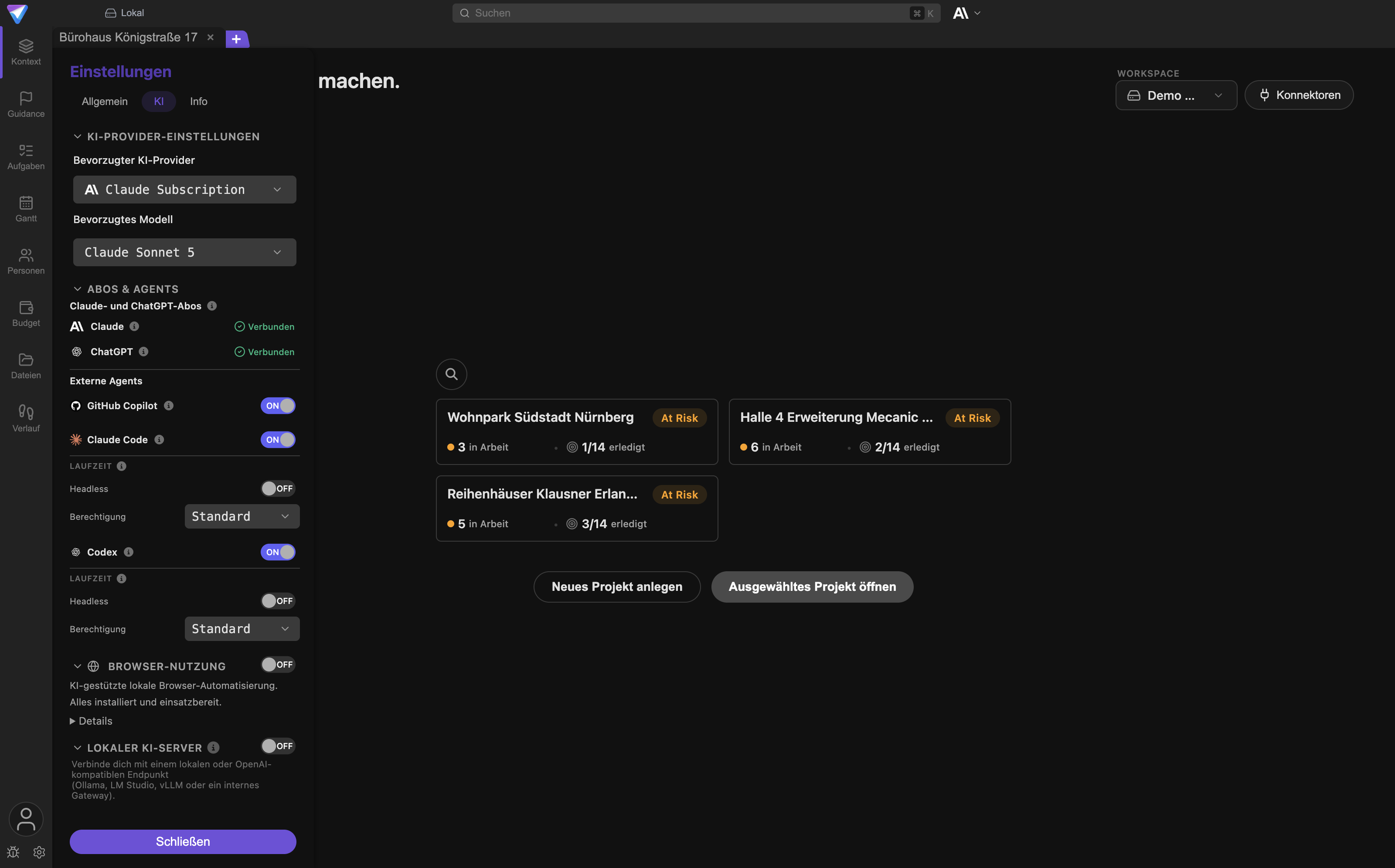
Prüfe die Modellauswahl. Steht dort Keine Modelle verfügbar, ist kein KI-Zugang nutzbar. Öffne
Einstellungen -> KI und richte einen Weg ein.
Es erscheint Credit-Limit erreicht.
Die KI-Credits sind aufgebraucht. Öffne den KI-Aktivitätsverlauf, um zu sehen, wofür sie verbraucht
wurden. Zum Aufstocken oder Umstellen siehe Konto & KI-Modi.
Es erscheint Rate-Limit erreicht, bitte gleich erneut versuchen.
Der Anbieter drosselt gerade. Warte kurz und sende erneut. Die Anzeige nennt die verbleibende
Wartezeit.
Die Antwort bricht mit KI-Antwort fehlgeschlagen ab.
Mit Erneut versuchen schickst du dieselbe Nachricht noch einmal. Bleibt der Fehler, kopiere ihn
über Vollständige Fehlermeldung kopieren und probiere ein anderes Modell.
Der Agent hat etwas geändert, das ich nicht wollte.
Öffne den Verlauf, suche die Änderung, öffne über Im Chat öffnen die auslösende Nachricht und
korrigiere von dort aus. Formuliere den Auftrag beim nächsten Mal enger.
Die Antwort ignoriert eine Datei, die ich angehängt habe.
Prüfe, ob am Anhang Zusammenfassung fehlgeschlagen steht. Hänge die Datei sonst erneut an und nenne
sie in der Frage ausdrücklich.
Der Chat wird langsam und die Antworten werden schwammig.
Beachte den Hinweis Dieser Chat wird lang. Für beste Ergebnisse einen neuen Chat starten. und
starte mit Neuer Chat neu.
Eine eingereihte Nachricht wurde nie gesendet.
Sieh nach, ob über den Zeilen Warteschlange pausiert… steht. Dann drücke Fortsetzen.
Nächste Schritte
- KI-Zugang und Credits: Konto & KI-Modi
- Analysen zum Steuern des Projekts: Vorschläge & Reihenfolge
- Änderungen nachvollziehen: Dateien & Verlauf
- E-Mail und Kalender anbinden: E-Mail, Kalender & Freigaben
- Fertige Arbeitsergebnisse erzeugen: Skills
- Externe Agents anbinden: Agenten-Integrationen