
Projekt anlegen
Kurz gesagt
Ein Projekt in TensorPM entsteht immer auf demselben Bildschirm: Neues Projekt. Was du dort
einträgst, entscheidet, welchen Weg TensorPM einschlägt. Schreibst du eine Beschreibung oder hängst
Dokumente an, entwirft die KI einen ersten Projektkontext. Lässt du beides leer, bekommst du ein
leeres Projekt und wirst durch elf Felder geführt. Das Ergebnis ist in jedem Fall ein Entwurf, den
du prüfst, bevor du damit arbeitest.
Projektkontext heißt hier: alles, was TensorPM über dein Projekt weiß. Ziel, Umfang, Erfolgskriterien, Termine, Budget, Anforderungen, Meilensteine, Abhängigkeiten und Risiken. Je sauberer dieser Kontext ist, desto brauchbarer sind später Analyse und Vorschläge.
Wann du das brauchst
- Du startest einen Neubau, eine Sanierung oder ein Ausbauvorhaben und willst den Auftrag einmal vollständig aufschreiben, bevor die erste Terminplanung steht.
- Du hast einen Projektauftrag, ein Leistungsverzeichnis oder ein Angebot als PDF und möchtest die Eckdaten nicht von Hand abtippen.
- Du übernimmst ein laufendes Projekt und musst zuerst herausfinden, was überhaupt vereinbart ist.
- Du willst ein Projekt nur als Ablage anlegen und den Kontext später selbst nachtragen.
Die vier Wege im Überblick
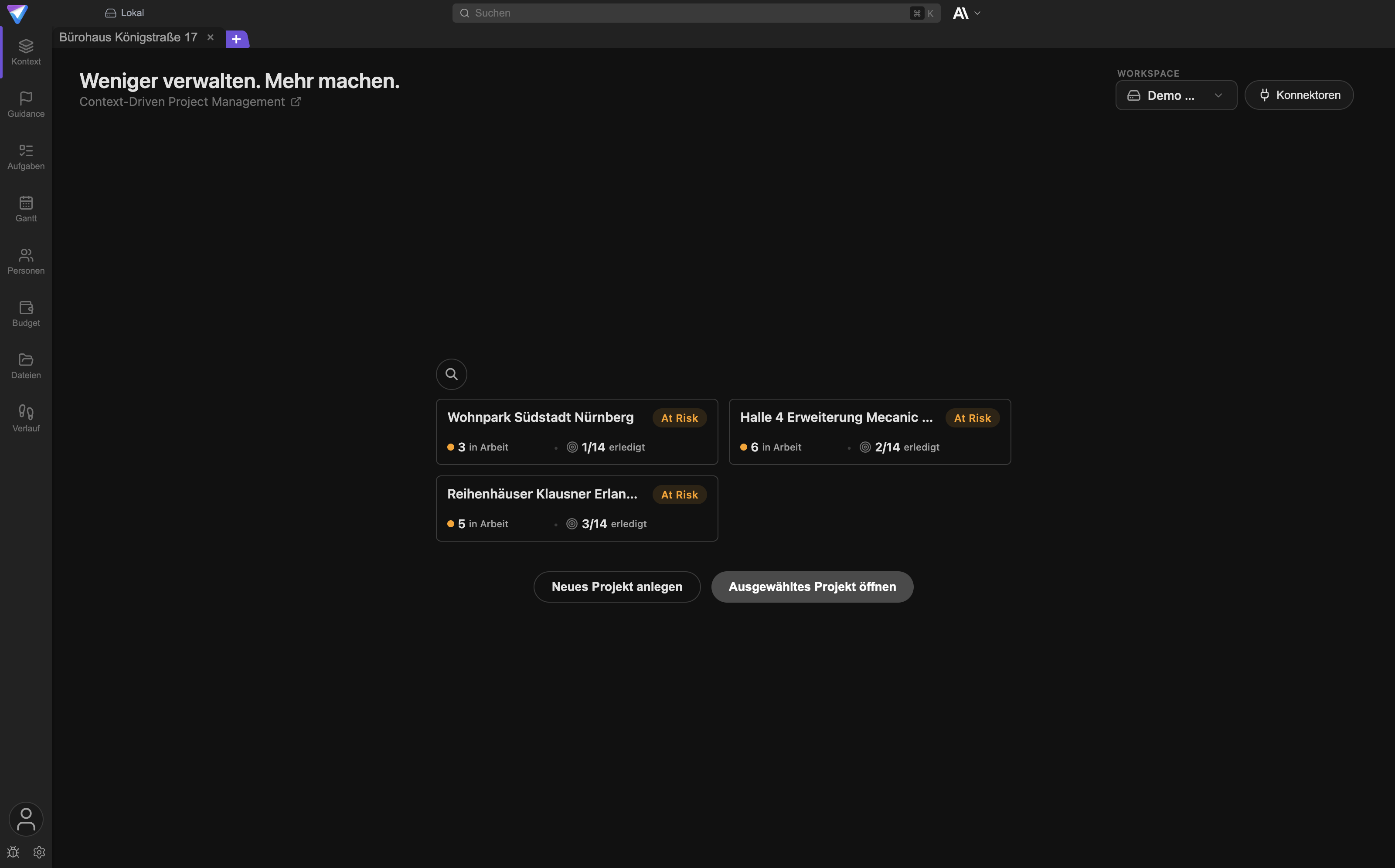
Du erreichst den Bildschirm Neues Projekt über das + in der Tab-Leiste über der Ansicht
(Tooltip Neues Projekt hinzufügen). Ist kein Projekt geöffnet, liegt zusätzlich der Button
Neues Projekt anlegen auf dem Startbildschirm.
Der Bildschirm hat drei Eingaben: ein Textfeld für die Beschreibung, eine Büroklammer zum Anhängen von Dateien und das Feld für den Projektnamen. Der Projektname ist Pflicht. Alles andere ist freiwillig, und genau daran erkennt TensorPM, welchen Weg du meinst.
Aus einer Beschreibung
Wann der richtige Weg: Du weißt, worum es geht, hast es aber noch nirgends aufgeschrieben. Das ist der schnellste Weg zu einem tragfähigen Kontext.
Was du vorbereiten solltest: Ein paar Sätze im Kopf oder auf einem Zettel: Was gebaut oder geliefert wird, für wen, bis wann, mit welchem Budget, was ausdrücklich nicht dazugehört. Das Textfeld nimmt bis zu 800 Zeichen. Unter dem Feld zählt TensorPM mit.
Wie es läuft: Beschreibung eintippen, Projektnamen eintragen, Projekt erstellen klicken.
Während der Erstellung siehst du einen Fortschritt mit den Feldern, an denen gerade gearbeitet
wird. Danach öffnet sich das Projekt in der Übersicht des Assistenten.
Was hinterher zu prüfen ist: Jede Zahl und jedes Datum. Die KI ergänzt aus deiner kurzen Beschreibung plausible Details, und plausibel ist nicht dasselbe wie richtig.
Aus vorhandenen Dokumenten
Wann der richtige Weg: Es gibt einen verlässlichen Projektauftrag, ein Protokoll der Auftragsklärung, ein Angebot oder ein Leistungsverzeichnis.
Was du vorbereiten solltest: Die kleinste Auswahl an Dateien, die die Fakten enthält. Zwei präzise Dokumente sind besser als zehn, die sich widersprechen. Prüfe vorher, dass keine Unterlagen aus einem anderen Projekt dabei sind.
Wie es läuft: Auf die Büroklammer klicken (Dokumente anhängen) oder die Dateien direkt in das
Textfeld ziehen. TensorPM liest die Dateien ein und zeigt darunter Anhänge: {{count}}. Über
Liste & Token-Details anzeigen siehst du die Einzeldateien und wie viel Text jede beisteuert.
Eine Beschreibung kannst du zusätzlich schreiben, musst du aber nicht.
Was hinterher zu prüfen ist: Namen, Termine, Beträge und Tabellenzeilen gegen das Original. Bei gescannten Dokumenten außerdem, ob überhaupt der richtige Text erkannt wurde.
Mit dem geführten Assistenten
Wann der richtige Weg: Der Auftrag ist unvollständig, verteilt oder strittig. Du willst das Projekt einmal bewusst durchdenken statt eine KI-Fassung zu korrigieren.
Was du vorbereiten solltest: Zeit. Elf Felder ehrlich zu beantworten dauert eine halbe Stunde. Halte bereit, was du an bestätigten Terminen und Beträgen hast, und was du noch klären musst.
Wie es läuft: Nur den Projektnamen eintragen, Beschreibungsfeld und Anhänge leer lassen. Der
Button heißt dann Leeres Projekt erstellen. Nach dem Klick fragt TensorPM nach:
Willst du wirklich ein leeres Projekt anlegen?. Mit Ja, leeres Projekt erstellen legst du das
Projekt an und landest direkt im Assistenten mit leeren Feldern.
Was hinterher zu prüfen ist: Weniger, weil du alles selbst geschrieben hast. Prüfe trotzdem, ob Termine und Budget im richtigen Format stehen und ob die Erfolgskriterien wirklich messbar sind.
Leer, ohne Assistenten
Wann der richtige Weg: Du brauchst nur eine Hülle, etwa als Ablage für Dateien, und trägst den Kontext später nach. Oder du willst den Kontext ausschließlich über den Projektagenten im Chat aufbauen.
Was du vorbereiten solltest: Nichts außer dem Namen.
Wie es läuft: Projektnamen eintragen, dann Wizard überspringen. Auch hier kommt eine
Rückfrage: Möchtest du den Wizard wirklich überspringen und leer starten?. Mit Ja, überspringen
entsteht ein leeres Projekt, das sofort in der normalen Projektansicht öffnet.
Was hinterher zu prüfen ist: Dass du den Kontext tatsächlich nachträgst. Ein Projekt ohne Ziel, Umfang und Termine liefert keine brauchbaren Vorschläge, weil nichts da ist, womit sich der Stand vergleichen ließe.
Wichtig: Der Unterschied zwischen den letzten beiden Wegen ist genau ein Klick.
Leeres Projekt erstellenöffnet den Assistenten,Wizard überspringennicht. Beide erzeugen ein Projekt ohne KI-Inhalte.
So schreibst du eine gute Projektbeschreibung
Eine gute Beschreibung beantwortet fünf Fragen: Was entsteht? Für wen? Bis wann? Mit welchem Geld? Was gehört ausdrücklich nicht dazu? Wenn eine dieser Antworten fehlt, füllt die KI die Lücke mit einer Annahme, und du musst sie später finden.
Ein vollständiges Beispiel aus einem Bauprojekt
Sanierung des zweiten Obergeschosses im Bürohaus Königstraße 17 im laufenden Betrieb. Auftraggeber ist die Hausverwaltung Königstraße GmbH, Ansprechpartnerin ist Frau Reinhardt. Enthalten sind Ausschreibung und Vergabe der Gewerke Trockenbau, Elektro, Lüftung und Boden, die Bauleitung, die Abnahme und die Mängelbeseitigung bis zum Ende der Gewährleistungsanzeige. Nicht enthalten sind Möblierung, IT-Verkabelung ab dem Etagenverteiler und die Fassade. Fertigstellung bis 15. November, Übergabe an den Mieter am 20. November. Der Termin steht vertraglich fest, das Baubudget von 620.000 Euro netto ist geschätzt und noch nicht durch Angebote belegt. Der Betrieb in den Geschossen darunter läuft weiter, es sind höchstens zwei ungeplante Schließtage zugestanden. Erfolg heißt: Übergabe ohne kritische Mängel, Einhaltung der zugesagten Schließtage, Schlussrechnung innerhalb des Budgets.
Diese Beschreibung ist lang, aber jeder Satz trägt. Sie nennt Beteiligte, Grenzen, einen verbindlichen und einen geschätzten Wert, eine Nebenbedingung aus dem laufenden Betrieb und drei messbare Erfolgskriterien. Daraus kann TensorPM elf Felder befüllen, ohne etwas zu erfinden.
Ein Gegenbeispiel, das zu dünn ist
Umbau zweites OG, schnell und im Budget fertig.
Hier fehlt alles, woran sich später etwas messen ließe. Die KI wird trotzdem einen vollständigen Projektkontext erzeugen, denn dafür ist sie gebaut. Sie wird ein Enddatum wählen, ein Budget schätzen, Gewerke annehmen und Risiken formulieren, die zu einem durchschnittlichen Umbau passen. Nichts davon stammt von dir. Wenn du das nicht Feld für Feld prüfst, arbeitest du ab Tag eins mit einem erfundenen Projekt.
Woran du eine tragfähige Beschreibung erkennst
- Sie nennt mindestens eine Sache, die nicht zum Projekt gehört.
- Sie unterscheidet zwischen bestätigt und geschätzt.
- Sie enthält mindestens ein Erfolgskriterium, das man zählen oder abnehmen kann.
- Sie nennt mindestens eine Person oder Organisation mit Namen.
- Sie beschreibt ein Ergebnis, nicht eine Tätigkeit. "Übergabe ohne kritische Mängel" ist ein Ergebnis, "sorgfältig bauen" ist keins.
Der geführte Assistent Schritt für Schritt
Der Assistent hat zwei Ansichten: die Übersicht mit allen Feldern und die Einzelansicht für ein Feld. Du wechselst jederzeit zwischen beiden.
Die Übersicht als Startpunkt
Oben stehen der Projektname und ein Fortschrittsbalken mit dem Text
{{filled}} von {{total}} vollständig. Karte anklicken zum Bearbeiten.. Darunter liegen die Felder
als Karten, gruppiert in Worum es geht, Rahmen und Inhalt. Felder, in denen noch nichts
steht, sammeln sich unten unter Noch offen.
Jede Karte trägt eine Kennzeichnung: ein Haken für vollständig, Dünn für zu wenig Inhalt, Leer
für gar nichts. Bei längeren Texten schreibt TensorPM eine kurze Zusammenfassung auf die Karte und
markiert sie mit KI-Zusammenfassung. Änderst du den Text, verschwindet die Zusammenfassung, bis
eine neue geschrieben ist.
Drei Schaltflächen liegen oben rechts:
Abbrechenverlässt den Assistenten und fragt vorher nach.Dort weitermachen, wo es dünn istspringt zum ersten Feld, das noch nicht vollständig ist.Projekt öffnenbeendet den Assistenten und wechselt in die normale Projektansicht.
Ganz unten steht der Block Projektordner. Das ist der Ordner auf deiner Festplatte, in dem
TensorPM die Dateien dieses Projekts ablegt. Du kannst ihn hier ändern. Beim Ändern werden keine
Dateien verschoben.
Die elf Felder
In der Kopfzeile steht Projekt-Wizard und der aktuelle Schritt als Schritt {{current}}/{{total}}:.
Die Reihenfolge ist:
| # | Feld | Was hineingehört |
|---|---|---|
| 1 | Projektbeschreibung |
Zweck, Hintergrund, Ziele in Fließtext |
| 2 | Projektziel |
Das eine Ergebnis, an dem sich das Projekt messen lässt |
| 3 | Projekt-Scope |
Was enthalten ist und was ausdrücklich nicht |
| 4 | Erfolgskriterien |
Liste messbarer Kriterien |
| 5 | Zeitrahmen |
Start- und Enddatum |
| 6 | Budget |
Betrag und Währung |
| 7 | Hauptanforderungen |
Tabelle mit Anforderung, Beschreibung, Priorität |
| 8 | Technologien/Methoden |
Tabelle mit Technologie oder Methode, Beschreibung, Kategorie |
| 9 | Meilensteine |
Tabelle mit Meilenstein, Datum, Beschreibung |
| 10 | Abhängigkeiten |
Externe Ressourcen, Teams, Zulieferer, Freigaben |
| 11 | Risiken |
Tabelle mit Risiko, Auswirkung, Gegenmaßnahme |
Über jedem Feld steht ein kurzer Hinweistext. Der wechselt je nachdem, wie das Feld entstanden ist.
Ist das Feld leer gestartet, steht dort die Frage, die dir beim Schreiben hilft. Wurde es von der KI
vorbefüllt, steht dort stattdessen eine Prüffrage, etwa bei Zeitrahmen: "Welcher Termin steht
wirklich fest, welcher ist nur geschätzt?". Das ist Absicht. Bei einem vorbefüllten Feld ist deine
Aufgabe nicht das Schreiben, sondern das Ergänzen dessen, was nur du weißt.
Die KI-Prüfung im Feld
Unten rechts liegen die Schaltflächen für das aktuelle Feld:
Chatöffnet den Projektagenten als Gesprächspartner für dieses Feld (TooltipRequirements-Engineer-Chat öffnen).Reviewschickt den Inhalt des Feldes zur Prüfung. Während der Prüfung heißt der ButtonReview läuft…, danachReviewt.ZurückundWeiterbewegen dich durch die Schritte. Ist das Feld leer, heißt der rechte ButtonÜberspringenstattWeiter. Im letzten Schritt heißt erFertig.- Links steht
Übersichtund bringt dich zurück zur Kartenansicht.
Review ist ausgegraut, solange das Feld leer ist oder keine KI eingerichtet ist. Ohne KI zeigt der
Tooltip den Hinweis, TensorPM in den Einstellungen zu verbinden, per Konto oder lokaler KI. Der
Assistent selbst funktioniert auch ohne KI, du bekommst dann nur keine Prüfung und keinen Chat.
Was die Bewertung im Feedback-Panel bedeutet
Nach einer Prüfung erscheint das Panel Wizard-Feedback. Rechts oben steht eine Bewertung unter der
Bezeichnung Qualität. Es gibt fünf Stufen:
| Stufe | Was sie sagt |
|---|---|
Hervorragend |
Der Inhalt ist konkret, abgegrenzt und prüfbar |
Gut |
Tragfähig, mit kleinen Lücken |
Solide |
Brauchbar, aber an mehreren Stellen unbestimmt |
Verbesserungswürdig |
Zu allgemein, um daraus Entscheidungen abzuleiten |
Schwach |
Kaum Inhalt oder nur Absichtserklärungen |
Wichtig: Die Bewertung beurteilt die Formulierung, nicht die Wahrheit. Ein frei erfundenes Budget
mit Betrag, Währung und Begründung bekommt Hervorragend. Ein korrekter, aber knapp notierter
Betrag bekommt vielleicht Solide. Die Stufe sagt dir, ob ein Feld genug hergibt, um damit zu
arbeiten. Ob es stimmt, weiß nur du.
Darunter stehen bis zu drei Abschnitte:
Fragen zum Nachdenken: was die Prüfung nicht beantworten kann und du klären solltest.Vorschläge: konkrete Ergänzungen.Probleme: Widersprüche oder fehlende Pflichtangaben.
Abschnitte ohne Inhalt werden nicht angezeigt. Arbeite die Probleme zuerst ab, dann die Fragen zum Nachdenken. Die Vorschläge sind Angebote, keine Aufgabenliste. Du kannst das Feld ändern und
erneut auf Review klicken, so oft du willst.
Zurückspringen und ändern
Der Assistent ist keine Einbahnstraße. Du hast drei Wege zurück:
Zurückgeht einen Schritt zurück.Übersichtbringt dich zur Kartenansicht, wo du jede beliebige Karte anklicken kannst.Dort weitermachen, wo es dünn istspringt gezielt zum ersten unvollständigen Feld.
Deine Eingaben werden beim Wechseln gespeichert. Du kannst den Assistenten also auch verlassen und später weitermachen.
Den Assistenten beenden
Mit Fertig im letzten Schritt oder Projekt öffnen in der Übersicht verlässt du den Assistenten
und landest im Projektkontext, Tab Info. Nichts geht verloren, wenn Felder leer bleiben. Du kannst
jedes Feld später im Projektkontext weiter bearbeiten.
Abbrechen beendet den Assistenten ebenfalls, fragt aber vorher nach.
Dokumente als Ausgangspunkt
Welche Dateitypen verarbeitet werden
Dokumente:
.pdf, .doc, .docx, .txt, .md, .xlsx, .xls, .csv, .ppt, .pptx
Bilder:
.jpg, .jpeg, .png, .gif, .webp, .bmp, .tiff, .tif
Andere Dateitypen werden beim Anhängen aussortiert. TensorPM sagt dir das mit dem Hinweis
Nicht unterstützte Dateien wurden nicht hinzugefügt: {{count}}.. Kann eine unterstützte Datei
nicht gelesen werden, etwa weil das PDF mit einem Passwort geschützt ist, meldet TensorPM das
einzeln und lässt die Datei weg.
Grenzen: Anzahl und Umfang
- Höchstens acht Dokumente pro Projekterstellung.
- Höchstens vier Bilder pro Projekterstellung.
- Höchstens rund 80.000 Tokens Textmenge über alle Dokumente zusammen. Ein Token ist die Verrechnungseinheit der KI und entspricht grob vier Zeichen, also ungefähr 60 bis 100 Seiten Fließtext.
Wird eine Grenze überschritten, weist TensorPM darauf hin und der Button zum Erstellen bleibt
gesperrt, bis du Dateien entfernst. Über Liste & Token-Details anzeigen siehst du pro Datei, wie
viel sie beisteuert, und kannst gezielt die größte entfernen.
Sehr große Bilder werden ausgelassen, wenn sie das Bildbudget der KI sprengen. Auch das meldet TensorPM mit den betroffenen Dateinamen.
Was TensorPM aus den Dokumenten zieht
TensorPM liest die Dokumente einmal, um die elf Projektfelder zu befüllen. Zusätzlich erkennt es namentlich genannte Personen mit Organisation, Rolle und Kontaktdaten und legt sie in der Personen-Ansicht an.
Was TensorPM ausdrücklich nicht tut
- Es legt die Dateien nicht im Projekt ab. Die Dokumente werden für die Erstellung gelesen und
danach nicht als Projektdateien gespeichert. Wenn du sie im Projekt brauchst, lege sie danach im
Bereich
Dateienab. - Es erzeugt keine Aufgaben. Aus der Projekterstellung entstehen keine Einträge unter
Aufgaben. Die leitest du später bewusst ab. - Es macht keinen verbindlichen Import. Es gibt keinen Abgleich mit dem Original, keine Feldzuordnung und keine Fehlerliste wie bei einem Datenimport. Es ist eine Lesehilfe.
- Es liest keine Ordner. Du wählst einzelne Dateien aus, nicht ein Verzeichnis.
- Es korrigiert keine schlechten Scans. Ist ein Scan schief oder blass, steht im Feld hinterher, was die Erkennung daraus gemacht hat.
Alles, was die KI erzeugt, ist ein Vorschlag
Das ist der wichtigste Abschnitt dieses Artikels. TensorPM erzeugt bei der Projekterstellung einen vollständig aussehenden Projektkontext, auch wenn deine Eingabe dünn war. Vollständig aussehen und stimmen sind zwei verschiedene Dinge. Solange du den Entwurf nicht bestätigt hast, ist er eine Behauptung der KI, kein Projektwissen.
Der Aufwand lohnt sich: Alles, was danach kommt, Analyse, Vorschläge, Termine, Aufgaben, baut auf diesen Feldern auf. Ein falsches Enddatum im Kontext erzeugt monatelang falsche Empfehlungen.
Die Prüfreihenfolge
Geh nach dem Anlegen in dieser Reihenfolge vor. Sie ist so sortiert, dass die teuersten Fehler zuerst auffallen.
ZeitrahmenundBudgetzuerst. Das sind die beiden Felder, in denen eine erfundene Zahl am meisten anrichtet. Prüfe jedes Datum und jeden Betrag gegen das Original. Streiche, was du nicht belegen kannst.ProjektzielundProjekt-Scope. Steht dort dein Projekt oder ein durchschnittliches Projekt dieser Art? Achte besonders auf die Ausschlüsse: Die KI ergänzt gern Leistungen, die niemand beauftragt hat.Erfolgskriterien. Jedes Kriterium muss zählbar oder abnehmbar sein. Streiche alles, was nur eine Absicht beschreibt.Hauptanforderungen,Meilensteine,Risiken. Diese Tabellen werden am längsten. Kürze sie. Zwölf erfundene Risiken sind schlechter als vier echte, weil sie die vier echten unsichtbar machen.AbhängigkeitenundTechnologien/Methoden. Prüfe, ob die genannten Beteiligten und Verfahren wirklich in deinem Projekt vorkommen.- Personen. Öffne die Personen-Ansicht und kontrolliere Namen, Schreibweisen, Organisation und Rolle der erkannten Personen.
- Erst danach
Projekt analysierenstarten oder Aufgaben ableiten.
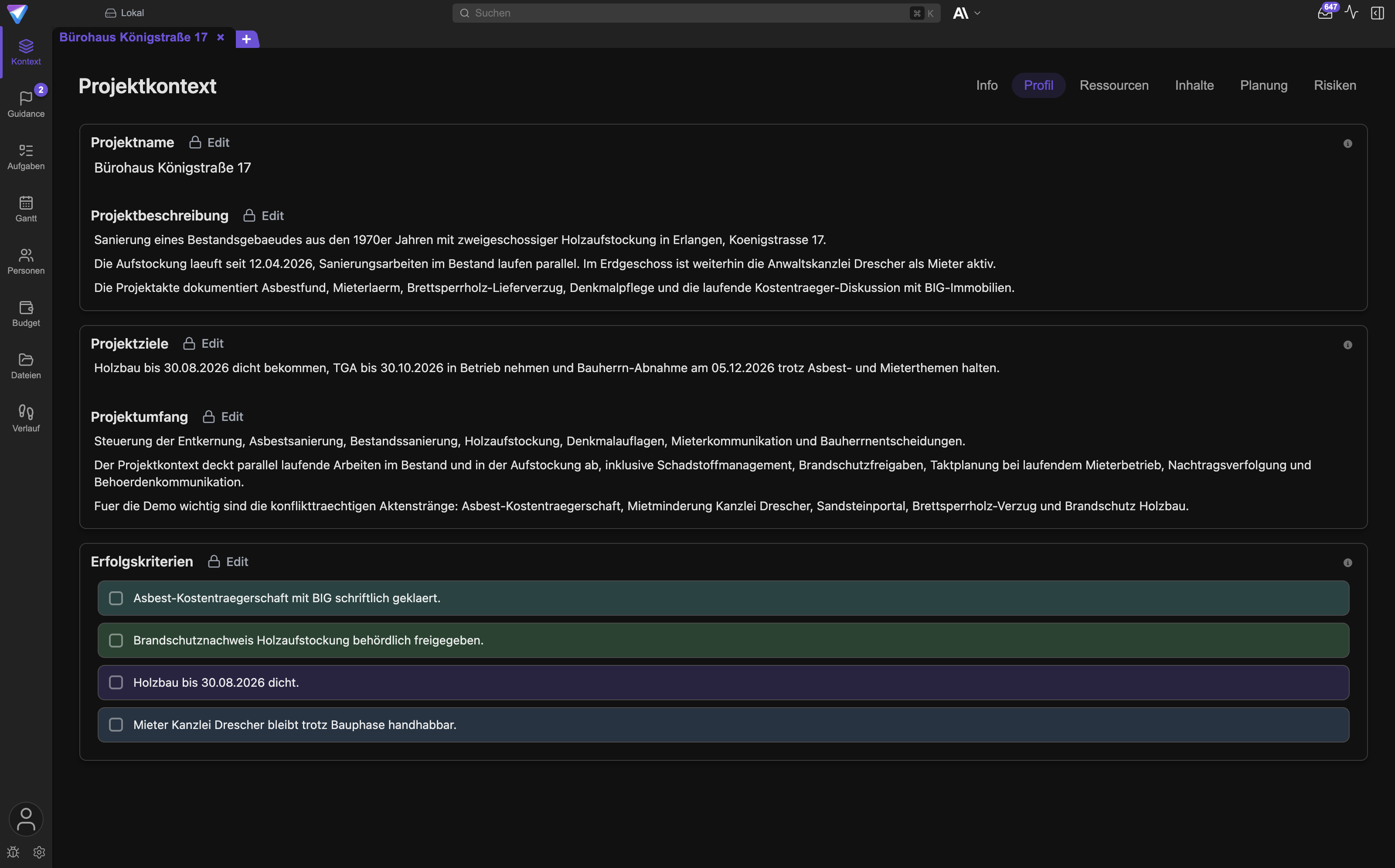
Öffne dafür Kontext und geh die Untertabs Profil, Ressourcen, Inhalte, Planung und
Risiken durch. Der Tab Info gibt dir vorher einen Überblick über das, was TensorPM aus dem
Entwurf herausliest.
Woran du einen erfundenen Wert erkennst
- Auffällig runde Zahlen ohne Quelle: 500.000 Euro, zwölf Monate, drei Meilensteine.
- Formulierungen ohne Gegenüber: "der Auftraggeber", "das Team", "die zuständige Behörde", wo in deinem Projekt Namen stehen müssten.
- Termine ohne Bezug zu einem Vertrag, einer Genehmigung oder einer Zusage.
- Risiken, die für jedes Projekt gelten: "Verzögerung durch Lieferengpässe", "Budgetüberschreitung". Sie sind nicht falsch, sie sind nur leer.
- Details, die du in deiner Eingabe nicht erwähnt hast. Das ist das verlässlichste Zeichen.
Was du nicht belegen kannst, löschst du entweder oder du schreibst dazu, dass es eine Annahme ist und wer sie bestätigt. Eine markierte Annahme ist brauchbar. Eine unmarkierte Annahme, die in drei Monaten wie eine Tatsache aussieht, ist ein Problem.
Was im Hintergrund passiert
Beim Anlegen legt TensorPM einen Projektdatensatz in der lokalen Datenbank an und dazu einen Projektordner auf deiner Festplatte für Dateien. Schreibst du eine Beschreibung oder hängst Dokumente an, geht dieser Text einmal an den eingerichteten KI-Anbieter, der daraus die elf Felder und die Personenliste vorschlägt. Wenn du den TensorPM-Proxy als KI-Weg nutzt, kostet das Credits. Nutzt du eigene Schlüssel oder eine lokale KI, läuft es über deinen Anbieter.
Die Prüfung im Feld (Review) ist ein einzelner, kleiner Aufruf pro Klick. Die Zusammenfassungen
auf den Karten der Übersicht entstehen ebenfalls im Hintergrund, jeweils nur für Felder mit
längerem Text.
Ohne KI-Anbieter funktionieren der geführte Assistent, das leere Projekt und die gesamte
Projektarbeit weiter. Nur Erzeugung, Review, Chat und Kartenzusammenfassung entfallen.
Häufige Fragen
Kann ich Beschreibung und Dokumente kombinieren? Ja, das ist sogar der beste Weg. Die Dokumente liefern die Fakten, deine Beschreibung sagt, worauf es dir davon ankommt und was in den Dokumenten fehlt.
Ich habe den Assistenten abgebrochen. Ist das Projekt weg?
Nein. Das Projekt existiert, sobald es angelegt wurde. Der Assistent ist nur eine Ansicht darauf.
Was du eingetragen hattest, findest du im Kontext wieder.
Kann ich den Assistenten später noch einmal aufrufen?
Die Felder bearbeitest du danach im Kontext. Dort steht derselbe Inhalt, nur in der normalen
Projektansicht statt als Schrittfolge.
Muss ich alle elf Felder ausfüllen?
Nein. Du kannst jedes Feld überspringen. Rechne aber damit, dass die Analysen weniger sagen können, je
mehr fehlt. Projektziel, Projekt-Scope, Zeitrahmen und Erfolgskriterien sind das Minimum,
mit dem eine sinnvolle Analyse möglich ist.
Der Projektname ist falsch. Kann ich ihn ändern? Ja, später in den Projekteinstellungen. Für das Anlegen ist er nur ein Pflichtfeld.
Werden meine Dokumente irgendwohin hochgeladen? Das hängt von deinem KI-Weg ab. Über den TensorPM-Proxy und über eigene Anbieterschlüssel geht der Textinhalt an den jeweiligen Anbieter. Mit einer lokalen KI bleibt alles auf deinem Rechner. Details stehen unter Konto & KI-Modi.
Kann ich mehrere Projekte gleichzeitig anlegen? Nein, der Bildschirm legt ein Projekt an. Im Trial-Tarif ist außerdem ein aktives Projekt möglich.
Wenn etwas nicht klappt
Der Button zum Erstellen ist grau.
Ursache: Der Projektname fehlt, angehängte Dokumente werden gerade noch gelesen, oder die
Textmenge der Anhänge ist zu groß. Lösung: Fahre mit der Maus über den Button, der Tooltip nennt den
Grund. Bei zu viel Text Liste & Token-Details anzeigen öffnen und die größte Datei entfernen.
Eine Datei taucht nach dem Anhängen nicht in der Liste auf.
Ursache: Nicht unterstützter Dateityp oder die Datei ließ sich nicht lesen, etwa bei
Passwortschutz. Lösung: Dateityp gegen die Liste oben prüfen. PDF ohne Passwort neu speichern oder
den Inhalt als .docx oder .txt bereitstellen.
Die Erstellung bricht mit einer Fehlermeldung ab.
Ursache: Meistens fehlende oder abgelaufene KI-Einrichtung, keine Internetverbindung oder
aufgebrauchte Credits. Lösung: Einstellungen -> KI prüfen, Credits im Konto-Popover unten links
kontrollieren. Danach erneut versuchen. Der Projektname und deine Eingaben bleiben stehen.
Die Felder sind befüllt, aber der Inhalt passt nicht zu meinen Dokumenten.
Ursache: Zu viele oder widersprüchliche Dokumente, oder ein Dokument aus einem anderen Projekt war
dabei. Lösung: Ein neues Projekt mit der kleineren, eindeutigen Auswahl anlegen und das
missratene löschen (Einstellungen -> Danger Zone -> Projekt löschen).
Review lässt sich nicht klicken.
Ursache: Das Feld ist leer oder es ist keine KI eingerichtet. Lösung: Erst Inhalt eintragen. Für die
KI-Einrichtung siehe Konto & KI-Modi.
Die Zusammenfassung auf einer Karte passt nicht mehr zum Text. Ursache: Du hast den Text geändert, die neue Zusammenfassung wird gerade geschrieben. Lösung: Kurz warten. Bis dahin zeigt die Karte einen Platzhalter oder den Textanfang.
Ich habe versehentlich ein leeres Projekt statt der KI-Erzeugung angelegt.
Ursache: Beschreibungsfeld und Anhänge waren leer, der Button hieß Leeres Projekt erstellen.
Lösung: Du kannst den Kontext im Assistenten von Hand nachtragen oder das Projekt löschen und neu
anlegen. Vor größeren Umbauten lohnt sich ein Backup erstellen unter Einstellungen ->
Allgemein -> Datenbank-Backup.
Nächste Schritte
- Die entstandenen Datensätze verstehen: Projektstruktur
- Liefergegenstände gliedern: Arbeitspakete & PSP
- Den geprüften Kontext bewerten lassen: Vorschläge & Reihenfolge
- Aufgaben aus dem Kontext ableiten: Aufgaben
- Dateien nachträglich ergänzen: Dateien & Verlauf
- KI-Weg und Credits einrichten: Konto & KI-Modi