
Proactive check-ins
In short
A check-in is the project agent looking at your project without being asked. On the schedule you set, TensorPM reviews the project and speaks up only when there is something worth saying. If it finds nothing new, it stays quiet. That is the normal outcome, not a failure.
In the app the switch is called Proactive Project Check-ins and lives under Settings -> General
-> AI. Check-ins are off by default, require an active Pro or Business subscription, and make
one AI request per active project on every run.
When you need this
The usual pattern with project software is that you open it when you remember to. That is exactly the problem. The things that derail a project happen between two visits.
Situations where a check-in earns its keep:
- A deadline is approaching. A task falls due within the next seven days and you have not looked at it since the last status meeting.
- A deadline has passed. A task went overdue since the previous check-in. The agent reports it the first time it sees it, not at the next weekly review.
- An answer has been missing for days. A commitment in the trail is still open, or an incoming signal is sitting unprocessed.
- A dependency chain is at risk. A blocked task hangs off another one that is slipping itself.
- A risk is escalating. A recorded risk has changed or become more concrete.
- A decision is pending. Without it, the work behind it cannot start.
What a check-in explicitly is not: a summary of what you already know. On every run the agent is told what your project overview already says, and it stays silent about anything that overview covers.
Requirements
Subscription
Check-ins run only with an active Pro or Business subscription. On Trial the switch is visible
but not operable, and the help text reads Project check-ins are available with Pro and Business.
If a subscription lapses, check-ins behave as if switched off. No charges accrue and no error storm appears minute by minute. Once the subscription is active again, your schedule applies as before.
AI provider
A check-in is an AI request. Without a configured AI provider it cannot run. The attempt is skipped
and recorded in the project overview as Not checked · AI is unavailable. See
Account and AI modes for setup.
Active projects
A run covers every non-archived project. Archived projects are neither scheduled nor checkable by
hand: the attempt ends with Archived projects cannot run check-ins.
If you keep many projects open at once, factor that into the frequency. Ten active projects on
Twice daily means twenty AI requests per day.
What it costs
Each scheduled check-in makes one AI request per active project. That is exactly what the app's own notice says. What it costs in AI Credits depends on how large your project is: the agent receives a tailored slice of the project, not a full copy.
Credits are only consumed when you use TensorPM's own AI. If your project runs on your own provider
key, that provider bills you directly. Every run appears in the AI activity history as
Run Project Heartbeat, where you can inspect the actual consumption.
Important: Check-in settings apply to the device where you set them. A second computer using the same account keeps its own schedule.
Turning check-ins on
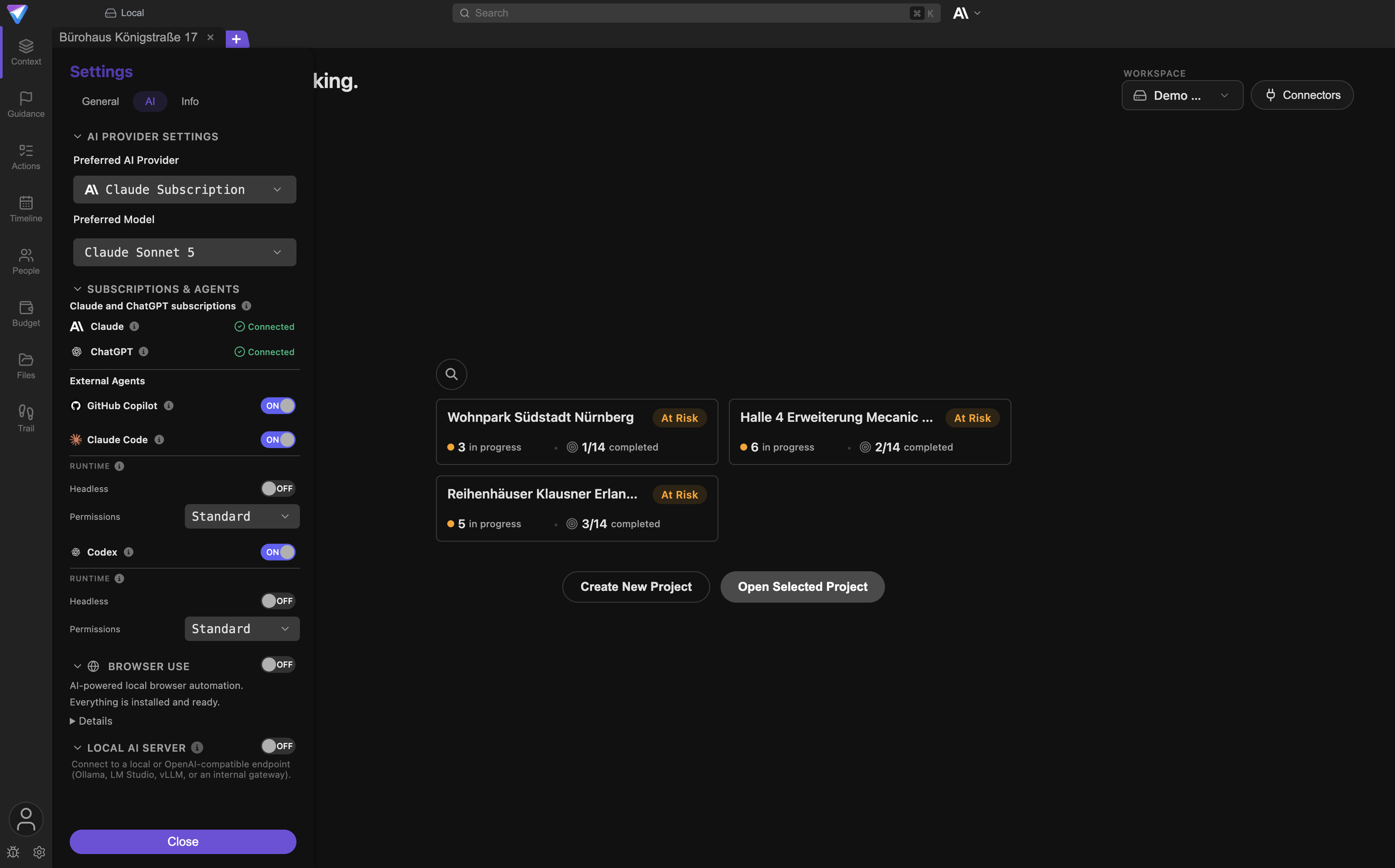
Step 1: Open the settings
Click the gear icon next to the account button at the bottom left. Switch to the General tab and
open the AI group.
Step 2: Flip the switch
Turn on Proactive Project Check-ins. The first time, a box appears below it headed Before you enable check-ins. It states three things: that each scheduled check-in makes one AI request per
active project, that project context is sent to your selected AI provider, and that guidance arrives
as a system notification.
Click Enable check-ins to confirm. Cancel leaves everything off. The box appears only once.
How you know it worked: the frequency and time fields appear below the switch.
Step 3: Set the rhythm
Pick one of the four rhythms under Frequency. Below it, enter the time of day under Check-in time.
Depending on your choice, further fields appear:
Frequency value |
Extra field | Meaning |
|---|---|---|
Twice daily |
Second check-in time |
Two fixed times per day |
Daily |
none | One fixed time per day |
Every 2 days |
none | Every other day, counted from the day you set it |
Weekly |
Weekday |
One fixed day of the week |
Times are the local time of your computer. Daylight saving changes do not cost you a check-in: if the configured time falls into a skipped hour, the check-in runs at the next minute that actually exists.
Step 4: Allow notifications
Below the time fields you will find the note System notifications must be allowed for TensorPM.
Next to it sits the Open settings button, which takes you straight to your operating system's
notification settings.
- macOS asks for permission the first time. If you declined back then, grant it in System
Settings under
Notifications. - Windows and Linux normally have notifications on unless they have been turned off or muted by a focus or do-not-disturb mode.
Step 5: Run one by hand
Do not wait until tomorrow morning to find out whether it works. Under Manual check-in you will
find the Run now button. It checks the currently open project immediately and leaves the schedule
untouched.
The button is greyed out while no project is open. During the run it reads Checking…. A run takes
anywhere from a few seconds to a few minutes, depending on the size of the project.
Unlike scheduled check-ins, a manual run delivers its system notification even when the TensorPM window is in the foreground. That way you can see immediately whether notifications get through.
If the agent reports nothing, that was a successful check-in with no finding. It is the most common and the intended answer.
What a check-in looks like
The card in the project
Check-ins appear in the project context on the Info tab, in the briefing area below today's focus.
The card is headed Project Check-in with the date and time of the check next to it. An unread
report is marked New.
A report consists of:
- a headline: the one sentence it is about
- a body: why this matters right now
- up to five notes as a list. If a note refers to a specific action item, you can click it and land on that item.
- optionally a suggested next step. It is shown only when the report has no notes, so it cannot contradict today's focus directly above it.
Two notes are shown inline. If there are more, a line below reads +2 more notes.
The briefing area shows one entry at a time. If there are several, page through them with the arrows
at the top right: Newer entry and Older entry. The dots between them jump straight to an entry.
Sorting is strictly by age, newest first. Context analysis results share this area with check-ins.
When the agent found nothing, the line reads All quiet · checked with a date. While nothing at all
exists, the card does not appear.
The system notification
Alongside the card you get a system notification from your operating system. Its title is
Project check-in · <project name> and its text is the headline of the report. If several projects
have something to say in the same run, the text reads <count> projects need attention.
Clicking the notification brings TensorPM to the front and opens the project in question. If the window was closed, it reopens and then navigates there.
Scheduled check-ins skip the notification while the TensorPM window is in the foreground anyway. You see the report on the card instead.
Silent runs produce no notification at all. You are only interrupted when there is a reason.
What to do with a check-in
The actions sit below the report:
Discuss with AIopens the chat and sends the report to the project agent as a question, including headline, body, notes and the suggested next step. From there you can work on it directly, for example by creating an action item or drafting an email.- Clicking a single note jumps to the action item it refers to.
Dismiss item(the small cross on a note) removes that one point.Dismiss check-in(the cross at the top right) removes the whole report from the area.
Dismissed points count as handled. The agent will not raise them again unless the situation has escalated. That is exactly why dismissing is worth the click: it is the feedback that stops you being told the same thing three times.
A report counts as read as soon as it has been displayed. The New marker stays visible while you
are looking at it, so it does not vanish under your eyes.
Steering tone and frequency
The four rhythms
There is no slider for tone. Frequency is how you control how present the agent is:
Twice dailysuits projects in a hot phase where something material can change between morning and afternoon.Dailyis the usual case. One morning slot, read before the first coffee.Every 2 dayssuits calmer projects, or the feeling that daily is too much.Weeklysuits long-running projects with slow cycles, for example during planning.
If you change frequency, time or weekday, the new schedule applies from that moment. Slots that lay before the change are never caught up. So you never get a flood of stale reports just because you adjusted a setting.
When the agent stays silent
Silence is a result, not an outage. The agent is explicitly instructed to speak only when you need information to steer the project. It must not praise, pad, or summarize what you already know.
Concretely, it stays silent when:
- nothing material changed since the previous check-in
- the finding is already in your project overview
- it reported the same thing before and the state has not escalated
- you dismissed the point and it has not escalated
After a long run of silence a short, grounded all-clear may arrive, so you know the system is still working.
If reports reach you too often, frequency is the right lever, not dismissing individual notes. Moving
from Daily to Every 2 days halves both the interruptions and the cost.
Turning it off again
Just switch Proactive Project Check-ins back off. From that moment no slots are evaluated and no
pending retries are executed. Your frequency and time settings are kept in case you switch back on
later.
Existing reports disappear from the briefing area when you switch off, because that area is only loaded while check-ins are enabled.
What happens in the background
The schedule
While running, TensorPM checks every minute whether a slot is due. The first check happens shortly after the app starts.
The important consequence: TensorPM has to be running. If the app is closed at the configured time, no check-in happens. Start it later the same day and the missed slot is caught up, as long as the next one is not already due. A slot from two weeks ago is never worked off retroactively.
At most one check-in runs per project and slot. While one is still running for a project, no second one is started.
When a check-in does not complete
Not every failure is treated the same way:
| Case | Behaviour |
|---|---|
| AI unavailable | Skipped, no retry |
No Pro or Business subscription |
Skipped, no retry |
| Provider reports overload or an error | Up to three attempts with growing gaps: 5 minutes, 15 minutes, 60 minutes |
| App crashes mid-run | The stuck run is detected after 15 minutes and scheduled as a retry |
Skipped and finally failed checks show up on the card, for example as Last check failed with a
date, together with a Try again button. If an older, still valid report sits underneath, the line
A newer check failed. is added above it so the two dates do not contradict each other.
A single run has a hard ceiling of ten minutes. If the AI answer takes longer, the attempt is aborted and rescheduled as a retry, instead of running twice and costing twice.
How long check-ins are kept
The last 50 finished runs per project are kept. Older ones are removed. The newest report you have not dismissed is always spared from this cleanup, so it cannot disappear before you have seen it.
Privacy: what gets processed
A check-in sends a slice of your project to the AI provider you configured. That is not a side effect, it is how the feature works, which is why the app says so in the box when you enable it.
What is sent:
- Project basics: name, description, goal, scope, timeframe, health rating
- Planning: milestones, dependencies, recorded risks
- Open action items, at most 80: text, status, start and due dates, urgency, priority, block reason, dependencies and assignees. Completed items are not sent.
- Decisions, at most 30
- People, at most 40: name, organization, roles
- Changes since the last successful check-in: status changes, newly overdue items, items that newly fall into the coming seven days, plus up to 30 unprocessed incoming entries
- The last five spoken reports, together with whether you read or dismissed them. That is the only way the agent can avoid repeating itself.
- The text of your project overview, so it does not simply rephrase it
File contents, email bodies and chat histories are not sent.
All results of a check-in stay in your local database. If you use your own provider key instead of TensorPM's AI, the request goes straight to that provider.
Common questions
Does a check-in replace the daily project status check?
No, these are two different things. Daily project status check in the same settings group evaluates
status and progress and writes the result into the project overview. A check-in decides whether
something has to reach you, and then speaks up on its own. During a check-in the agent explicitly
reads what the overview says so it does not repeat it.
Why have I heard nothing for days?
Most likely because there is nothing to report. Check the card for when it last ran. If it says
All quiet · checked with a recent date, everything is working.
Can I switch check-ins off for individual projects? No. The schedule applies to every non-archived project. To take a project out of the rhythm, archive it.
Does a manual check-in count against the schedule?
No. Run now checks immediately and moves no scheduled slot.
Do check-ins run while my computer is asleep? No. TensorPM has to be open. Missed slots are caught up on the next start, as long as a newer one has not overtaken them.
Do my settings apply on all my devices? No. Frequency, times and the on/off switch apply to the device where you set them.
Can the agent change my project during a check-in?
No. A check-in reads and reports. Changes only happen once you go into the chat via Discuss with AI
and act there.
When something does not work
The switch cannot be flipped.
An active Pro or Business subscription is missing. The help text then reads Project check-ins are available with Pro and Business. Check your subscription status in the account popover at the bottom
left, see Account and AI modes.
Run now is greyed out.
No project is open. Open a project and try again.
Message: AI is currently unavailable.
No AI provider is configured, or the configured one is not responding. Check Settings -> AI. This
case is not retried automatically, so start it again yourself.
Message: A check-in is already running or awaiting retry for this project.
One is still running, or a retry is pending. Wait for the open attempt. The gaps are 5, 15 and 60
minutes.
Message: Archived projects cannot run check-ins.
Bring the project out of the archive if it should run actively again.
I see the card but never a system notification.
Check your operating system's notification permissions via the Open settings button below the time
fields. Also remember that scheduled check-ins deliberately stay quiet while the TensorPM window is
in the foreground. Use Run now to test, which always notifies.
AI Credit consumption is higher than expected.
Budget one request per active project per slot. Reduce the frequency, archive projects nobody is
working on, and inspect the Run Project Heartbeat entries in the AI activity history.
A check-in is missing after a crash. A stuck run is detected after 15 minutes and scheduled as a retry. If a newer slot has become due in the meantime, the newer one wins.
Next steps
- Suggestions & Order: the analysis you start yourself once a check-in has pointed you at something
- Account and AI modes: subscription, credits and AI provider setup
- Settings: all the other switches on the
Generaltab - AI panel: the chat that
Discuss with AIopens - Action items: deadlines, status and blockers a check-in draws its findings from
- Troubleshooting: general problem solving