
Skills & code execution
In short
A skill is expertise you hand to your project agent. Afterwards it knows what a status report looks like in your house format, how a costing sheet has to be structured, or how a presentation for the client is laid out. Some skills also bring a small program that does the work deterministically and delivers a finished file.
Skills belong to the project, not to the app. They sit as folders inside the project folder. You install them from a catalog or write them yourself. A skill that runs a program needs your approval before the project agent may use it.
What a skill is
Think of a skill as a work instruction in a binder: one page describing how a specific task gets done
in your organisation, plus an optional template and a small calculation sheet. That is exactly how a
skill is built. It always contains a SKILL.md file describing purpose and procedure, and it may
additionally contain scripts, templates and reference documents.
Of every approved skill, the project agent first sees only the name and the short description. It reads the full instructions only once it has committed to using that skill. This keeps answers fast and consumption low, even with many skills installed.
There are two kinds:
- Instruction-only skills. They contain no program. They give the project agent rules: which sections a status report has, which colours and type sizes are allowed, which figures always get checked. The agent works accordingly.
- Skills with scripts. They bring one or more small programs with clearly defined inputs and outputs. The agent calls a script with explicit values, and the script returns a validated result or a finished file. These skills need your approval.
Three examples from project work
Status report in your house format. A skill describes which sections your monthly report has, in what order they appear, which figures get named and how risks are phrased. You write "Build the August monthly report" in the chat, and you get a Word document that looks like your other monthly reports, not like generic AI prose.
Preparing a costing sheet. A skill defines how a quantity and cost breakdown is built: summary sheet separate from raw data, units and currency labelled, formulas where you want to keep calculating later. The result is an Excel workbook that your commercial team can work with directly.
Building a presentation. A skill describes the slide design for the client meeting: 16 by 9, one key message per slide, fixed margins, no walls of text. You say which period you want to show, and you get a PowerPoint file with the current project status.
What a skill is not
A skill is not an app plugin and not a setting. It does not change the interface, does not add views and does not unlock menu entries. It only extends what the project agent can do in this one project.
A skill is also not an account and not a connection to the outside world. How TensorPM reaches email, calendars or third-party systems is covered in Connectors and approvals.
Where skills live
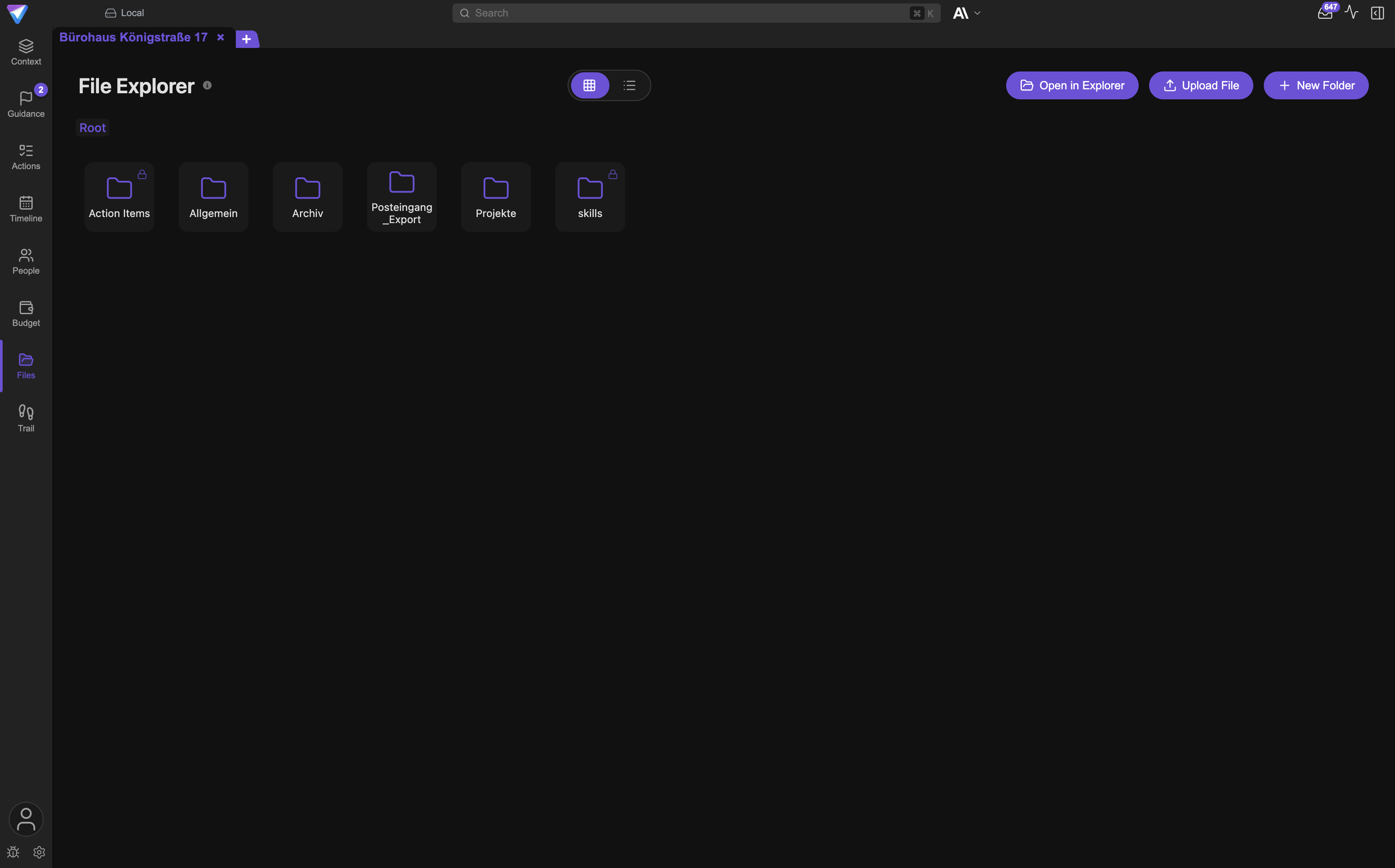
The skills/ folder in the project folder
Every project has a project folder on your disk. Inside it sits a skills/ subfolder. TensorPM
creates it as soon as you open the project, even when no skill is installed yet. Each installed
skill is exactly one subfolder in there, so skills/monthly-report/, skills/costing/ and so on.
You see the folder in the Files sidebar tab. It is deliberately visible rather than hidden so you
can also find it in Finder or Explorer.
What that means for you
Because skills live in the project folder, they belong to the project and not to the installation:
- Two projects can carry different skills. A refurbishment project needs different templates than a new build.
- Whoever gets the project folder gets the skills. Through a shared folder, a version control system or an archive you distribute your house templates to the whole team.
- A fresh TensorPM installation brings no skills. TensorPM deliberately ships none inside the app; they all come from the catalog or from you.
The skills/ folder itself is protected. TensorPM shows it with a lock icon, refuses rename and
delete, and excludes its contents from the automatic AI passes. Its contents are work instructions,
not project material, and should not dilute your project context. The individual skill folders below
it are ordinary files: you may rename, edit and delete them.
The auto-generated README
As soon as you install your first skill, TensorPM writes a skills/README.md file into the folder.
It fully describes how a skill is built, which fields SKILL.md knows, which tools are available
inside the protected work area, and what typical errors come from.
That file is rewritten on every installation. Your own notes in it will be lost. Put them in a separate file next to it.
Installing skills
Step by step
- Open the project and switch to
Filesin the left sidebar. - Right-click the
skillsfolder. - Choose
Install skill from catalog…. A window opens listing the available skills. - Each entry shows name, description, version and the permissions the skill requests. The
permission labels read
Reads project files,Writes project files,Network accessandRuns local programs. If more of them exist than fit on one line,Show {{count}} moreexpands the list. - Click
Install. After a moment the skill appears as a new subfolder underskills. - The folder icon tells you that the skill is valid and approved.
Important: The catalog can be empty. TensorPM loads it from a public internet address, and when nothing is published there, the window shows
No skills available right now.That is not an error. You can still author your own skills, see the section further down.
What happens during installation
The click on Install triggers a fixed chain. You do not operate any of it, but it helps to know
what runs:
- TensorPM downloads the skill's package over an encrypted connection.
- It checks the downloaded bytes against a checksum from the catalog. If it does not match exactly, the installation stops. A tampered or corrupted package is caught before anything is unpacked.
- It unpacks the package into a staging folder and then swaps the skill folder in one move. If the machine dies mid-installation, the previous version stays intact.
- It records the approval for this skill. Your click on
Installis the consent, you do not have to confirm a second time. - It rewrites
skills/README.mdand tells the project agent about the skill. From the next chat turn onwards it knows about it.
The catalog itself is cached. Without an internet connection you see the last loaded list marked
Cached (offline), and installing new skills is not possible then.
Updating and uninstalling
When a newer version exists in the catalog, the skill folder's right-click menu gains an
Update to 1.2.0 entry carrying the actual version number. Clicking it replaces the folder with the
new version.
If the new version requests more permissions than the old one, it is installed but loses its approval. You have to review it and approve it again. This is the same mechanism you know from app updates on your phone.
To remove a skill, right-click the skill folder and choose Uninstall skill. The folder disappears;
files already produced under exports/ stay where they are.
Approval and trust
Why approval exists
A skill with scripts is executable code. It can end up in your project folder without you putting it there consciously: through a colleague's shared folder, through an archive, through a cloud sync. If TensorPM took every instruction file it finds at face value, someone could smuggle in a script that the project agent then runs unsuspectingly.
So the rule is: a skill with scripts starts out unapproved. Without approval it does not appear in the project agent's knowledge at all. It cannot run it, and it does not even see the description. That is deliberate, because a description text can itself be an attempt to talk the agent into something.
Catalog skills are approved from the start, because your click on Install was the consent.
When approval expires
Approval is bound to two things: the exact contents of every file in the skill folder, and the list of requested permissions. If either changes, the approval is gone:
- You or somebody else edits a file in the skill folder, even deep inside a subfolder.
- A file is added or removed.
- A new version requests additional permissions, for example network access out of nowhere.
TensorPM notices as soon as anything in the folder changes and resets the skill to "needs approval". The folder icon changes accordingly.
Approving a skill or revoking approval
- Switch to
Filesand open theskillsfolder. - Right-click the skill folder.
- Choose
Approve skill. Hover over the entry first: the tooltip shows the requested permissions. - To take an approval back, choose
Revoke skill approvalin the same menu.
Approvals live in a .tensorpm/skill-approvals.json file in the project folder. You never have to
touch it by hand.
Why this is a safety feature, not an obstacle
The flow feels like a hurdle the first time, but it is the opposite: it turns the question "may this piece of foreign code run here?" into a conscious decision by you rather than a silent assumption by the software. And it asks again as soon as something material changes. A skill you reviewed today cannot quietly gain more power tomorrow.
What a skill may and may not do
The protected work area
Scripts do not simply run on your machine. They run in a sealed work area that TensorPM sets up fresh
for every run and clears away afterwards. Inside that area everything is forbidden to begin with.
Only what the skill explicitly requests in SKILL.md, and what you confirmed with your approval,
gets allowed.
Concretely:
- No internet access. A script cannot reach the network by default. A skill that wants to fetch data has to name every server individually, including the port number. There is no blanket permission for "anything on the internet".
- No foreign programs. A script cannot start other applications on your machine unless the skill
requests precisely named tools. In the catalog view this permission reads
Runs local programsand is the most far-reaching of them all. - No access to your disk. A script may read and write only inside the work area of that particular run. It reaches project files only when the skill requests them individually or as a clearly named subfolder. Your home folder, your correspondence and your passwords are out of reach.
- No credentials. The work area receives none of your machine's environment variables. A script sees only three technical values pointing at its own input and output files.
- No loading code. A script cannot pull program libraries from the internet. Only what TensorPM ships is available.
- Time and memory are capped. The defaults are 30 seconds of runtime and 256 megabytes of memory. A skill may deviate, but not arbitrarily. Whatever breaks the limit gets stopped. The volume of produced files is bounded too.
The filtered project extract
A script does not see your database. Before it starts it receives a copy of an extract as a plain read-only file. What that extract contains is determined by the skill's request.
Always included are the project basics: name, description, goal, scope, timeframe, success criteria, categories, milestones, risks and the people involved. Action items, decisions and the change history come along only when the skill explicitly asks for them. If it does not, those lists are simply empty.
Encrypted content and attachments are never part of the extract. Formatted text is reduced to plain text.
Limits at a glance
| What | Default | Widened by |
|---|---|---|
| Internet access | none | explicit list of servers with port number |
| Starting other programs | no | explicit list of tools |
| Reading project files | no | named files or subfolders |
| Writing project files | no | named files or subfolders |
| Action items, decisions, history | not included | a read request in the skill |
| Runtime | 30 seconds | declared in the skill, with an upper bound |
| Memory | 256 megabytes | declared in the skill, with an upper bound |
Documents a skill can produce
TensorPM ships four document tools inside the app. They are available in the work area without anything being fetched from the internet, so they also work offline:
| Format | Used for |
|---|---|
PowerPoint (.pptx) |
presentations, for example the project status for a client meeting |
Word (.docx) |
prose reports with headings, tables and lists, for example the monthly report |
| fixed final documents for sending and archiving, also merging and stamping existing PDFs | |
Excel (.xlsx) |
workbooks with several sheets, values, formulas and formatting |
Which format makes sense follows from intent: a presentation to present, a workbook to keep calculating in, a text document to keep editing, a PDF to send out.
Using a skill in the chat
How you ask
You do not invoke a skill through a menu. You describe what you need in the Chat of the AI panel.
The project agent knows the names and short descriptions of all approved skills in this project and
picks the right one itself.
It helps to name the result rather than the route: "Build me the August monthly report as Word" works better than "Run the monthly-report skill". You may still name the skill directly when you know exactly which one you want.
How you see that a skill is running
Below the answer, lines appear for the individual steps. When the agent reads a skill's instructions,
it says Describing skill. When it runs a script, it says Running skill … and afterwards
Skill … ran, each with the skill's name.
Produced files appear as attachments below the answer. You can open them directly.
Where the results land
Every produced file is additionally stored in the project folder, under exports/<skill-name>/. You
therefore find it again in the Files view, even days later and without searching the chat.
Filenames stay readable and carry no technical timestamp. Produce the same file again and TensorPM
appends a (2), exactly the way Finder and Explorer do. Nothing gets overwritten.
Running a skill straight from a file
Some skills bring an entry for the right-click menu. Right-click a matching file in Files, for
example a spreadsheet, and the entry appears under the name the skill chose for it.
This route runs without AI. The script receives the file, computes, and delivers the result. During
the run you see Running skill…, afterwards a success message naming the number of produced files
and the target folder. If the run fails, you see the error message. Such entries appear only for
approved skills and only on files the skill is actually allowed to read.
Writing your own skills
The structure of SKILL.md
Your own skill is a folder under skills/ with at least a SKILL.md file. The folder name has to
match the name field in that file exactly.
SKILL.md has two parts. At the top, between two lines of three hyphens, sit the details about the
skill; below follows the actual instruction as ordinary text. The most important fields:
| Field | Required | Meaning |
|---|---|---|
name |
yes | lowercase letters, digits and hyphens. Must match the folder name |
description |
yes | one paragraph. This exact text decides whether the agent picks the skill |
version |
yes | three numbers with dots, for example 1.0.0 |
runtime |
only with scripts | the execution environment |
permissions |
no | what the skill may read, write and reach. Unstated means nothing |
limits |
no | runtime and memory |
scripts |
no | the callable programs, each with file, description and expected values |
file_triggers |
no | entries for the right-click menu on project files |
Keep description precise. It is the only information the agent has permanently in view. Detailed
instructions belong in the text part below it, very extensive background documents in a references/
subfolder. From there the agent loads only what it currently needs.
A minimal example
---
name: open-item-count
description: Counts the open action items in the current project.
version: 1.0.0
runtime: { engine: deno }
permissions:
  tensorpm: { action_items: read }
  network: none
limits: { cpu_seconds: 5, memory_mb: 128 }
scripts:
  count:
    entrypoint: scripts/main.ts
    description: Counts action items with status open.
---
Counts how many action items are in open status.
Put the file at skills/open-item-count/SKILL.md and the script at
skills/open-item-count/scripts/main.ts. Then click Approve skill in the folder's right-click
menu. From the next chat turn the project agent can use it.
Instructions only, no program
Leave out the scripts section and the skill is pure expertise. For most everyday cases that is
exactly the right route. When what you lack is not a calculation but a binding outline, a house
design or a checklist, write it as text and skip the program code. Such skills need no execution
approval, because nothing gets executed.
All details about the structure, the available fields and the bundled document tools are in the
skills/README.md file that TensorPM rewrites on every installation.
Common questions
Does a skill cost credits? Running the script itself does not. Credits go to the project agent's thinking around it, so understanding your request and phrasing the answer. A run started from a file's right-click menu involves no AI at all and therefore no credits.
Do skills apply to all my projects? No. Each skill applies only to the project in whose folder it sits. Using the same skill in a second project means installing it there too, or copying the folder. A copied version needs its own approval.
Can I share a skill with colleagues?
Yes. Pass the skill folder on, for example through your shared folder. On the other machine the skill
shows up in Files and has to be approved there once.
Why does the agent not use my skill?
Usually it is not approved, or the description does not match what you asked. The agent chooses based
on description. If that is vague, the skill does not get picked.
Does the agent see the contents of an unapproved skill? No. Unapproved skills do not surface for it at all, not even their description.
Can a skill change project data? A script reads the project extract and cannot write it back. It can produce files, and it can write into project files only when the skill explicitly requests that and you approved it.
What happens if something crashes mid-run? The work area is discarded. There is no state that survives between two runs. Every run starts from zero.
When something does not work
The catalog window is empty.
If it says No skills available right now., nothing is currently published in the catalog. If it
says Cached (offline) or Unavailable, the internet connection is missing. Check the network and
reload the list with the refresh button at the top of the window.
The skill folder is shown as invalid.
Almost always the folder name does not match the name field in SKILL.md, or the details at the
top of the file are malformed. Hover over the folder; the message names the reason.
The skill was approved and suddenly is not.
Then a file in the folder changed, or the skill requests more permissions after an update. Review the
change and approve the skill again through Approve skill.
A script aborts with a message about missing access.
The skill is attempting something it did not request, usually a network call or reading a project
file. That is the protection mechanism doing its job. Add the permission in SKILL.md, then approve
the skill again.
A run is cut short after a moment.
The runtime or memory limit was reached, or too much data was written. Raise limits within the
allowed range, or have the script process less at once.
The produced file is nowhere to be found.
Look under exports/ in Files; there is one subfolder per skill. If the file appeared in the chat,
it is there too.
More symptoms and remedies are collected in Troubleshooting.
Next steps
- Project agent, chat & quick actions: how you work with the agent and how you steer a running operation.
- Files and Trail: how the project folder is structured and where produced documents end up in the project.
- Connectors and approvals: how TensorPM reaches email, calendars and external systems, and how approvals work there.
- Glossary: terms around the project agent in short form.