
Plain-language glossary
In short
TensorPM uses words you may not hear every day at work: Distiller, connector, workspace, MCP, credits. This page explains each of them in plain language: what it means, why it exists, and where you actually find it in the app.
You do not need to read this page from top to bottom. It is a reference. Whenever a word in another article or in the app leaves you guessing, look it up here.
How to read this page
Terms are grouped by topic, because related words are easier to understand together. Inside each group they are listed alphabetically.
Every entry follows the same pattern:
- the term in bold
- two to five sentences of explanation
- one sentence starting with
Where you see it:naming the concrete place in the app, when there is one
Names of buttons, tabs, and views appear in backticks and are written exactly as in the English interface. When a term is called something else in everyday conversation, we name both.
Project and context
These terms describe the picture TensorPM holds of your project. They are the foundation for everything else: without solid entries here, neither the analyses nor the project agent can produce anything useful.
Context quality is not a button in the app. It is a condition: how complete, current, and free of contradictions your project data is. It decides how useful analyses and recommendations turn out. If goal, scope, and dates are missing, no analysis can compensate for that.
Where you see it: The Context Analysis quick action reviews completeness, correctness, and consistency. The result lands in the Suggestions card in Pulse, under the chip Context.
Decision is a choice that has been made and now applies. For example: "The facade will be built as variant B." TensorPM records decisions separately from action items because they have a different lifespan: an action item gets completed, a decision stays valid until it is superseded or withdrawn. Every decision carries a source, so you can later see who brought it in.
Where you see it: Trail -> Decisions. More on this in files-and-trail.
Goal is the result the project is meant to achieve, in one sentence and without jargon. A project can have several goals. The goal is the yardstick the analyses later apply to every action item: work that serves no goal shows up in the coverage analysis.
Where you see it: Context -> Profile, section Project Goals.
Milestone is a fixed point in time by which something specific should be reached. Unlike an action item, a milestone has no duration, only a date. Milestones are the simplest way to break a long project into checkable stages.
Where you see it: Context -> Planning, section Milestones. They also appear on the Timeline view.
Project is the top-level unit of work in TensorPM. A project holds its own context, action items, people, budget, files, and trail. You can create several projects, but you always work inside exactly one at a time.
Where you see it: On the start screen when no project is open. How to create one is covered in project-creation-wizard.
Project context is the collection of every reliable fact about the project: goal, scope, success criteria, dates, budget, requirements, milestones, dependencies, risks, people, and decisions. It is not a document sitting somewhere but structured data that feeds the dashboard, the analyses, the timeline, and every AI answer. The working rule is simple: when the project changes, change the context.
Where you see it: Sidebar tab Context, view title Project Context, with the sub-tabs Info, Profile, Resources, Content, Planning, and Risks.
Requirement is something the project result has to satisfy. It can be a technical specification, a standard, a client expectation, or a legal obligation. TensorPM keeps requirements as their own list so you can later verify whether the planned work actually covers them. Each requirement can carry a priority and a status.
Where you see it: Context -> Content, section Requirements. More on this in project-structure.
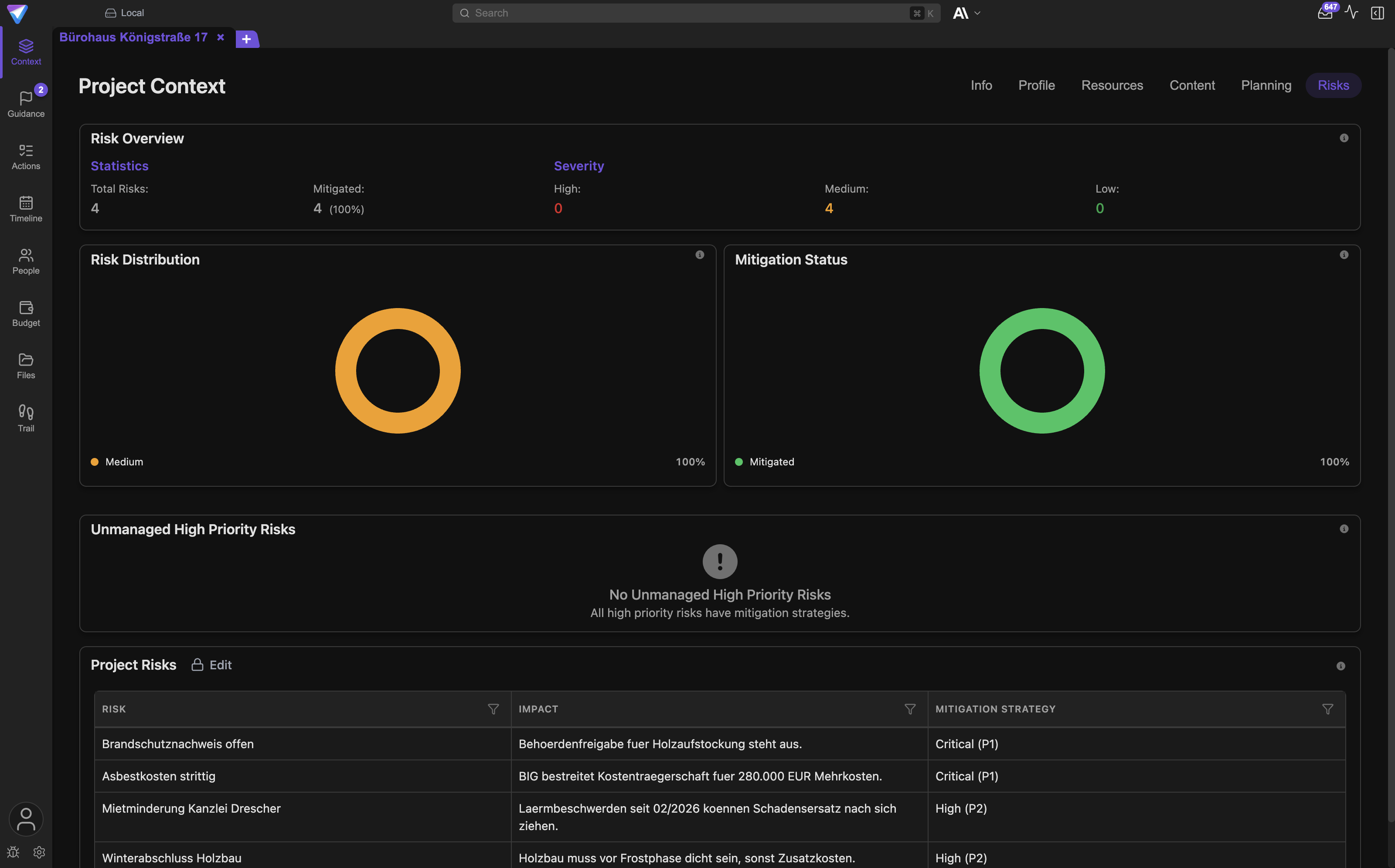
Risk is a possible circumstance that would endanger the project if it occurred. A risk is not yet a problem. That is exactly why you record it: so you can plan a countermeasure while there is still time. TensorPM keeps risks as their own list with an assessment and a mitigation.
Where you see it: Context -> Risks. A summary also appears on Context -> Info.
Scope answers the question of what belongs to the project and what explicitly does not. Scope is the strongest brake against unplanned growth: if nobody wrote down what is outside, everything eventually gets pulled in. In the project wizard the step is called Project Scope.
Where you see it: Context -> Profile, field Project Scope.
Success criterion is measurable evidence that a goal has been reached. "The project is going well" is not a success criterion. "Handover with no major defects by November 30" is one. TensorPM's coverage analysis checks whether your planned work actually serves these criteria.
Where you see it: Context -> Profile, section Success Criteria. The evaluation appears in the Suggestions card in Pulse, under the chip Coverage.
Work and planning
These terms describe how the work is broken down, ordered, and scheduled.
Action item is the smallest unit of work: something a person does and eventually finishes. It has a status, a priority, a date, an owner, and optionally dependencies. The sidebar tab is called Actions, while the view title reads Action Items.
Where you see it: Sidebar tab Actions, with the views List, Board, and Recurring. More on this in action-items.
Critical path is the chain of work where any delay pushes the project end date directly. Items off that path have slack, items on it have none. When you have to decide where to intervene first, the critical path is the answer.
Where you see it: Cards carrying the Critical Path badge in the Order tab of the Action Items view. More on this in guidance.
Dependency means one item depends on another. TensorPM knows four kinds, abbreviated with two letters: FS (the second item starts once the first is finished), SS (both start together), FF (both end together), and SF (the second ends when the first starts). FS is the normal case and the right pick when you are unsure.
Where you see it: In an item's detail panel under Outgoing dependencies and Incoming dependencies. More on this in project-structure.
Priority expresses how important an item is compared to the others. TensorPM uses a number from 1 to 100 instead of the usual three levels, because that captures finer differences. You can sort by it, filter by it, and arrange the board by it.
Where you see it: Column Priority in Actions -> List, and the board sub-view Priority.
Progress is the share of the work that is done. For work packages you can choose between three methods: Calculated derives the value from the underlying items, Manual estimate means you set the percentage yourself, and 0/50/100 knows only three steps (planned, in progress, done). The third method is the most honest one when intermediate figures would only be guesses anyway.
Where you see it: In the Work Packages area, per package. Overall project progress sits on Context -> Planning.
Recurring item is work that repeats on a fixed rhythm, such as the weekly site meeting or the monthly report. You define it once and TensorPM produces the individual occurrences. This keeps regular obligations from quietly disappearing.
Where you see it: Actions -> Recurring, then + Add Recurring Item.
Status says where something currently stands. Action items know Open, In Progress, Blocked, and Completed. Work packages use a longer chain because they model an award and handover process: Planned, Released, In progress, Done, Accepted. The two lists are deliberately different and do not map onto each other.
Where you see it: As the status column in the action item list, and as the status field per package in the Work Packages area.
Structure node is a grouping point in the work breakdown structure that holds no work itself but bundles other elements. Example: "Shell construction" is a structure node, the individual award packages below it are work packages. Action items belong on work packages, not on structure nodes, and the app warns you if you do it differently.
Where you see it: In the Work Packages area in Edit mode, role Structure node.
Timeline is the bar chart view of the schedule: one bar per item, the length is the duration, connecting lines show dependencies. You can switch between Week, Month, and Year and group rows by Items or Project. In the German interface the same tab is called Gantt.
Where you see it: Sidebar tab Timeline. More on this in navigation-and-views.
Work breakdown structure (WBS) is the hierarchical decomposition of the project into levels: the project at the top, areas or trades below, work packages at the bottom. In German the app abbreviates it PSP. The structure is optional: you turn it on per project when you work with trades, awards, and handovers.
Where you see it: Settings -> General -> Work Breakdown Structure, activated with Apply and activate. More on this in work-packages.
Work package is a bounded piece of work with its own owner, effort, budget, and acceptance. It is coarser than an action item and finer than the whole project. It only exists once you have activated the work breakdown structure for that project.
Where you see it: The Work Packages area in the sidebar, visible only with the work breakdown structure enabled. More on this in work-packages.
The project agent
These terms describe how the AI side of TensorPM works and where your control stays.
AI provider is the service that does the actual language processing. You have three routes: through TensorPM (this consumes credits), through an existing Claude or ChatGPT subscription on your machine, or through a model running locally. Without at least one configured route, every AI feature stays silent.
Where you see it: Settings -> AI -> AI Provider Settings. More on this in account-ai-modes.
Analysis in TensorPM always means the same thing: the AI reads the existing context and describes what it sees, without changing anything. Several analyses exist with different angles, among them Context Analysis, Coverage Analysis, and Project Status. An analysis is always the first step; only afterwards can recommendations be generated.
Where you see it: In the AI panel under the quick actions, sections Analysis & Guidance and AI Evaluations.
Approval is your explicit consent before the agent acts outward or changes data. An email only leaves with Approve & Send, a calendar entry only lands with Approve & Apply. For tools from external servers the app asks with Allow, Don't allow, or Always allow. None of these actions happen silently in the background.
Where you see it: As an approval card inside the chat, recognizable by Permission requested and Changes data. More on this in connectors-and-approvals.
Browser agent is a locally running automation that operates a web page in a browser for you, for example to read out a portal. It runs on your machine and has to be installed before first use. Because it can act on the open internet, you start and stop it deliberately yourself.
Where you see it: In the chat plus menu via Start Browser Agent and Stop Browser Agent.
Chat is the conversation with the project agent. You can keep several chats in parallel, find older ones in the chat history, and dock the panel left, right, top, or bottom, or open it as a full page. The chat already knows your project context, so you do not have to restate it with every question.
Where you see it: Show AI Panel in the header bar. More on this in ai-panel.
Suggestion is a single recommendation for steering the project: an observation, its impact, and a proposed next step. Suggestions come out of the four analyses (Context Analysis, Strategy, Coverage Analysis, Execution) that one Review project run produces. A suggestion decides nothing; it prepares your decision, and you answer it with Apply, Discuss in chat, or Dismiss. There is no separate Guidance view any more.
Where you see it: The Suggestions card in the Pulse view. More on this in guidance.
Project agent is the umbrella term for the AI side of TensorPM: the part that analyzes, proposes, asks back, and on request does work. It is not a separate program but the function behind chat, the analyses, the Distiller, and the quick actions. The project agent can reach your project context and the tools you approved, and nothing else.
Where you see it: Most visibly in the chat. The overall flow is described in core-features.
Project check-in is a scheduled self-report by the agent: it reviews the active project at the configured time and speaks up only when something deserves your attention. Each check-in costs one AI request per active project, and therefore credits. The feature is available with Pro and Business and has to be switched on deliberately once.
Where you see it: Settings -> General, toggle Proactive Project Check-ins. More on this in check-ins.
Quick Actions are the prepared AI jobs in the AI panel, so you do not have to phrase them every time: analyze, evaluate, generate, create items, Split items, Re-evaluate items. Some actions need a selection in the action item list first and stay greyed out otherwise.
Where you see it: In the AI panel via Toggle Quick Actions. More on this in ai-panel.
Steer means you cut into a running answer instead of waiting. Normally a new message goes into the queue and is handled after the current answer. With Steer it goes in immediately and redirects the agent. Messages with attachments cannot steer, and the function is disabled in Distiller chats.
Where you see it: Next to the chat input line as soon as an answer is running.
Tool is a single capability the agent can invoke: create an action item, draft an email, prepare a calendar entry, read a file. The app writes Tools throughout, in both languages. Every tool that changes data or acts outward is bound to an approval.
Where you see it: In the chat as a line above the respective work step, and per external server under Available tools.
Signals and keeping context current
These terms describe the path from an incoming piece of information to an updated project context. This is the core loop of TensorPM, so it is worth reading the whole group once.
Distillation is the process that turns a signal into proposed changes. The name comes from distilling: out of a long email, one sentence remains that actually concerns the project. A signal can also run through without a result, in which case it reads No changes proposed.
Where you see it: In the signals panel as the filters Changes Proposed and No Distillations.
Distiller is the function that reads incoming signals and turns them into proposed changes. The name is not translated. The Distiller never changes anything on its own: it presents proposals, you decide. A notification saying Distiller is waiting for your review tells you something is pending.
Where you see it: Via Open Distiller in the signals panel. More on this in connectors-and-approvals.
Ignored Signals are messages and files that are deliberately not evaluated. You can move a signal there yourself with Ignore for distillation, or the automatic relevance check does it for you with a reason attached. Ignored does not mean deleted: Include for distillation brings it back.
Where you see it: In the signals panel under Ignored Signals.
Incoming signals is the inbox for project signals. Note that there is no element in the app labelled "intake". The header indicator reads Incoming Signals, next to it sit Proposed Changes and Ignored Signals. The word intake only appears in the connector setting Input visibility.
Where you see it: The mailbox icon in the header bar opens the signals panel.
Proposed change is a single, clearly bounded change to the project context suggested by the Distiller. It is deliberately kept small so you can approve or reject it individually instead of swallowing a whole block unchecked. Only your approval turns it into a real entry in the context.
Where you see it: In the signals panel under Proposed Changes, and in the Distiller chat with Approve, Append, or Skip.
Relevance check is a small, inexpensive AI pre-check on newly arrived emails. Obvious noise such as newsletters is moved to Ignored Signals with a reason before the more expensive distillation even starts. That saves credits and keeps the panel readable. The check is a setting and can be turned off.
Where you see it: Settings -> General, in the AI group.
Signal is any incoming piece of information that might matter to the project: an email, a file in the project folder, a document, or a message from an external agent. A signal is raw material at first. It becomes part of the project context only when you approve a proposed change derived from it.
Where you see it: In the signals panel under Incoming Signals, filterable by Files, Emails, and MCP Signals.
Source answers the question of where a change came from. Every entry in the trail carries a source hint, and when the change came out of a conversation, Open in chat jumps straight to the message that triggered it. In everyday speech people call this provenance; the app says Source.
Where you see it: Trail -> Changes, the source hint on each row.
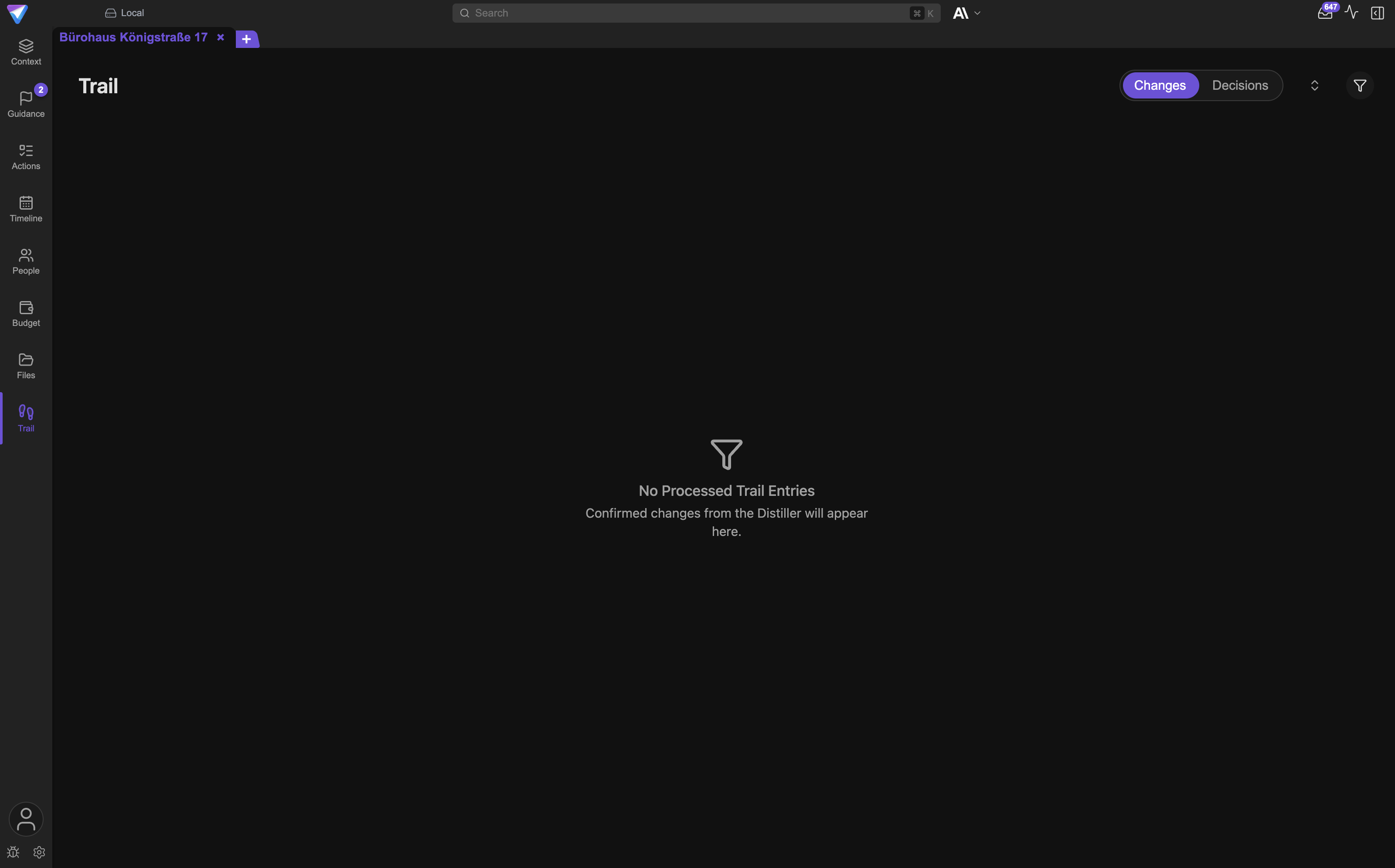
Trail is the complete history of every confirmed change to the project context, with time, content, and source. The trail is where you can prove months later what applied when and why it changed. In German the same view is called Verlauf. It has two tabs: Changes and Decisions.
Where you see it: Sidebar tab Trail. More on this in files-and-trail.
Connections to the outside
These terms describe how TensorPM talks to other systems and other programs.
A2A stands for agent-to-agent and is a convention that lets programs hand tasks to each other. For you it means: another AI program can address TensorPM as a specialist for project questions. You do not have to set anything up unless you want to.
Where you see it: In the trail as the source label A2A agent when a change arrived that way. More on this in agent-integrations.
Agent in this context means another AI program, not TensorPM's own project agent. External agents such as Claude Code, Codex, or GitHub Copilot run on your machine and can take on suitable technical work. They are an extension, not a prerequisite.
Where you see it: Settings -> AI -> Subscriptions & Agents, group External Agents.
Connector is a saved connection to an external source, such as a mailbox or a calendar. You set it up once and assign it to one or more projects. Credentials stay on your device: the panel subtitle states explicitly that connector settings are local-only.
Where you see it: Button Connectors on the start screen, which opens the panel Configure Connectors. More on this in connectors-and-approvals.
IMAP is the common method a program uses to read email from a mail server. When the email connector asks for IMAP Host, IMAP Port, and credentials, you get those values from your mailbox provider. Many providers require a dedicated app password rather than your normal one.
Where you see it: Connectors -> Configure Connectors -> Email Connector, step 1. Create email.
Local calendar reaches a calendar already configured on your Mac. It can read, create, and change events, but it can neither delete them nor change attendees. TensorPM needs full macOS calendar access once. This is the most private route to your appointments, because no cloud account is involved.
Where you see it: Configure Connectors, section Local calendar.
Local email reads mail from the mailbox your mail program already stores on the device. No password is involved and no server is contacted. Only Apple Mail on macOS is implemented today. Setup runs in three steps: account, folders, project assignment.
Where you see it: Configure Connectors, section Local email.
MCP stands for Model Context Protocol and is a shared language through which AI programs exchange tools and data. TensorPM uses it in both directions: as an MCP Client to use tools from other servers, and as an MCP Server to give other programs governed access to your project. Anything such an outside tool wants to change goes through an approval.
Where you see it: Configure Connectors, sections MCP Client and MCP Server. More on this in agent-integrations.
Microsoft 365 is the connection to the mailbox and calendar of a Microsoft business account. You sign in once and then assign the connector to projects. Emails from it become signals, and calendar changes go through an approval.
Where you see it: Configure Connectors, section Microsoft 365, steps 1. Create email and 2. Assign projects.
Skill is an installable package of domain knowledge and working steps the agent uses for a specific job, for example producing a presentation or an evaluation. A skill needs an explicit approval because it can read and write project files. If a skill later widens its permissions, the approval is reset and asked for again.
Where you see it: In Files, context menu on the skills folder with Install skill from catalog… and Approve skill. More on this in skills.
SMTP is the counterpart to IMAP and handles sending email. You only fill it in when TensorPM should send messages on your behalf. If you leave the SMTP password empty, the app reuses the IMAP password.
Where you see it: Configure Connectors -> Email Connector, fields SMTP Host, SMTP Port, and Use SMTP TLS / SSL.
Telegram is a chat bridge, not a mailbox. You can talk to the project agent through Telegram and have it record decisions, for example. Messages from Telegram deliberately do not run through the Distiller and never become signals.
Where you see it: Configure Connectors, section Telegram.
Account, data, and security
These terms describe where your data lives, who can read it, and what your plan covers.
Backup is a copy of your entire TensorPM database: all projects, action items, and settings in one file ending in .gitdbackup. The app suggests a TensorPM Backups folder in your documents by default and lists the backups it finds there. Important: restoring replaces all current data, and files in your project folder are not part of the backup.
Where you see it: Settings -> General -> Database Backup with Create Backup and Restore Backup. More on this in settings-backups.
BYOK stands for "bring your own key" and means you use your own account with an AI vendor instead of TensorPM's AI. The vendor then bills you directly and no credits are consumed. Own keys are possible in the Business plan only.
Where you see it: Settings -> AI -> AI Keys, visible only with Business. More on this in account-ai-modes.
Business is the plan for teams with individual requirements. It includes cloud sync, a shared credit budget shown as Team pool, and it is the only plan with your own AI keys. Scope and price are agreed individually; there is no self-service checkout.
Where you see it: In the account popover at the bottom left under Subscription Status.
Cloud sync keeps the same workspace current across several devices and several people. It is included in Pro and Business, and not in Trial. When it is active, TensorPM transfers data end-to-end encrypted.
Where you see it: On the sync status in the header bar, with values such as Live, Local, Pending, and Offline. More on this in sync.
Credits are the unit of account for AI usage through TensorPM. They are consumed only when the request runs through TensorPM. Using your own Claude or ChatGPT subscription, a local model, or your own key costs no credits. The term stays Credits in both languages.
Where you see it: In the account popover as AI Credits, with the remaining number underneath.
End-to-end encryption means data is encrypted on your device already and only becomes readable again on another of your devices. The server only moves unreadable packages. That is why the sync area states Zero-knowledge • Only your devices can decrypt. The price of that security: without your key, not even support can recover anything.
Where you see it: In the sync detail as the label End-to-End Encrypted. More on this in encryption.
Keyring is the protected key store of your operating system, where TensorPM keeps credentials and encryption keys. The German interface says Keyring too. When this value shows up as a sync status, the app currently cannot reach its keys and synchronization pauses.
Where you see it: As the value Keyring on the sync status. What to do then is covered in troubleshooting.
Local means data lives on this device only and is not transferred. TensorPM is built local-first; cloud sync is added only when you switch it on. Connector credentials stay local in every case.
Where you see it: As the sync status Local and as the label local workspace.
Passkey is a sign-in without a password, secured by your fingerprint, face, or device PIN. It is more convenient and harder to attack than a password. Creating, renaming, and removing passkeys does not happen in the app but on tensorpm.com; the app opens your browser for it.
Where you see it: In the account popover under Manage Passkeys.
Pro is the plan for individuals with the full feature set: a monthly credit allowance, cloud sync, and project check-ins. Pro allows one active project, while archived projects stay available. You can pay monthly or yearly.
Where you see it: In the account popover via Upgrade to Pro and Manage subscription.
Pro voucher is a code that unlocks Pro for a fixed period without a payment running through the app. Such codes are handed out directly, for instance to pilot users. An active paid subscription cannot be replaced by a voucher, but a voucher period can be extended by another one.
Where you see it: In the account popover under Redeem voucher, field Pro voucher code.
Trial is the free entry plan. It does not expire; instead it comes with a one-time credit allowance you spend at your own pace. Trial works without cloud sync and without your own AI keys, but the project features are open to you. The name is not translated.
Where you see it: In the account popover under Subscription Status. More on this in account-ai-modes.
Update channel decides which program versions you receive. Stable delivers fully tested releases only, Beta additionally delivers pre-releases with new features and a higher chance of bugs. Stay on Stable while you are running a real project.
Where you see it: Settings -> General, group System, selector Update Channel.
Workspace is the container holding your projects, along with people and access rights. A local workspace stays on the device, a cloud workspace is synchronized and can be shared. Switching workspace also switches which projects you see.
Where you see it: On the start screen via the workspace selector and in Settings -> Workspaces. More on this in workspaces.
When the app and everyday speech disagree
In a few places the app calls something differently from what you might expect. This table saves you the search.
| What you might say | What the app says |
|---|---|
| Working area | workspace |
| Balance, allowance, quota | Credits |
| History | Trail |
| Inbox, intake | Incoming Signals in the signals panel |
| Keychain | Keyring |
| Database dump | Backup, file ending .gitdbackup |
| Done (action item) | Completed |
| Finished (work package) | Done, then Accepted |
| Bar chart schedule | Timeline |
| Utility, capability | Tools |
| Ignored | Ignored Signals |
| Subscriptions and agents | Subscriptions & Agents |
Two more cases matter because they differ between the languages. The sidebar tab is called Timeline in English and Gantt in German. And the view title of the action item list reads Action Items in English while the sidebar tab itself is the shorter Actions.
Next steps
- Understand the overall flow: core-features
- Get to know the interface: navigation-and-views
- Create your first project: project-creation-wizard
- Set up signals and approvals: connectors-and-approvals
- When something goes wrong: troubleshooting