
Uninstall and reset
In short
When you remove TensorPM, your project data stays on the device by default. The app deletes the
database and your project files only if you tick that option explicitly and then type the word
CONFIRM. Everything else TensorPM touches during an uninstall is cache, operating-system
preference files and, on Windows, registry entries.
Uninstalling is really two separate steps: cleaning up data (the app does that) and removing the program itself (your operating system or package manager does that). You can do one without the other.
When you need this
- You are moving to a new machine and want to leave the old one clean.
- You want to start over with an empty database because a test project cluttered everything.
- A device goes back to IT or gets sold, and no project data may remain on it.
- You installed a beta build and want to return to a clean state.
- You want to remove TensorPM briefly and continue later with the same data.
What happens to your project data
Three things live separately on the device, and they are treated separately:
- The program. The application itself:
TensorPM.appon macOS, the installation folder on Windows, the package or AppImage file on Linux. - The database. Everything you entered in TensorPM: projects, action items, work packages, people, budget, trail, settings and the sync state.
- The project folders. The actual files on disk: attachments, imported documents, generated artifacts, email attachments and chat images.
When you uninstall:
- Removing the program deletes no database and no project folder.
- The database is deleted only if you tick
Remove database. - The project folders are deleted only if you tick
Remove all project files. - A cloud workspace also lives on the server. It stays there no matter what you delete on this device. Other devices in the same workspace are unaffected.
Important: A deleted local project folder is gone. There is no trash detour and no undo. Create a backup first.
Before you uninstall: the checklist
Work through these five points before you delete anything. Together they take a few minutes.
1. Create a database backup
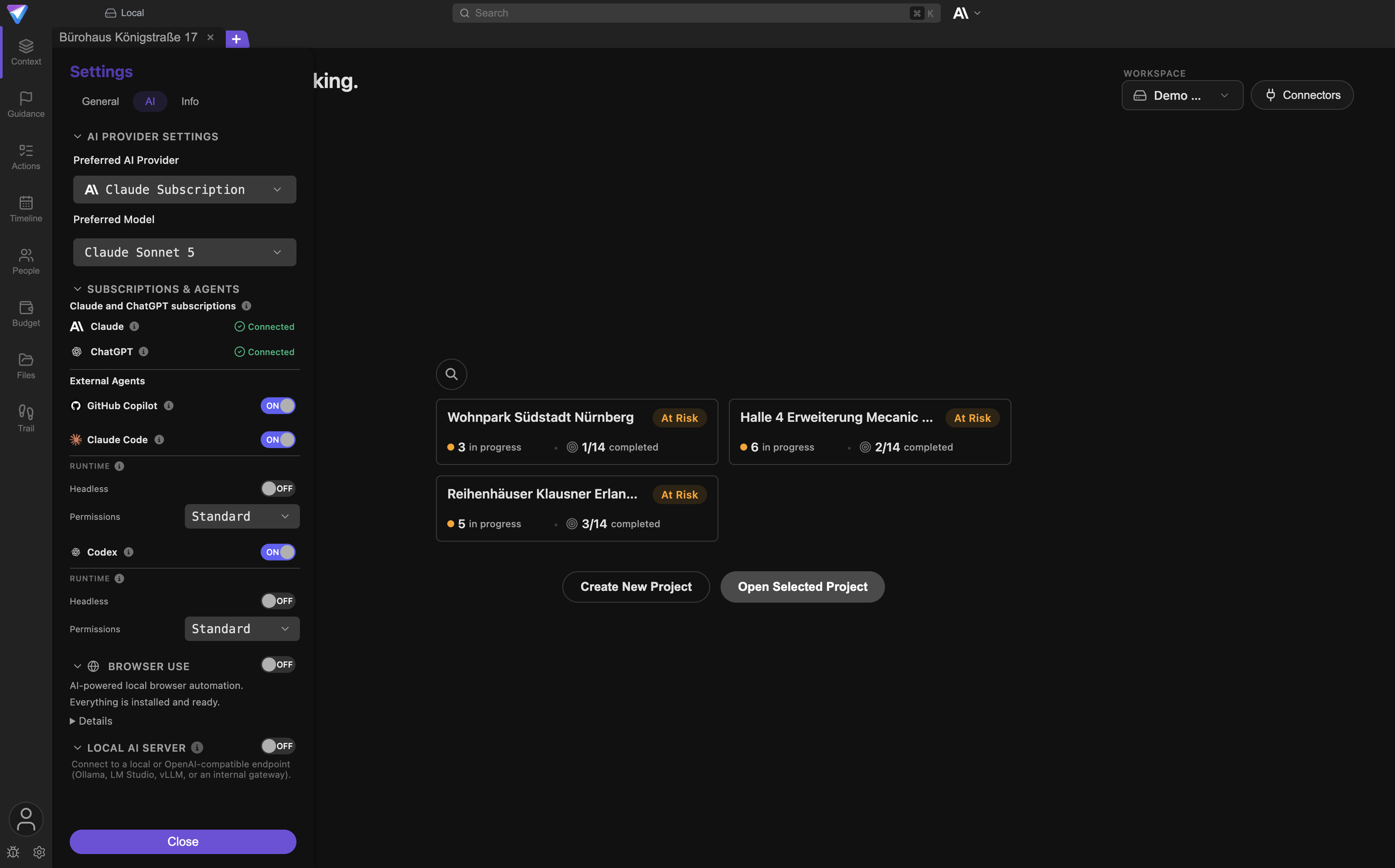
Open Settings -> General -> Database Backup and click Create Backup. TensorPM suggests the
folder TensorPM Backups inside your documents folder and writes a file ending in .gitdbackup
there. That file holds all projects, action items and settings.
Then copy the backup file to another drive or a network folder. A backup that sits in the same user account as the app does not help you if you wipe that user account too.
2. Save your project folders
The database backup does not contain the files in your project folders. Quotes, drawings, minutes and generated documents live there as ordinary files. Copy the folders you want to keep into your usual file backup.
You can see where your project folder is under Settings -> General, in
Project Folder (Default). If a custom path is entered there, that path applies instead of the
default folder.
3. Let Cloud Sync finish
If you use cloud workspaces, check the sync status in the header before deleting. It must read
Live. If it shows Pending, Offline, No network or Error, some changes exist only locally.
Wait until the status turns Live, or open the sync details and choose Retry failed uploads.
More on this under Sync.
4. Think about your encryption keys
Cloud workspaces are end-to-end encrypted. This device's key is stored locally, protected by your operating system's secure store. If you remove the database, that device key goes with it.
As long as you still have a second device set up, this is harmless: the new device is authorized from there. If this is your only device, you need your recovery package to reach the cloud data later. Check that you have it. Details are under Encryption.
5. Export diagnostics if you are reporting a problem
If you are uninstalling because of a fault, first export the support bundle under
Settings -> Info using Export Support Bundle. Once the logs are gone, the problem cannot be
traced any more.
The built-in path inside the app
TensorPM has its own cleanup step. It tidies up data, but it does not remove the program itself.
How to open it
- Open
Settingsfrom the gear icon at the bottom left. - Switch to the
Infotab. - Click
Uninstall Appat the very bottom. - The
Uninstall TensorPMdialog opens and asks:Are you sure you want to uninstall TensorPM?
The two checkboxes in the dialog
Remove all project filesdeletes the project folders, the email attachments and the chat images.Remove databasedeletes the database, the sync files and the local device keys.
Both boxes start unticked. Leave both empty and your data stays on the device in full.
As soon as you tick one, the notice Warning: This will permanently delete your data! appears
along with a text field. You have to type CONFIRM there, otherwise the Uninstall button stays
disabled. That is the final safeguard, and it is deliberate.
What the step always removes
Even with both boxes empty, TensorPM cleans up:
- the app's temporary working folder,
- on macOS the preference file, the saved window state and the cache, plus a Dock restart so no orphaned icon is left behind,
- on Windows the TensorPM registry entries, the Start menu shortcuts and the cache,
- on Linux the cache under
~/.cache/TensorPM.
What the step leaves alone
- Your database and your project folders, as long as you leave the boxes unticked.
- Your backup files in the
TensorPM Backupsfolder. Those are never deleted automatically. - The log files on macOS and Linux.
- Your MCP configuration at
~/.tensorpm/agent-mcps.json. - The program itself. On Windows and Linux, TensorPM cannot remove itself.
What happens after the click
Once the cleanup finishes, TensorPM shows an operating-system message asking how to continue. That message is in English in both language versions of the app, because it comes from the system and not from the interface.
- macOS:
Quit Only,Quit and Move to TrashorOpen Applications Folder. WithQuit and Move to Trash, TensorPM puts itself in the trash and quits. - Windows:
Quit OnlyorOpen Apps & Features. The second button opens Windows settings, where you start the actual uninstaller. - Linux:
QuitorOpen Uninstall Guide. You remove the program afterwards with your package manager.
Uninstalling on macOS
With Homebrew
If you installed TensorPM with brew install --cask neo552/tensorpm/tensorpm, use Homebrew to
remove it as well:
brew uninstall --cask tensorpm
If you also want to clear the leftovers Homebrew knows about:
brew uninstall --zap --cask tensorpm
The --zap flag removes ~/Library/Application Support/TensorPM including the database and the
project folders. Use it only when you genuinely no longer need the data.
Manually
- Quit TensorPM completely.
- Open the
Applicationsfolder in Finder. - Drag
TensorPM.appto the trash. - Empty the trash.
- Clean up the leftover folders if you no longer need them (see the table below).
If the icon still shows up in your app overview afterwards, log out and back in once. macOS then rebuilds its application list.
Uninstalling on Windows
With winget
If you installed with winget install --id Neo552.TensorPM:
winget uninstall --id Neo552.TensorPM
Manually through Apps & Features
- Quit TensorPM completely.
- Open
Settings->Apps->Installed apps. - Find
TensorPMand chooseUninstall. - The uninstaller shows its own page headed
Optional data removal:. It offers two checkboxes:Delete local database and sync stateandDelete local project files and attachments. - If you tick one, the uninstaller asks again in a second window. If you configured a custom project folder, that prompt names the full path that will be deleted. Read it before you confirm.
- Leave both boxes empty and the uninstaller removes only the program, the logs and the caches.
The uninstaller also runs during a normal update, but it skips this page and leaves your data untouched. You do not have to do anything for an update.
Uninstalling on Linux
With the package manager
For the .deb package:
sudo apt remove tensorpm
For the .rpm package:
sudo dnf remove tensorpm
AppImage
An AppImage is not installed, it is just a file. Delete it and the program is gone:
rm ~/Applications/TensorPM-Linux.AppImage
Adjust the path to wherever you put the file. Menu entries created by a helper such as AppImageLauncher are removed in that helper.
With all three routes, the database and project folders under ~/.config/TensorPM remain.
Removing leftovers manually
This table lists the actual locations on disk and what each one holds. All paths are inside your user account.
| Operating system | Path | What it holds |
|---|---|---|
| macOS | ~/Library/Application Support/TensorPM |
Main folder: database, project folders, attachments, logs, device keys |
| macOS | ~/Library/Caches/TensorPM and ~/Library/Caches/com.tensorpm.app |
Cache, safe to delete at any time |
| macOS | ~/Library/Preferences/com.tensorpm.app.plist |
Window size and system-level app preferences |
| macOS | ~/Library/Saved Application State/com.tensorpm.app.savedState |
Saved window state |
| Windows | %APPDATA%\TensorPM |
Main folder: database, project folders, attachments, logs, device keys |
| Windows | %LOCALAPPDATA%\TensorPM\Cache |
Cache, safe to delete at any time |
| Windows | Registry HKCU\Software\TensorPM |
Windows-side program settings |
| Linux | ~/.config/TensorPM |
Main folder: database, project folders, attachments, logs, device keys |
| Linux | ~/.cache/TensorPM |
Cache, safe to delete at any time |
| all | <main folder>/database |
The database with all projects and settings |
| all | <main folder>/projects |
Default location of the project folders, one subfolder per workspace |
| all | <main folder>/email-attachments |
Attachments from ingested emails |
| all | <main folder>/chat-images |
Images you attached in chat |
| all | <main folder>/logs |
Log files, only needed for troubleshooting |
| all | <main folder>/database.powersync.sqlite |
Local cache of cloud synchronisation |
| all | <main folder>/e2e-device-*.enc |
Encrypted device key for cloud workspaces |
| all | ~/Documents/TensorPM Backups |
Your database backups, never deleted automatically |
| all | ~/.tensorpm/agent-mcps.json |
Configuration of external agents, never deleted automatically |
Important: If you set a custom project folder under
Settings->General, your project files live there and not under<main folder>/projects. Check that path before you delete, and check it even more carefully before you decide to keep it.
What not to delete if you want to keep your data
- The
projectsfolder, or your custom project folder. Your real documents live there, not just a copy. - The
databasefolder. Without it, all projects, action items and the trail are gone. - The
TensorPM Backupsfolder. That is your fallback. - The
e2e-device-*.encfiles, as long as you only have one device and no recovery package at hand.
Resetting instead of uninstalling
TensorPM has no menu item that resets application data and nothing else. These four routes do exist, ordered from the smallest to the largest intervention:
- Remove one project. The project settings contain a
Danger Zonearea withDelete Project. - Remove a workspace.
Settings-> Workspaces offersDelete Workspace. The active workspace cannot be deleted, so switch first. - Go back to an earlier state.
Settings->General->Database Backup->Restore Backup. This replaces all current data with the state from the backup file. Details under Settings & Backups. - Start empty but stay installed. Open
Settings->Info->Uninstall App, tickRemove database, typeCONFIRM, and pickQuit Onlyin the closing system message. The application stays installed and starts like a fresh install next time.
If you only want to see the guided introduction again, you do not have to delete anything. It sits
under Settings -> General -> Guided Tour -> Start tutorial.
Account and subscription
Uninstalling is purely a device action. It has no effect on your account:
- Your account stays. You can sign in again on another device at any time.
- Your subscription keeps running and keeps being billed. Removing the app cancels nothing.
- Your credits belong to the account, not to the device.
- Cloud workspaces stay on the server. Colleagues holding a seat in that workspace keep working normally.
Here is how to do both properly:
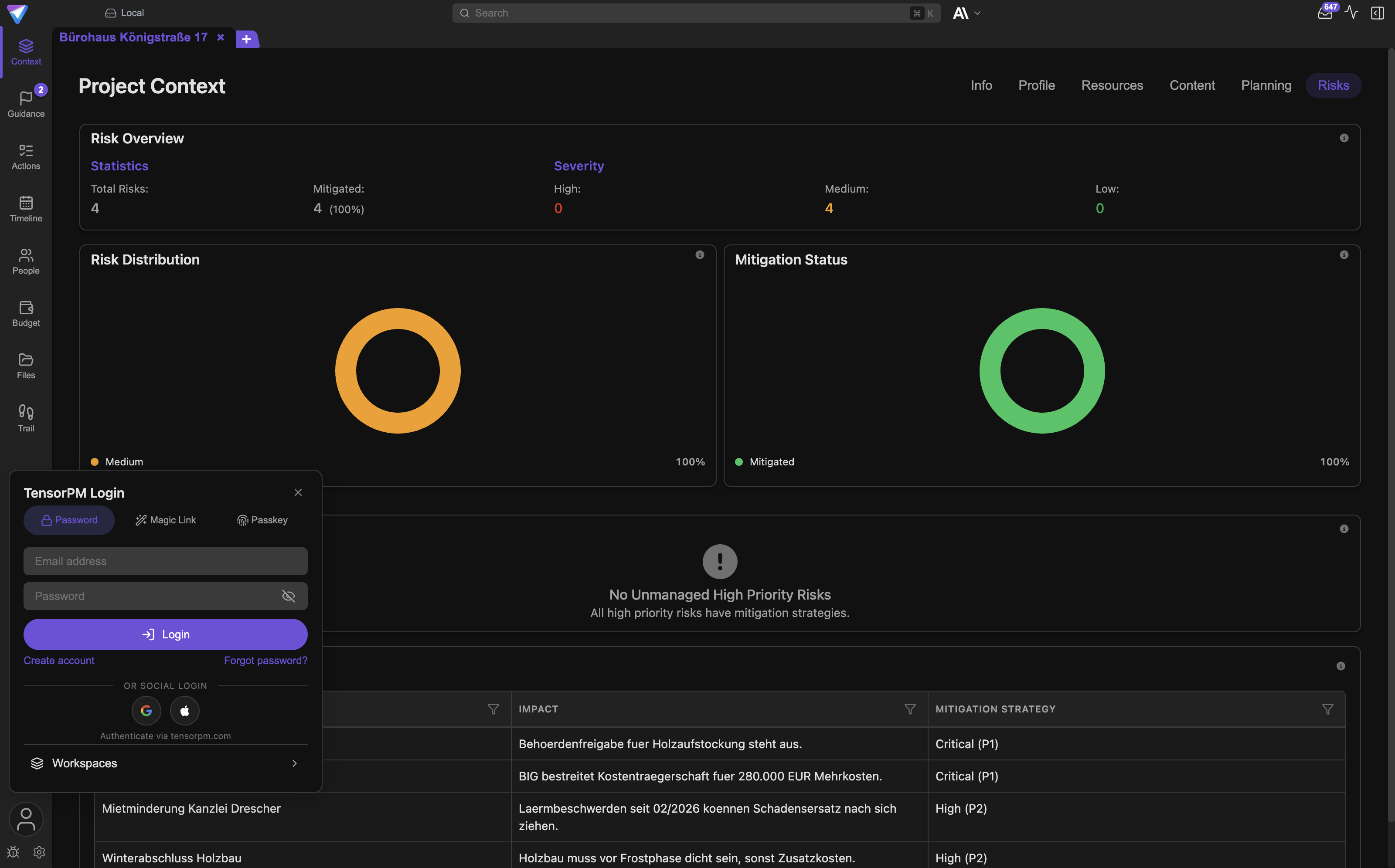
- Cancel the subscription: open the account popover at the bottom left and choose
Manage subscription, or sign in on tensorpm.com and chooseCancel subscriptionin the account area. The billing portal also lets you change payment methods and view invoices. Cancel before you uninstall, otherwise you have to sign in again through the website later. - Delete the account: this is not possible inside the app. Write to info@tensorpm.com and request deletion. Your account, encrypted content, recovery package and workspace metadata are then removed from the sync infrastructure.
More on plans and credits under Account & AI Modes.
Common questions
Are my projects gone if I simply drag TensorPM to the trash? No. The database and project folders live elsewhere and stay untouched. Reinstall TensorPM and everything is back.
I deleted everything. Can I get my projects back?
Only from a backup or from the cloud. If you have a .gitdbackup file, reinstall TensorPM and
choose Restore Backup. If you use cloud workspaces, sign in and TensorPM downloads the data
again. Without either, the data is lost.
Do I have to sign out first? No. It does no harm though, and on a device you are handing over it is the cleaner route.
What happens to colleagues in the same cloud workspace? Nothing. The workspace lives on the server. As long as your subscription carries the seat, everyone keeps working.
Does uninstalling count as removing the device for encryption?
If you tick Remove database, the device key disappears. For a new device you then need either a
second device that is still set up, or your recovery package.
Are my backups deleted too?
No. None of the routes described here touches the TensorPM Backups folder.
Do I lose my credits? No. Credits belong to the account and the billing period, not to the device.
Do I have to do anything before an update? No. The Windows uninstaller detects an update and skips every data deletion.
If something goes wrong
Message Another instance of the application is running
A second TensorPM window or a stuck process is still active. Close all windows, wait a moment and
start again. If that does not help, restart the machine.
Message Another uninstall process is already running
An earlier attempt was interrupted and left a lock file behind. Restart TensorPM and try again.
Message Uninstall failed
Open the log folder under Settings -> Info with Open Logs Folder and read the newest file.
The most common cause is a file still open in another program, for example a quote in Word or an
open folder in Explorer.
The Uninstall button stays greyed out
You ticked a deletion box and have not typed CONFIRM, or not exactly. It has to be uppercase and
without spaces.
The app is still in the Applications folder afterwards
Moving to the trash automatically can fail on permissions, especially when the app was launched
from the downloads folder. Just drag it to the trash by hand.
On Windows, TensorPM is still listed under apps
The step inside the app only cleans up data. You remove the program through
Settings -> Apps -> Installed apps or with winget uninstall --id Neo552.TensorPM.
The icon still appears after deletion Log out and back in once. On macOS the Dock is restarted anyway, but the app overview sometimes needs an extra sign-in.
My custom project folder was not deleted The Windows uninstaller removes a custom project folder only if TensorPM created and marked it itself. If your folder sits somewhere else, remove it by hand.
Next steps
- Back up first and restore later: Settings & Backups
- Try the less drastic fixes first: Troubleshooting
- What happens to cloud data: Sync and Workspaces
- Recovery package and device keys: Encryption
- Subscription, credits and plans: Account & AI Modes