
Materials & procurement
In short
The Material area is the list of everything the project has to buy and install. Each entry
records what is needed, how much of it, by when, at what estimated price, from whom, and how far
procurement has progressed. Progress runs through ten status levels, from Planned to
Completed. You maintain the list yourself, and the project agent can extend or analyse it on
request.
When you need this
Typical situations from a construction week:
- The structural engineer signs off the reinforcement. You want to record what now has to be requested.
- Three quotes are in, one is approved, two are not. You want to see which position is still open.
- The windows are ordered but only half delivered. You need one place where that is written down before somebody asks in the next site meeting.
- A component has a long lead time and is holding up the interior fit-out. You want it flagged as
Blockedso it does not get lost. - The client asks what the material has cost so far. You want to answer without opening a spreadsheet.
If your project buys nothing, you do not need this area. It is always there, but it stays out of the way while it is empty.
Where to find it
- Open a project.
- Click
Budgetin the left sidebar. - The view is called
Budget & Material. Two switches sit at the top centre:BudgetandMaterial. - Click
Material.
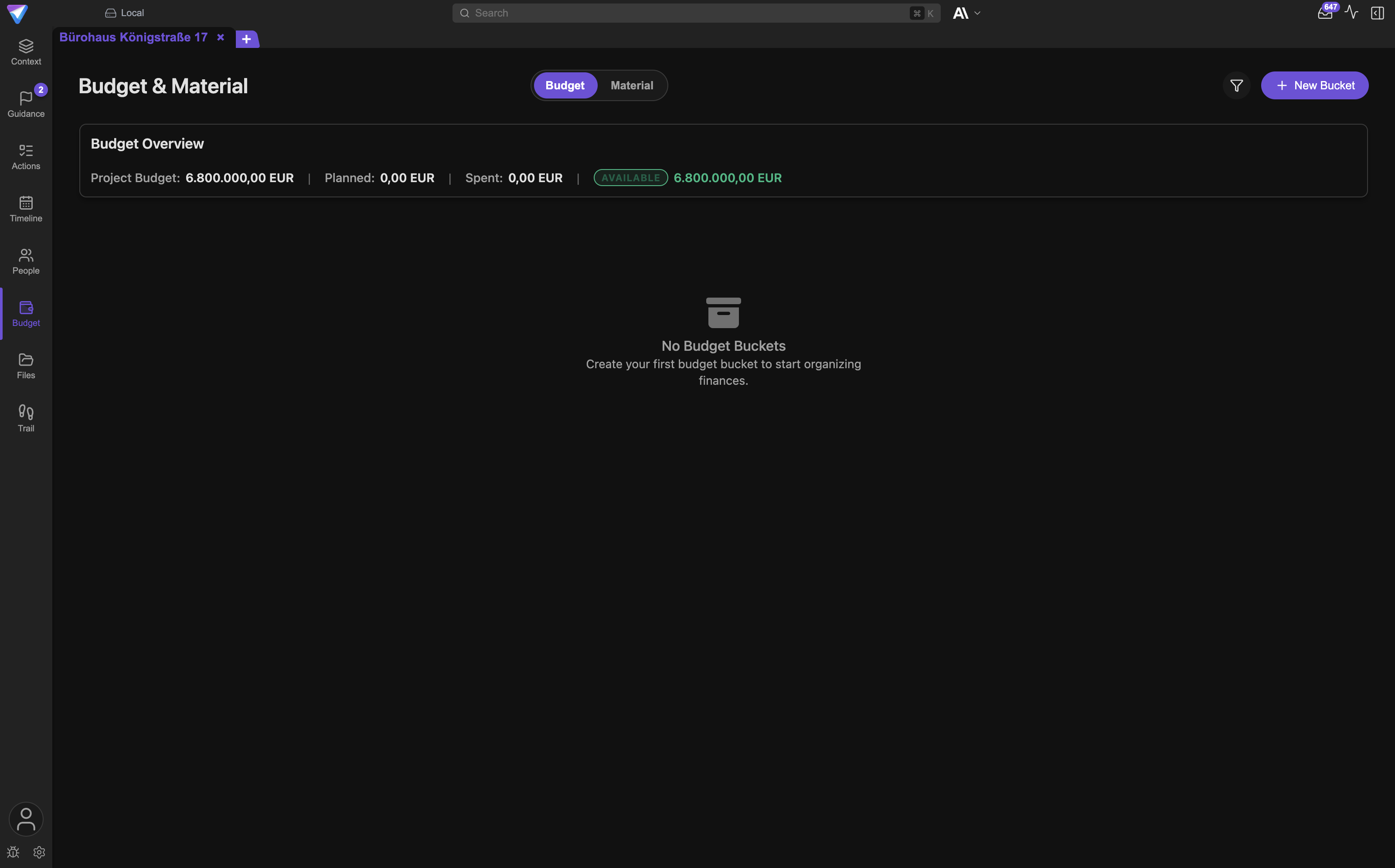
The switch does not survive a restart: when you reopen the project you start on the Budget tab
again and click Material once.
Important: The filter and column buttons in the top right belong to the
Budgettab. TheMaterialtab has its own buttons directly above the table.
Step by step: adding a material entry
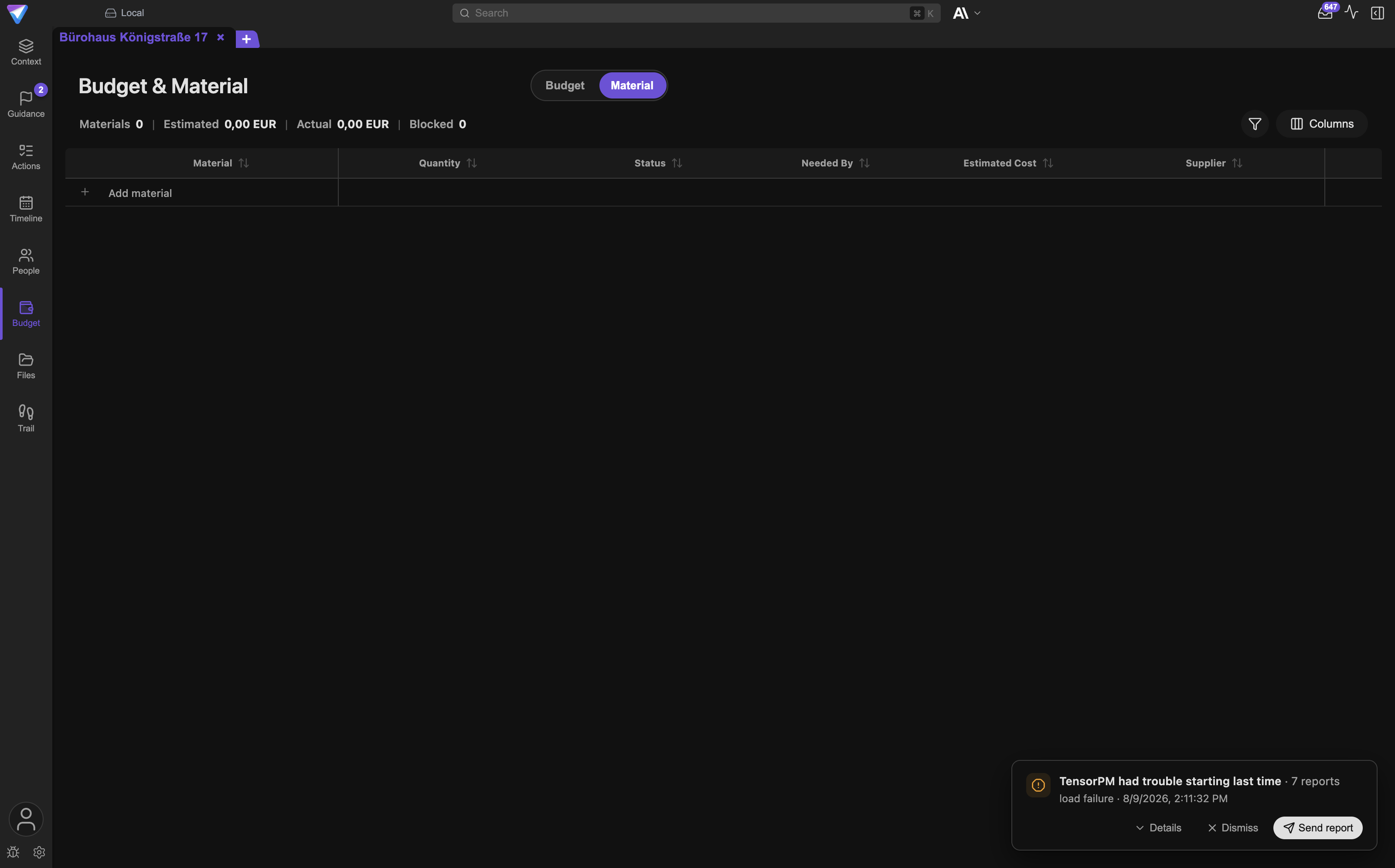
- Switch to the
Materialtab. The first row of the table is an invitation and readsAdd material. - Click that row. It turns into an input row with the cursor in the
Materialfield. - Type a name. The name is the only required field.
- Fill in the other fields as far as you know them:
Quantity,Unit,Status,Needed By,Estimated Cost,Supplier. - Press Enter, or click outside the row. Either one saves.
- You know it worked when the input row disappears and the entry sits below it as a normal table
row. The number next to
Materialsin the summary line goes up by one.
If you leave the Material field empty and click away, nothing is saved. The row simply
disappears.
Changing an entry
There is no separate edit mode. Every cell in the table is directly editable. Click into it,
change the value and press Enter, or click elsewhere. For Status and Needed By, TensorPM saves
as soon as you pick a value.
Deleting an entry
At the far right of every row sits a bin icon labelled Delete material. One click removes the
entry immediately, with no confirmation. There is no undo in this view.
Important: If an entry has sub-materials, they are not deleted with it. They move up one level in the list and stand there as entries in their own right.
The fields of a material entry
These columns are available in the table:
| Field | Meaning |
|---|---|
Material |
The name of the entry. Required. This column cannot be hidden. |
Quantity |
How much is needed. The cell holds two inputs: the amount on the left, the Unit on the right. |
Unit |
Free text, for example pcs, m2, t, set. |
Status |
One of the ten levels described below. Dropdown. |
Needed By |
The date the material has to be on site. Date picker. |
Estimated Cost |
The expected total amount for this position. |
Supplier |
The name of the supplier or subcontractor as free text. |
Quantity and unit
If you type a plain number into Quantity, it is stored as a fixed amount. A comma is accepted as
a decimal separator.
If you type anything else, for example 1 per apartment, TensorPM stores the text as a quantity
rule instead of a number. That is meant for amounts that still depend on another figure. The rule
is not calculated, it sits in the row as a reminder.
Estimated cost and currency
The amount in Estimated Cost is entered in the project's display currency and stored in the
storage currency. If those differ, TensorPM converts. You keep seeing the amount in the display
currency.
Important: Changing the storage currency in
Settingsconverts every existing amount. That includes material costs. Spot-check the figures afterwards.
Supplier
The field suggests suppliers you have already used in this project. Type the beginning of a known name and press Enter, and the full name is filled in and the entry is saved. That keeps spelling consistent, so the supplier filter finds everything later.
Fields only the project agent can fill
A material entry can hold more than the table shows. Through the project agent you can also maintain: description, notes, actual cost, price per unit, product code, manufacturer, lead time in days, delivery date, storage or installation location, and an external position reference from a bill of quantities.
Important: There is currently no table column for actual cost. The summary line shows the total under
Actual, but you cannot type it into the table. Ask the project agent if you want to track actual costs.
The ten status levels
Status is the heart of this area. It describes the path of a component from the first stated need to installation. TensorPM enforces no order: you can jump to any level at any time, including backwards. The column "who usually sets it" describes normal project practice, not a rule of the software.
| Level | What it means | Who usually sets it | How you know the next level is reached |
|---|---|---|---|
Planned |
The need is identified and named. Nothing has gone out yet. | Site or design management, at the moment the need appears | A request has actually gone out to a supplier. |
Quote requested |
The request is with the supplier, an answer is pending. | Site management or purchasing | A quote with a price has come back. |
Quoted |
A quote is on the table. Price and lead time are known, the decision is not made. | Purchasing, once the quote arrives | Somebody with budget authority has agreed. |
Approved |
Procurement is decided and released, the order has not gone out. | Client, project management or budget holder | The order has been placed with the supplier. |
Ordered |
The order is with the supplier. The lead time is running. | Purchasing or site management | The first delivery has arrived on site. |
Partially received |
Part of the quantity has arrived, the rest is outstanding. | Foreman or site management at goods-in | The remaining quantity has arrived and been checked. |
Received |
The full quantity is on site and accepted. | Foreman or site management at goods-in | The material is installed and the position is closed. |
Completed |
The position is done. The material is installed or consumed. | Site management after installation | Nothing further, this is the end of the normal path. |
Blocked |
Something is holding the position up: a missing approval, a late delivery, open design. | Whoever spots the bottleneck | The cause is cleared, and you set the position back to the level it was on. |
Cancelled |
The position will not be pursued. The need is gone or covered another way. | Project management or client | Nothing further, this is an end state. |
Blocked and Cancelled are side exits, not intermediate steps. You can set them from any level.
What status changes elsewhere in the app
Status is more than a label. Three things depend on it:
- The
Blockedfigure in the summary line counts every entry with statusBlocked. - Delay is detected internally when
Needed Bylies in the past and the status is notReceived,CompletedorCancelled. The project agent uses that count. - Critical positions are all blocked plus all delayed entries. The project agent picks that up too when you ask about the material situation.
That is why it pays to maintain Needed By, even roughly. Without a date, no delay can be
detected.
Sub-materials: breaking a component into its parts
Some positions are not a single delivery but a package. A window consists of a frame, glazing, fittings and mounting material, often from different suppliers and with different lead times.
- Click the arrow at the left of the row. The row expands.
- Below it, an invitation appears:
Add sub-material. - Click it and fill the row as described above.
- The new entry sits indented under its parent. A small number appears on the parent's arrow: the count of its direct sub-entries.
A sub-material can have sub-materials of its own. There is no depth limit. An entry cannot be placed under itself, and circular nesting is rejected when saving.
The first time you open a project, every entry that has sub-entries is expanded. What you collapse or expand after that applies to the current session.
Reading the summary line
Four values sit above the table:
| Value | What it counts |
|---|---|
Materials |
Number of entries currently visible |
Estimated |
Sum of the estimated costs of the visible entries |
Actual |
Sum of the actual costs of the visible entries |
Blocked |
Number of visible entries with status Blocked |
All four refer to the filtered list, not to the whole project. Filter by a supplier and you see that supplier's total. If a filter is active and a number looks too low, check the filter first.
When Blocked shows anything above zero, the number is highlighted.
Filtering, sorting and column settings
Two buttons sit above the table on the right.
Filter (funnel icon): opens a panel with a full-text search across name, unit, quantity rule,
supplier, product code, manufacturer, status, quantity and estimated cost. On top of that you can
filter by status (multiple choice), by supplier, by a date range for Needed By, and by an upper
and lower bound for Estimated Cost. When a filter is active, the button carries a dot.
Columns: hide columns, reorder them, and reset everything to the starting state. The
Material column always stays visible.
Sorting: one click on a column heading sorts by it, a second click reverses the direction, a third clears the sort. While sorting, sub-entries stay underneath their parent.
Drag the divider between two headings to change column widths.
Filters, sorting, column order and column widths are stored per project. Next time you open it, everything is set the way you left it.
How this relates to budget, actions and dates
Clarity matters more here than wishful thinking.
Budget: Material and Budget are two tabs of the same view, but two separate calculations.
The totals from the material list do not flow into the budget buckets on the Budget tab and do
not appear there as expenses. If a material position should affect the budget, add it on the
Budget tab as an expense as well. The common ground is the project currency.
Action items: A material entry is not an action item. Action items describe work somebody does,
material describes a thing that has to be delivered. There is no link between a material entry and
an action item. If procurement triggers work, such as "chase up the quote", create an entry for
that under Actions.
Dates: Needed By is a date inside the material list. It does not appear in the Timeline
area and creates no calendar entry. It drives the internal delay detection that the project agent
reads.
Work packages: Material positions are currently not attributed to a work package. The cost roll-up per work package in the Work Breakdown Structure (WBS) does not yet include material costs.
How the project agent helps
The project agent has its own route into the material list. Ask something in the chat that sounds like need, procurement, delivery or material cost, and the agent hands the task to that route and answers from what it read there.
Requests that work well in the chat:
- "Which positions are blocked or overdue?"
- "What is the estimated material cost so far?"
- "Create an entry for the second-floor windows, needed by the end of October."
- "Set the reinforcement to ordered."
- "Read the positions out of the attached bill of quantities and add them as material."
What the agent may change
The agent can create, change and delete entries. Fixed rules apply:
- It changes things directly only when you explicitly ask for it in the chat.
- When the trigger comes from outside, for example an email, a document or a PDF, it works in proposal mode. It changes nothing and puts the changes forward as proposals instead. Only your approval in the Distiller turns them into real entries. The Distiller proposes single, clearly bounded changes, each small enough for you to accept or reject on its own.
- It invents no suppliers, prices, dates or quantities. Whatever you did not supply stays empty.
- It is cautious about deletion: if a need simply falls away, it sets the status to
Cancelledrather than removing the row. It deletes only when you say so explicitly.
What stays a human decision
- The approval. Whether a quote is accepted is a human call. The agent sets
Approvedonly when you tell it the position was approved. - The order. TensorPM places no orders and sends nothing to a supplier. The status
Orderedis a note about something you did elsewhere. - Goods received. Whether a delivery is complete and free of defects is visible only to someone
on site.
Partially receivedandReceivedare human findings. - Prices and quantities from documents. When the agent reads positions out of a bill of quantities, those are proposals. Check quantities and units before you accept them.
- Deletion. A deleted position cannot be brought back from this view.
What happens in the background
Material entries live in the same local database as the rest of the project. They do not depend on an internet connection and work offline.
If the project belongs to a cloud workspace, material entries sync with it. A workspace is the container your projects live in. Colleagues with access to the same cloud workspace see the same material list, transmitted encrypted like the rest of the project data.
Deleting is technically a mark-as-deleted. The entry disappears from the list and from every total. That is why a deletion is reproduced cleanly on other devices.
When saving, TensorPM checks a few things: the name must not be empty, quantity and lead time must not be negative, the status must be one of the ten levels, and an entry must not be placed under itself or under one of its own sub-entries.
Common questions
Can I import material from a spreadsheet? There is no import button. The route is the project agent: attach the file in the chat and ask for the positions to be added as material. Check the result in the table afterwards.
Why is there no column for actual cost?
The table shows estimated cost only. The total of actual costs appears in the summary line under
Actual. Only the project agent can enter it at the moment.
Are the status levels configurable?
No. The ten levels are fixed. For extra distinctions use the Supplier field, the name, or the
notes field that the agent can maintain.
Can one position belong to several projects? No. A material entry belongs to exactly one project.
What happens to sub-entries when I delete the parent? They are kept and appear afterwards as top-level entries in the list.
Does the summary line count all entries or only the filtered ones? Only the filtered ones. All four values refer to what is currently in the table.
Does material status affect project progress? Not the progress figures of work packages. Blocked and overdue positions do feed into what the project agent says about the state of the project.
If something does not work
The entry is not saved.
The name is missing. Material is required. Without a name, TensorPM discards the row when you
leave it, with no message.
The quantity suddenly shows as text.
You typed something that is not a plain number, for example approx. 12 or 12 pcs. TensorPM
stored it as a quantity rule. Put the number alone into Quantity and the unit into the second
field next to it.
The list looks empty although entries exist.
A filter is active. The filter button then carries a dot. Open it and choose Clear All.
A sub-entry suddenly sits at the top level. Its parent was deleted, which moved the sub-entry up. Recreate the parent if you need it and add the entry there as a sub-material again.
Amounts look wrong after a currency change.
Changing the storage currency converts every existing amount. Verify the conversion on one or two
positions you know. If you are unsure, restore a Database Backup from before the change.
The project agent does not find the material list. Make the question more concrete and use the words material, delivery or procurement. The agent opens the material route only when the question clearly belongs there. Also check that an AI provider is set up at all.
Entries are missing on a second device.
The project sits in a local workspace, or sync has stopped. Check the sync indicator in the top
bar. If it says Local, nothing is transmitted.