
Encryption & Security
In short
TensorPM works on your computer first. As long as you work in a local workspace, no project content leaves your device. A workspace is the container that holds your projects.
Only when you use a cloud workspace does project data travel through TensorPM's servers, so that your devices and your team see the same state. That content is encrypted on your device beforehand. The server stores it but cannot read it.
Three things are on you in daily use:
- Set up the
Key Backupwhile your access still works. - Keep a second signed-in device available if you can.
- Secure the computer itself: screen lock, full-disk encryption, updates.
The sealed envelope
Picture sending a letter. You write it at home, put it in an envelope and seal it. The mail carrier takes the envelope across town. They see that a letter is on its way. They see who it goes to and when it was sent. They do not see what it says, because they cannot open the envelope.
That is exactly how TensorPM handles cloud workspaces. Your device seals project content before it is sent. TensorPM's servers are the mail carrier: they carry and store the sealed envelopes and hand them on to your other devices and your team. They cannot open them.
The key is what makes this work. It is not deposited with the mail carrier. It stays on your devices only. That is why the approach is called "zero knowledge": TensorPM knows nothing about the content. And that is why the flip side holds too: if all your keys are gone, nobody can open the envelope any more. Not even TensorPM. The rest of this article explains how you prevent exactly that.
When this matters to you
- You want to know what a vendor can see about your projects before you turn on Cloud Sync.
- Your procurement department or your client asks for a security statement.
- You get a new computer and want to continue your cloud projects there.
- A laptop is lost, or someone leaves the team.
- Your sync status shows
Keyringand synchronization will not start. - You run a project with confidential bids, variation orders or personnel data and have to explain where that data goes.
What is encrypted and what is not
This table is deliberately complete, including the places where TensorPM protects nothing. Encryption that is misunderstood is more dangerous than no encryption at all.
| What | On the TensorPM server | Note |
|---|---|---|
| Project name, description, goal, scope, timeframe, budget | encrypted | including project health and structure mode |
| Success criteria, milestones, requirements | encrypted | |
| Action items: text, description, status, priority, dates, block reason | encrypted | |
| Work packages and categories: name, WBS code, dates, budget, status | encrypted | |
| Effort, budget entries, time tracking, expenses | encrypted | |
| Material: name, quantity, supplier, prices, delivery dates | encrypted | |
| People: name, organization, email, phone, influence | encrypted | |
| Decisions and commitments including their rationale | encrypted | |
| Trail: change events, origin, summaries | encrypted | |
| Chat messages with the project agent, including tool calls | encrypted | |
| Analysis results, suggestions, AI activity history, token counters | encrypted | |
| Distiller change proposals and its own notes | encrypted | |
| AI summaries of files | encrypted | |
| Workspace name and workspace description | readable | needed for overview, invitations and billing |
| Workspace membership and roles | readable | controls who receives which data |
| Identifiers of projects, action items, files, workspaces | readable | nothing can be routed without them |
| Timestamps of the last change | readable | decides which version wins |
| Dependencies between action items (which to which, and the type) | readable | the item texts themselves stay encrypted |
| Role and label assignments for people | readable | the people's names themselves stay encrypted |
| References to external systems (ERP identifiers and similar) | readable | |
| Files in your project folder | never uploaded | they stay local, see below |
| Emails fetched by connectors | never uploaded | only on the device that fetched them |
| Provider keys and connector credentials | never uploaded | separate local store |
| This device's app settings | never uploaded |
Encrypted before anything leaves your device
Encryption does not happen on the server. It happens where you are. TensorPM collects the sensitive fields of a record, packs them into one encrypted parcel and sends only that parcel. On the server, those individual fields no longer exist as separate columns at all.
Each parcel is also bound to its place: to the workspace, to the kind of record and to that record's identifier. A parcel copied from one place to another can therefore no longer be decrypted. The attempt fails immediately.
Readable on the server, and why
The server has to understand a minimum, otherwise it can sort nothing. It has to know which workspace a parcel belongs to, who is allowed to receive it and when it was last changed. Without that it can neither enforce access nor decide which of two versions is the newer one.
Be honest about the consequence. Anyone with access to the server database could see that a workspace named "Königstraße 17 office building" had six action items changed yesterday at 14:20, and that person A and person B are members. What those items say stays hidden. So do not name a workspace after the most confidential detail of your contract.
What is never uploaded at all
A few things never reach the cloud, not even encrypted:
- Your project folder. The folder on your disk is an ordinary working folder, not a cloud
drive. Drawings, quotes and photos stay there. They are not synchronized and they are not part of
the
Database Backupeither. Keep your usual file backup. - Emails a connector fetched. They live only on the device that runs the connector. A second device does not see them.
- Credentials of any kind. More on that below.
- Your local app settings.
Important: The local TensorPM database on your disk is not separately encrypted. It is exactly as protected as the rest of your disk. So turn on your operating system's full-disk encryption: FileVault on macOS, BitLocker on Windows, LUKS on Linux.
Where your key lives
On first launch TensorPM creates a key pair for this device. It goes into a small file in the app's data folder, and that file is encrypted by the operating system:
- macOS: Keychain
- Windows: DPAPI, the built-in data protection interface
- Linux: the system key store, meaning GNOME Keyring or KDE Wallet
The file sits deliberately outside the project database. That way it survives updates, a restored
Database Backup and a rebuild of the database.
The second key is the workspace key. It encrypts the actual content. It is generated once and then packed into a separate envelope for each authorized device, an envelope only that device can open. Those envelopes live on the server. The server can pass them on but cannot open them.
In normal use you never need to think about this. You manage no key files and export nothing. It matters in exactly two moments: when a second device joins, and when a device is lost.
The Key Backup
There is exactly one safety line, and in the app it is called Key Backup.
Your key material is encrypted on your device with a password and only then sent to the server. The server receives the sealed parcel, the random value and the computation settings that turn a password into a key. The password itself is never transmitted.
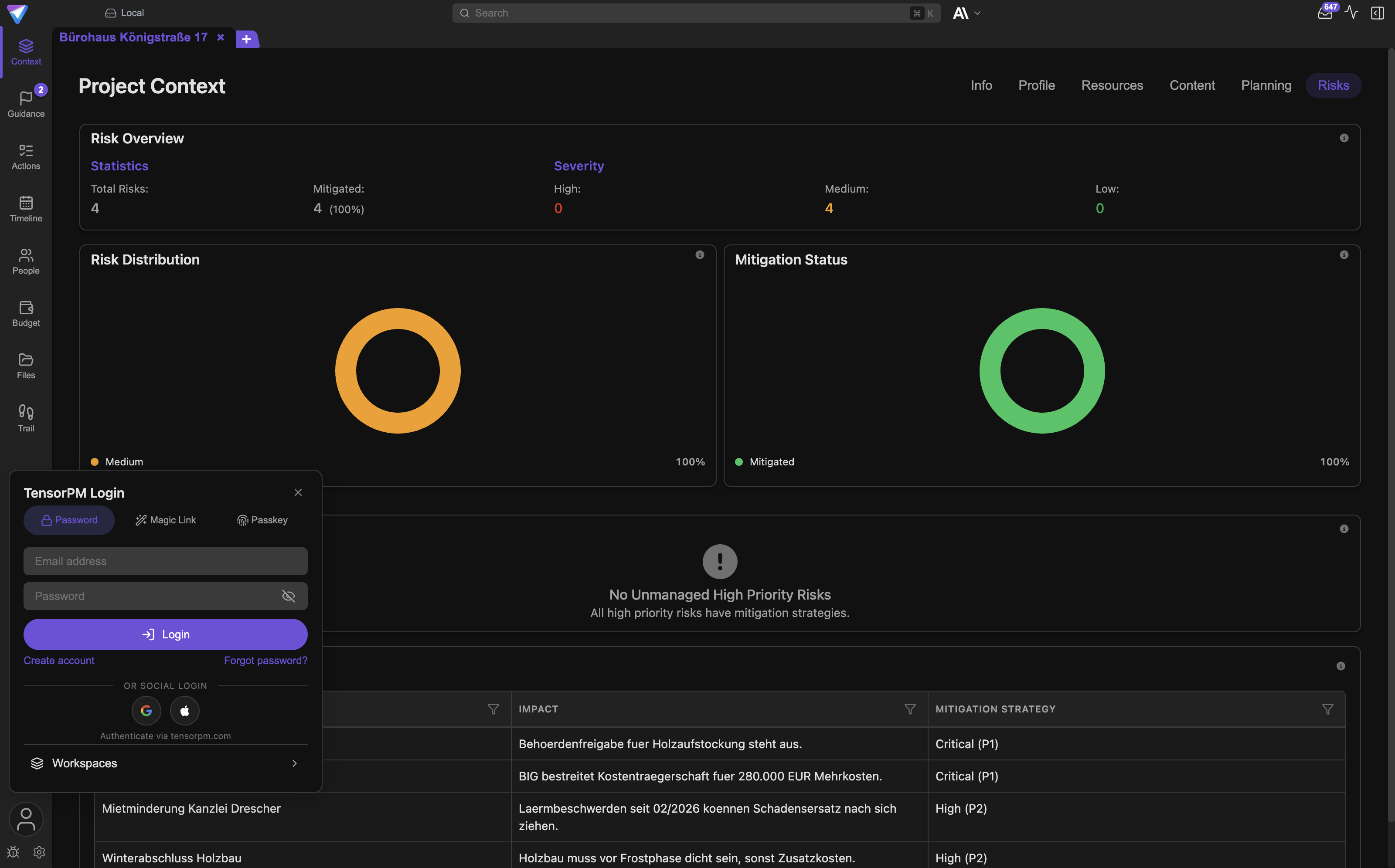
You find the card at the bottom left under Account. It only appears when you are signed in and
have at least one cloud workspace. Its state is shown as a badge next to it:
Not saved: there is no backup yet. This is the dangerous state.Update needed: a backup exists, but new workspace keys have appeared since.SavedorProtected: the backup is current.
Set up the Key Backup
- Click
Accountat the bottom left. - Find the
Key Backuprow. If it saysNot savedorUpdate needed, clickEnableorUpdate. - Enter a password. Use a strong, unique one and store it in your password manager. Your entire cloud content will later depend on this password.
- Click
Save. - A short confirmation appears and the badge switches to
Saved.
When you sign in with email and password, TensorPM creates the backup automatically and keeps it current. That only works with this sign-in method, because the app briefly holds your password. If you sign in with a passkey or a magic link, the app cannot refresh the backup. It then tells you that the key backup will be updated on your next sign-in.
Important: Check the badge after every new cloud workspace. A backup that does not contain the new workspace's key will not save that workspace.
Why TensorPM cannot restore your key
This is not a convenience choice and not a support policy. It follows from the construction.
The server has never seen a readable key. The device key is created on your device and only leaves it in a form the operating system has sealed. The workspace key exists on the server only inside envelopes addressed to other devices. And the Key Backup is sealed with your password, which TensorPM does not know.
Hence the hard sentence: if all your signed-in devices are gone and you have no Key Backup, or no longer know its password, the encrypted cloud content is gone for good. A support ticket changes nothing, because there is nothing support could decrypt.
Two consolations remain:
- Your local database on any device that still works is unaffected. The data is readable there. Pull
a
Database Backupfrom it, see Settings & Backups. - Files in your project folder were never encrypted and sit there unchanged.
Changing your TensorPM account password, by the way, decrypts nothing and re-encrypts nothing. It only affects sign-in. The Key Backup is refreshed with the new password at your next password sign-in.
Register a second device
- Install TensorPM on the second device. The install routes are in Getting Started.
- Sign in with the same TensorPM account. Prefer email and password, because only then can the app use the Key Backup.
- The new device creates its own key pair and registers the public part.
- Wait for the workspace key to arrive. Until it does, the sync status reads
Pendingand the workspace badge readsE2E Pending. - Once
E2E Readyappears and the sync status jumps toLive, the device is fully set up.
For step 4 there are two routes, and at least one must be open:
- A device that already holds the key is online. It notices the new device and leaves an envelope for it. So keep your old device running while you set up the new one.
- You signed in with a password and a Key Backup exists. Then the new device pulls the workspace keys straight from the backup.
If neither route is open, the workspace stays on E2E Pending. That is not a bug, it is the honest
state: the key simply is not there yet.
If you join someone else's cloud workspace, the same applies from the other direction. A team member who already holds the key has to come online once so your device gets its envelope.
Important: Removing a device is currently not possible in the app. There is no device list and no revoke button. If a computer is lost, contact info@tensorpm.com and additionally follow your organization's incident process. And assume that a device keeps the data it already received.
Reading the status
The sync status sits in the top bar. The E2E badges are shown per workspace under Account ->
Workspaces.
| Display | Meaning |
|---|---|
Local |
Local workspace. Nothing is uploaded, so nothing is encrypted either |
E2E Setup... |
Encryption is being set up right now |
E2E Pending / Pending |
The device is still waiting for the workspace key |
E2E Ready |
The workspace is encrypted and ready to use |
Live |
Synchronization is running |
Keyring |
The operating system offers no secure key storage, sync is off |
Encryption unavailable |
The longer form of the same message in the status details |
No access |
Your access to this workspace has been revoked |
Wait for E2E Ready before you invite a larger team. And do not shrug off Keyring: while it
shows, TensorPM does not synchronize at all.
Linux: the system key store must be unlocked
On Linux the whole chain depends on a condition that macOS and Windows satisfy by themselves. TensorPM puts the device key into the system key store, meaning GNOME Keyring or KDE Wallet. That store has to be two things: installed and unlocked.
What this means in practice:
- On a lean desktop or a minimal distribution there is often no key store installed at all. Then the foundation is missing.
- On a system with automatic login the key store usually stays locked, because it is normally unlocked by your login password. The store is there, but shut.
- In a remote session or on a machine without a graphical login the same thing happens.
If the store is unavailable, it looks like this:
- The sync status shows
Keyring. - The status details say that sync is disabled because encrypted key storage is unavailable, with the instruction to install and unlock GNOME Keyring or KDE Wallet and then restart TensorPM.
- Cloud Sync does not start. TensorPM would rather upload nothing than upload unencrypted. That is deliberate.
- Encryption of your AI keys is unavailable too.
How to fix it:
- Install GNOME Keyring or KDE Wallet through your distribution's package manager.
- Make sure it is unlocked at login. Usually that happens when your login password and the key store's password are identical.
- Turn off automatic login if you use it.
- Restart TensorPM.
- Check the sync status. It should move from
KeyringtoLive.
Local workspaces keep working normally the whole time. Only things that need a securely stored key are affected.
Further security measures
Provider keys and connector credentials
Both live in the same local credential store, and that store is never synchronized. Neither a second
device nor the server ever sees these values. The Configure Connectors panel says so in its own
subtitle: settings are local-only.
This covers, among others:
- your own provider keys for OpenAI, Anthropic, Google and Mistral (
Businessonly) - IMAP and SMTP credentials of the
Email Connector - sign-in data for
Microsoft 365 - bot credentials for
Telegram - the key for
Web Search - headers and environment values of MCP servers
These values are encrypted with the same system store as the device key. The switch is under
Settings -> AI -> AI Keys in the Encryption row, with the action Enable Encryption. If it
says (not available on this system) next to it, the operating system cannot store securely right
now.
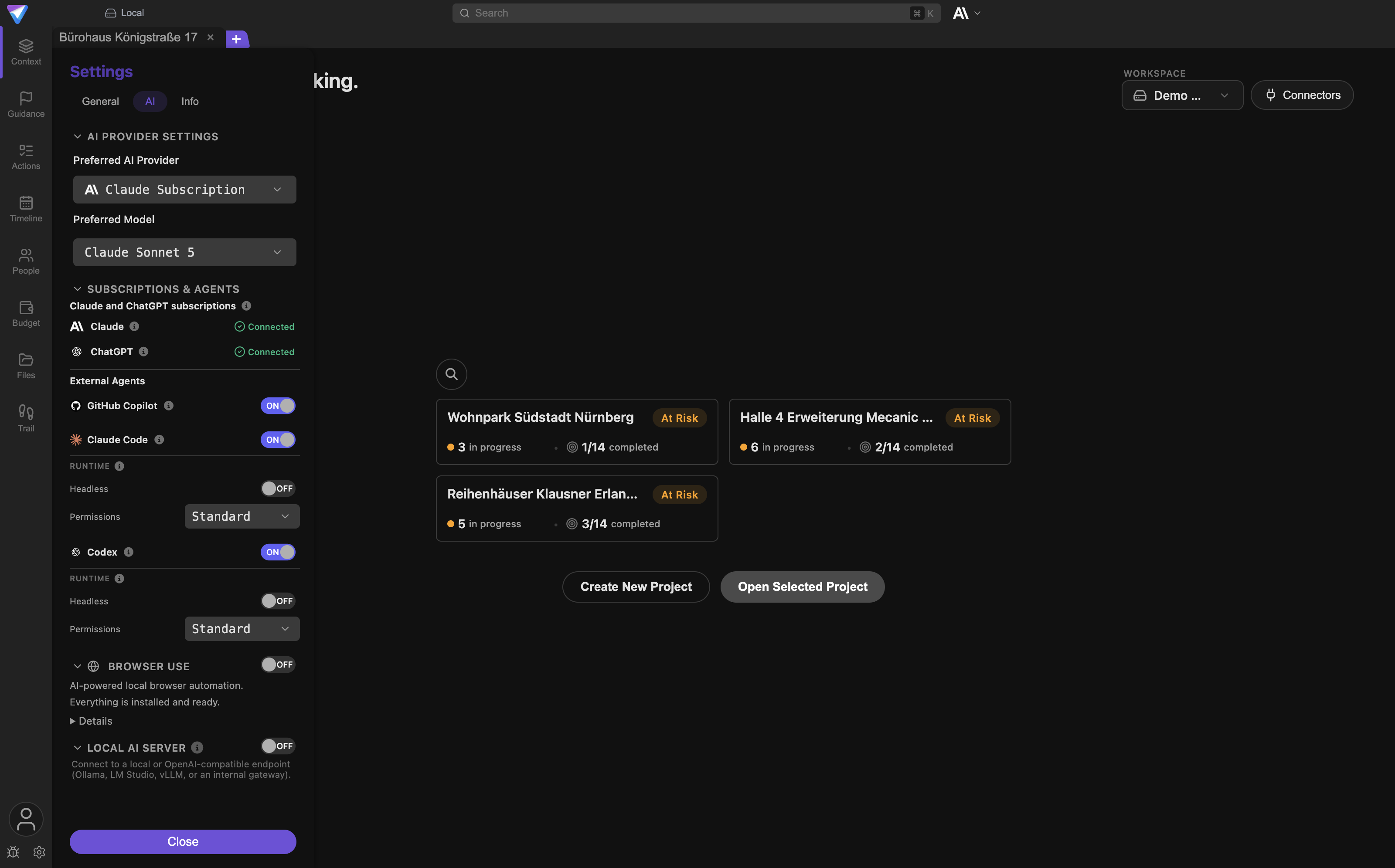
Important: If encryption is off or unavailable, TensorPM still stores provider and connector credentials, but then unencrypted in the local database. That is a deliberate fallback so nothing simply breaks. For confidential keys you should not accept it. Turn encryption on, or enter the key only once it is available.
What happens when you delete
Deleting acts in three separate places in TensorPM, and they are easy to confuse.
Delete a project. Through Settings -> Danger Zone -> Delete Project. The confirmation
states plainly that the step cannot be undone and that all project data will be permanently
deleted. In a cloud workspace the deletion is passed on to your other devices. Files in your
project folder are not touched.
Delete a workspace. Through Account -> Workspaces -> Delete workspace. This also removes
the basis for synchronizing that workspace.
Delete the account. This does not happen in the app but through info@tensorpm.com. It removes the account, encrypted content, key envelopes, the Key Backup and workspace administration data from the sync infrastructure. How long storage-level backups persist afterwards is described in the privacy statement at https://tensorpm.com/legal/privacy.
One point is easy to miss: deletion on the server does not clean up your local database. The copy on
your computer stays until you remove it yourself. That route is in
Uninstall & Data Removal: Settings -> Info -> Uninstall App, then tick
Remove all project files and Remove database and type CONFIRM.
What ends up in log files
TensorPM writes logs to your disk. They are not part of the cloud, they are not synchronized, and
they leave your device only if you send them yourself. You open the folder through Settings ->
Info -> Open Logs Folder.
What is in there:
- general logs about the app, database, file system and synchronization, mostly with shortened identifiers instead of full values
- separate AI logs with your prompts, the project context that was handed over, the tool calls and the model's answers
The second line is the important one. AI logs contain project content in the clear. Anyone with access to your computer can read them.
Cleanup happens automatically after three days; on top of that TensorPM keeps only the last ten sessions and caps each file at five megabytes.
For the support bundle under Settings -> Info -> Export Support Bundle:
- The dialog states explicitly that sensitive data like API keys is not included. Recognizable secrets are redacted and identifiers are obscured.
- The AI logs are not included by default. The
Include AI conversation logsswitch is off, and next to it is the warning that these logs contain your project content. - Turn it on only when an AI problem genuinely has to be investigated, and only for projects whose content you are allowed to share.
Privacy toward AI providers
This is where the biggest misunderstanding sits. End-to-end encryption protects your data on the way to the sync server and inside its database. It cannot protect an AI request, because a model has to read what it is asked to think about. A sealed envelope cannot be answered.
For one request, the following is transmitted:
- your message, or the action you triggered
- the slice of project context TensorPM selects for this question, for example goals, affected action items, dates, decisions or people
- the earlier messages of the chat
- descriptions of the available tools plus the results of tool calls that ran
- attached files and images, if you send any along
What is not transmitted: your whole project archive, other projects, your credentials, and files you did not attach.
With TensorPM credits
This is the default route on Trial and Pro. The request goes through the TensorPM proxy to a
model provider, and it consumes AI Credits.
Worth knowing:
- The proxy does not persist prompts and completions.
- Plain text requests go by default to a provider that serves from the US and globally and does not guarantee EU-only processing.
- Image and vision requests go through the Google Cloud route, which is configured for the EU region. That route also serves as the fallback during outages.
- Customer data is not used for training without authorization.
If your contract demands EU processing for every single AI request without exception, this route is the wrong one. Use your own provider keys with an EU provider, or a local model. The current breakdown is at https://tensorpm.com/SECURITY.md and https://tensorpm.com/legal/dpa.
With your own provider keys
Your own provider keys are available on the Business plan only. The route then changes
fundamentally:
- The request goes directly from your device to the provider you chose. The TensorPM proxy is not involved at all and does not see the request.
- No
AI Creditsare consumed. - The contract for that data is between you and your provider. Retention, region and training use follow your agreement, not TensorPM's.
- The key stays local on your device.
More on this in Account & AI Modes.
With a local model
If your model runs through Ollama, LM Studio or vLLM on your machine or in your network, nothing leaves the building for the AI request at all. That is the strictest route. You pay for it with compute, and usually with weaker results on long tool chains.
What TensorPM explicitly does not promise
This list belongs in a security statement just as much as the table above.
- No protection of your device. Anyone sitting at your unlocked computer sees your project in the clear, because that is where you work with it. Malware on the device sees it too.
- No extra encryption of the local database. Your operating system's full-disk encryption is responsible for that.
- No protection of metadata. Workspace name, membership, timing and the number of changes are visible to the server.
- No protection against a weak backup password. The method makes guessing expensive, but a password like "Summer2026" stays guessable.
- No pulling back data a former member already had. Revoking access works forward, not retroactively.
- No revoking of individual devices in the app. That function does not exist right now.
- No classic second factor. TensorPM supports password, email magic link and passkeys. A dedicated TOTP code of the kind authenticator apps generate is not currently offered.
- No encryption of AI requests. See the section above.
- No recovery by TensorPM. Neither support nor administration can decrypt your content.
Technical details
This section is for security reviewers, IT and procurement. The rest of the documentation does not need it.
| Purpose | Implementation |
|---|---|
| Content encryption | XChaCha20-Poly1305, authenticated, 256-bit keys |
| Nonce | fresh and random per operation, 24 bytes |
| Ciphertext binding | additional authenticated context of workspace, table and identifier |
| Key transport between devices | X25519 in sealed envelopes |
| Backup key derivation | Argon2id with 64 MiB memory, 3 iterations, 4 lanes |
| Cryptographic library | libsodium, no in-house crypto |
| Private key protection on the device | macOS Keychain, Windows DPAPI, Linux GNOME Keyring or KDE Wallet |
| Transport protection | TLS 1.2 and above, in addition to end-to-end encryption |
| Server location | Hetzner, Germany, EU |
Historical key versions are retained so older records stay readable after a key change. A device without a valid envelope receives no new workspace keys.
Transport encryption and end-to-end encryption serve different purposes. TLS protects the line. End-to-end encryption makes sure content stays unreadable even if someone gets hold of the entire server database.
The machine-readable version of these statements is at https://tensorpm.com/SECURITY.md. Vulnerability reports go to info@tensorpm.com, not into the public bug report.
Common questions
Does any of this apply if I work locally? Not the cloud encryption, because without a cloud workspace nothing is uploaded. The sections on provider keys, log files and AI requests apply to you regardless.
Can TensorPM read my projects? Not the content of your cloud workspace. Workspace names, membership and timing yes. And whatever you send to an AI model is seen by that model provider.
I forgot my account password. Is my data gone?
The account you can reset. For the cloud content it depends on whether a signed-in device still
exists, or whether you know the Key Backup password.
Is the backup password the same as my account password? For the automatic refresh during a password sign-in, yes. If you save the backup yourself through the card, you choose the password. Note down which one applies.
Do I have to export anything for a second device? No. There is no key file to carry over. The key arrives through the other device or through the Key Backup.
Why is my workspace name readable on the server? Because invitations, overview and billing need it. So pick a name that gives nothing confidential away.
Are my project files encrypted along with everything else? They are never uploaded in the first place. Only a file's AI summary travels along, encrypted; the file itself stays in your project folder.
What happens when I move from local to cloud?
The Enable Cloud Sync dialog explains the zero-knowledge principle, then the keys are generated
and the existing data is uploaded encrypted. The procedure is in Cloud Sync.
Do my team members see everything? Whoever has access to the workspace receives its key and therefore its content. Encryption separates you from the server, not the members from each other.
If something goes wrong
The sync status shows Keyring.
The system key store is unavailable. On Linux, follow the section above. On macOS and Windows this
is rare and usually points to a damaged user profile or a very strict security policy. In that case
export the support bundle through Settings -> Info.
The workspace stays on E2E Pending.
The workspace key is missing. Start a device that already holds it and leave it online. Or sign in
with email and password so the Key Backup takes effect. For someone else's workspace, a team member
has to come online once.
Key Backup permanently says Update needed.
A workspace key has been added since the last backup. Click Update, enter the password and save.
If you only ever sign in with a passkey, this never happens on its own.
Saving the backup fails. Check your internet connection, because the sealed parcel has to reach the server. If it keeps failing, sign out, sign back in and try again.
Individual records do not sync and the status reports an error.
A record cannot be decrypted, usually because the matching key is still missing. Open the status
details and use Retry failed uploads, then Restart sync service. More on this in
Cloud Sync.
A device was lost. Change your account password first. Then write to info@tensorpm.com, because device revocation is not in the app. Assume that the already synchronized data on the device is readable if no full-disk encryption was active there.
AI keys cannot be stored encrypted.
Next to Encryption it then says that secure storage is unavailable on this system. This is the
same cause as Keyring. Fix that first, otherwise your keys sit unencrypted in the local database.
Next steps
- Set up and understand synchronization: Cloud Sync
- Manage access and teams: Workspaces & Teams
- Plans, credits and your own provider keys: Account & AI Modes
- Backups, logs folder and support bundle: Settings & Backups
- Remove data completely: Uninstall & Data Removal
- General troubleshooting: Troubleshooting